
How to schedule AI coding agents: cron for Claude Code, Codex and 10 more
By CodeAgentSwarm · Updated October 31, 2026
How do I run an AI coding agent on a schedule?
Pick the option that matches where the work has to happen:
- The agent's own scheduler. Claude Code, Codex, Cursor, Devin and Cline have one that runs with no session open, some locally and some in the vendor's cloud. Antigravity CLI, Kimi Code and Copilot CLI repeat prompts inside the current conversation, and the Grok Build and Muse Code loops expire after 7 days. The per-agent guides below say what each one really offers.
- System cron plus a headless command. Most CLIs can run one prompt and exit (for example
claude -porcodex exec). cron calls it at the time you set. It is free and local, but you get a log file, not a conversation. - CodeAgentSwarm Scheduled Conversations. A schedule is a project, an agent, a prompt and a repeat rule. When the time comes the prompt goes to the agent on your computer, in a normal Chat you can read and continue. Same setup for every agent.
Native scheduler, cron or CodeAgentSwarm
| Native scheduler | cron + headless CLI |  CodeAgentSwarm | |
|---|---|---|---|
| Where it runs | Depends on the agent: Cursor and Devin run in their cloud, Claude Desktop and the ChatGPT desktop app run local tasks, Cline runs through its hub | Your machine | Your machine, in your project folder |
| Agents | Only that vendor's agent | Any CLI with a headless mode | All 12 supported agents |
| Result | Session or PR in the vendor's app | Text in a log file | A Chat you can read, answer and continue |
| Machine off at the set time | Cloud runs still happen; local ones wait or skip | The run is lost | One late run when the app opens (optional) |
| Change it from your phone | Depends on the vendor | No | Yes, in the Scheduled tab |
They are not exclusive. A cloud routine is the right tool for work that must happen with your laptop closed. CodeAgentSwarm is for work that needs your local files, your tools and your signed-in CLIs, and that you want to read like any other conversation.
Scheduling guide for each agent
Each guide checks what the agent offers on its own, from the official docs, and shows the CodeAgentSwarm setup for it.
| Agent | Built-in scheduling | Guide |
|---|---|---|
| Claude Code | Yes: cloud tasks (/schedule), local tasks in Claude Desktop, /loop in a session | Schedule Claude Code |
| Codex | Yes: scheduled tasks in the ChatGPT app, not in the CLI | Codex scheduled tasks |
| Cline | Yes: cline schedule in the CLI | Schedule Cline |
| Cursor Agent | Automations, run as cloud agents; not in the CLI | Schedule Cursor Agent |
| Devin CLI | Automations in Devin cloud; not in the CLI | Schedule Devin CLI |
| GitHub Copilot CLI | Experimental /every inside a session; GitHub Actions | Schedule Copilot CLI |
| Kimi Code | Cron tools inside a session only | Schedule Kimi Code |
| Grok Build | /loop, expires after 7 days | Schedule Grok Build |
| Muse Code | /loop, expires after 7 days | Schedule Muse Code |
| Antigravity CLI | /schedule inside the conversation; scheduled sidecars documented for the Antigravity app | Schedule Antigravity CLI |
| opencode | None in the CLI; GitHub Action with a schedule trigger | Schedule opencode |
| Pi | None | Schedule Pi |
Create a schedule in CodeAgentSwarm
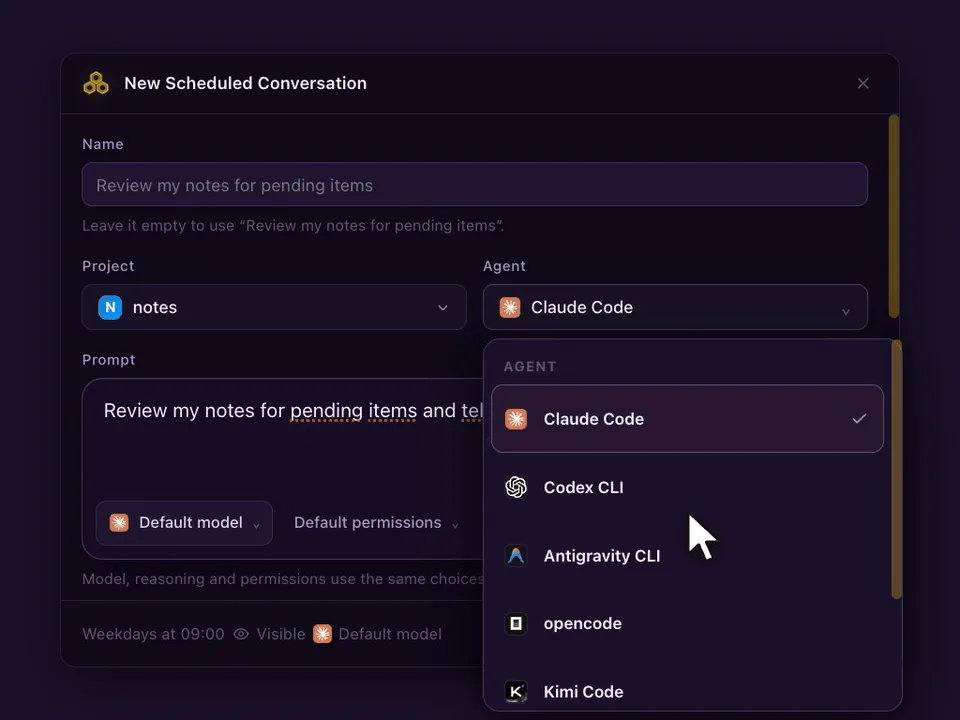
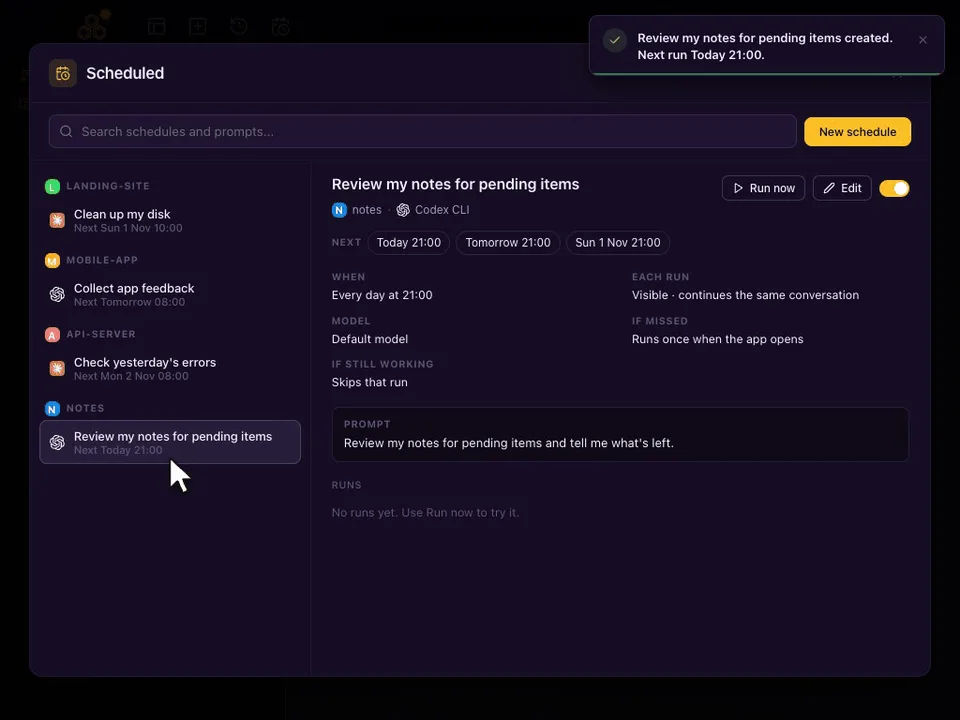
- Open Scheduled from the top bar and press New schedule. In any Chat, the send menu also has Schedule this prompt…, which starts from the prompt you already typed.
- Choose the Project and the Agent. Model, reasoning and permissions are optional and use the same choices as the Chat composer; leave them on Default to use the agent's own defaults.
- Write the Prompt: what the agent should do on every run. The name is optional; the first words of the prompt are used.
- Set When: When I run it, At set times or Every few hours, and the days.
- Choose How it runs (Visible or Headless) and what Each run does (continue the same conversation or start a new one), then Create schedule.
Repeat rules: set times, every few hours or manual
| Option | What it does |
|---|---|
| When I run it | Never starts by itself. Use it for a prompt you trigger with Run now. |
| At set times | Up to 24 times a day (24-hour clock, like 07:30 and 21:00) on the days you pick. |
| Every few hours | Every 1, 2, 3, 4, 6, 8 or 12 hours on the days you pick. |
Days have three one-tap presets, Every day, Weekdays and Weekends, plus a chip for each day. The editor shows the next three runs before you save, so you can check the rule does what you meant.
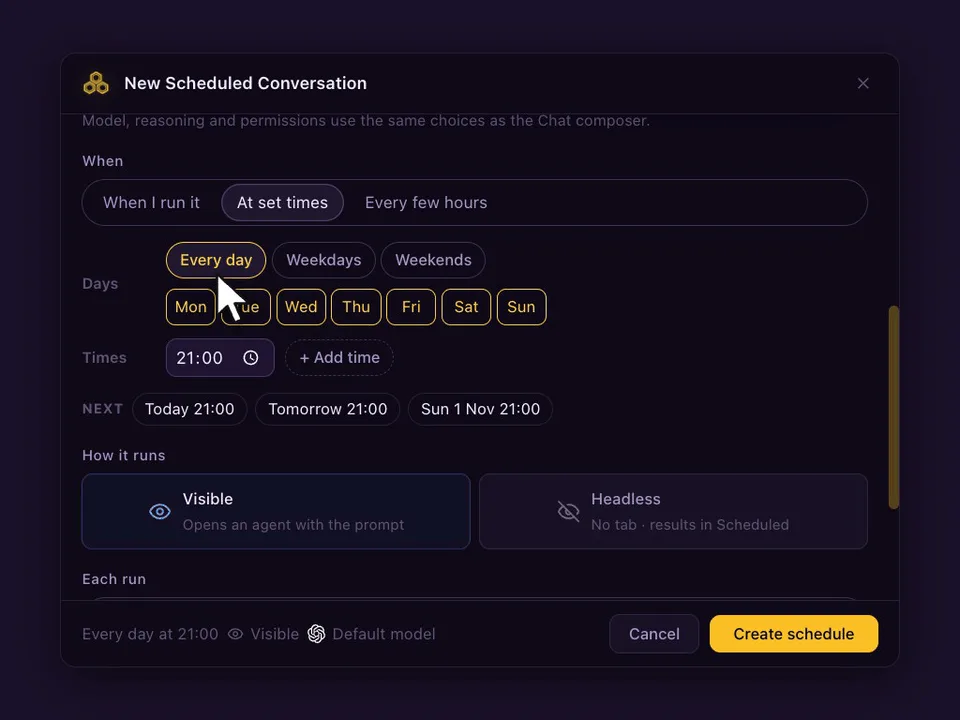
Times use the clock of the computer that runs the agent. If you edit a schedule from your phone in another time zone, the Scheduled tab tells you which clock the times use.
Visible or headless, continue or start fresh
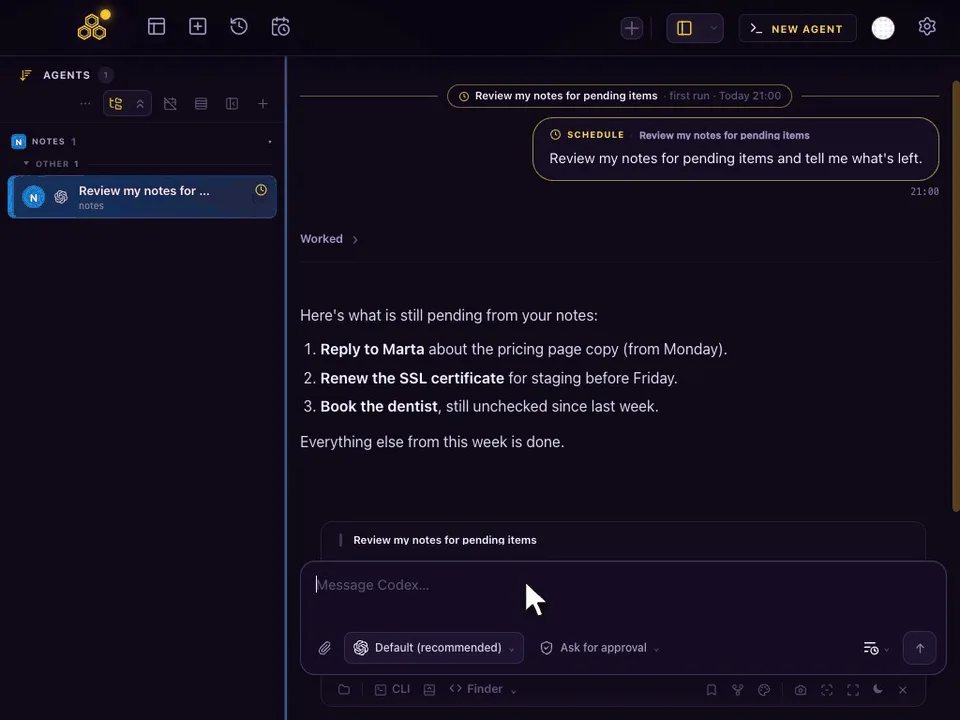
- Visible opens an agent with the prompt, like a session you started yourself. If that agent is already open and idle, the prompt goes straight to it; it never opens a second copy.
- Headless runs with no tab. The result shows in the Scheduled window, and Open as agent turns it into a normal session when you want to keep going.
- Continue the same conversation sends each run to the same thread, so the agent remembers yesterday. If you change the agent, model, reasoning or permissions, the next run starts a new conversation instead of feeding an old session with old settings.
- Start a new conversation gives every run a clean context.
What happens when the app is closed or the agent is busy
- If missed, run when the app opens (on by default). A slot passed while the app was closed or the computer was asleep: it runs once, marked as late. A week away gives one late run, not seven.
- Turn it off and missed slots are skipped; the schedule waits for its next time.
- Skip if still working (on by default). If the previous run is still working, that scheduled slot is skipped. Turn it off and the prompt waits in the agent's queue instead. Run now always queues.
- Git Worktree gives each new agent its own worktree, so a scheduled job does not touch the checkout you are editing.
Schedules run on your computer, not in a cloud. CodeAgentSwarm has to be open and the computer awake at the set time; otherwise the late-run option catches up when you come back.
Let an agent or your phone manage schedules
Agents get four tools through the CodeAgentSwarm MCP server: list_schedules, save_schedules, run_schedule and delete_schedules. Ask in plain words and the agent creates or edits the schedule; it only changes schedules when you ask. Swarmi, the in-app assistant, uses the same tools.
Create a schedule for this project: every weekday at 08:30,
Codex reads yesterday's CI failures and opens a task for each one.
Visible, continue the same conversation.
The CodeAgentSwarm phone app has a Scheduled tab for each connected computer. You can list schedules, edit them, pause them, press Run now and open a run's conversation.
Jobs that work well on a schedule
- Every weekday at 08:30: read new feedback or issues and turn each one into a task on the board.
- Every 6 hours: run the test suite and explain any new failure.
- Every night: check dependencies for updates and security notes, without changing files.
- Sundays at 10:00: clean build caches and report what was removed.
Start read-only. Watch two or three runs, then give the schedule more permissions if you trust the result. Pair a schedule with notifications so you hear when a run needs input, and with Git worktrees when it edits code.
FAQ
Can I put an AI coding agent on cron?
Yes. Most agent CLIs have a headless mode that runs one prompt and exits, and cron can call it. You get a log, not a conversation. CodeAgentSwarm gives you the schedule plus a Chat you can continue.
Does CodeAgentSwarm run schedules when my computer is off?
No. Runs happen on your computer while CodeAgentSwarm is open. With "If missed, run when the app opens" on, a missed slot runs once when you open the app.
Which agents can I schedule in CodeAgentSwarm?
All 12 it supports: Claude Code, Codex, Antigravity CLI, opencode, Kimi Code, Grok Build, Cursor Agent, Pi, Devin CLI, Muse Code, Cline and GitHub Copilot CLI.
How often can a schedule run?
Up to 24 set times a day on chosen days, or every 1, 2, 3, 4, 6, 8 or 12 hours. A manual schedule runs only when you press Run now.
What if the previous run is still working?
By default that slot is skipped. Turn off "Skip if still working" and the new prompt waits in the agent's queue instead.