
How to schedule opencode: cron with opencode run, or CodeAgentSwarm
By CodeAgentSwarm · Updated October 31, 2026
opencode run, the official GitHub Action with a schedule trigger, or CodeAgentSwarm Scheduled Conversations on your own machine.How do I put opencode on a cron?

- Local, log only: cron calls
opencode run. - On GitHub runners: the official opencode GitHub Action with
on: schedule. - Local, with a conversation: CodeAgentSwarm runs opencode at the times you set and keeps every run in a Chat.
What opencode offers on its own
The CLI reference has no schedule command. The official GitHub integration accepts a schedule cron trigger, which runs on GitHub's machines against your repository.
An opencode cron job with opencode run
# crontab -e: every 6 hours
0 */6 * * * cd ~/code/my-app && opencode run "Run the tests and explain new failures. Do not edit files." >> ~/logs/opencode-cron.log 2>&1
opencode run accepts -m for the model and --format json for machine-readable output, and can attach to a running opencode serve. opencode CLI docs
Schedule opencode in CodeAgentSwarm
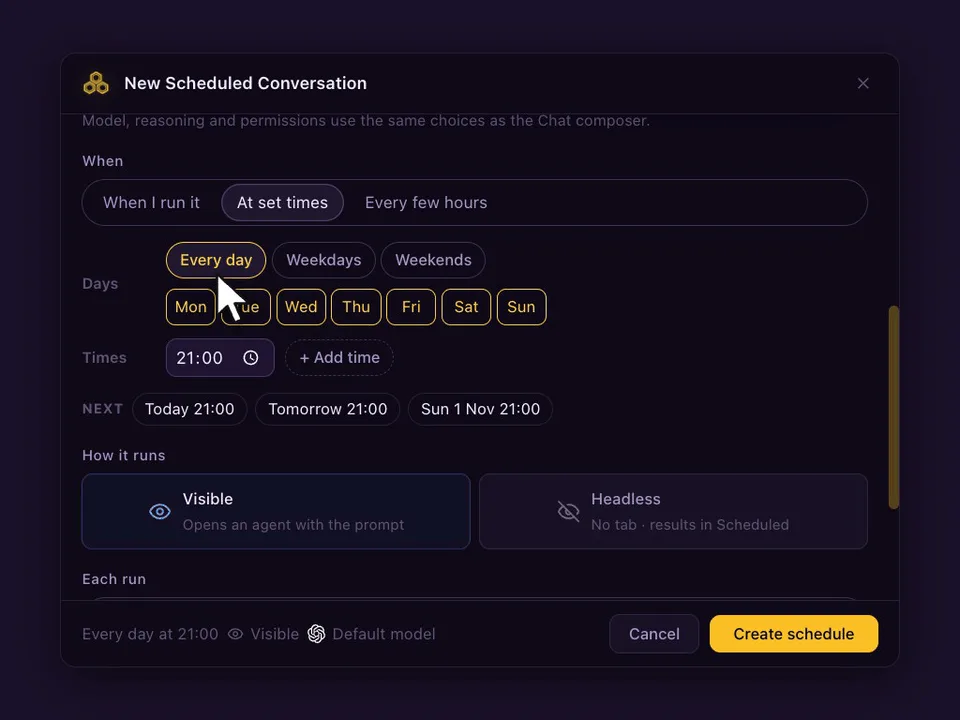
- Open Scheduled in the top bar and press New schedule. Or type the prompt in a opencode Chat and pick Schedule this prompt… from the send menu.
- Pick the Project and choose opencode as the agent. Model, reasoning and permissions are optional: leave them on Default or set them like in the Chat composer.
- Write the prompt the agent should run every time.
- Under When, choose At set times (up to 24 a day), Every few hours (1, 2, 3, 4, 6, 8 or 12) or When I run it, and the days.
- Choose Visible (opens a Chat) or Headless (no tab, result in Scheduled), and whether each run continues the same conversation or starts a new one. Press Create schedule.
Prompts worth scheduling with opencode
- Every weekday at 08:00: pull the latest main, run the tests and report what broke overnight.
- Every 12 hours: check the error log in this project and group new errors by cause.
- Saturdays at 10:00: look for unused files and exports and list them, without deleting anything.
opencode works with many providers. Set the model in the schedule if a job must always use the same one; leave it on Default to follow your opencode configuration.
What happens on each run
- With Continue the same conversation, a visible run goes to the opencode agent that already holds the conversation, and never opens a second copy. With Start a new conversation, each run opens a fresh agent. If it is busy, Skip if still working (on by default) skips that slot; turn it off and the prompt waits in the queue.
- The Chat marks every scheduled run, so you can tell your own messages from the scheduled ones and reply to a run like any other message.
- If CodeAgentSwarm was closed or the computer asleep at the set time, If missed, run when the app opens runs it once, late. A week away gives one run, not seven.
- Schedules run on your computer, so CodeAgentSwarm has to be open. Your phone can list, edit and run them from the Scheduled tab.
FAQ
Does opencode have a built-in scheduler?
No. The CLI has no schedule command. You can use cron with opencode run, the GitHub Action with a schedule trigger, or CodeAgentSwarm.
Can I schedule opencode with a different provider per job?
Yes. In CodeAgentSwarm each schedule can set its own model; in cron, pass -m to opencode run.
Does the GitHub Action run on my machine?
No. It runs on GitHub Actions runners against the repository. For local files and your local setup, use cron or CodeAgentSwarm.