
Run multiple GitHub Copilot CLI sessions in parallel
By CodeAgentSwarm · Updated October 31, 2026
copilot sessions as you like, each in its own terminal and folder. Copilot also has two ways to parallelize from inside a session: /fleet starts subagents, and /delegate hands a task to the cloud agent on GitHub. This guide explains when each one fits, how to keep parallel sessions from editing the same files, and why the monthly AI credits matter more once several sessions run at once. If you have not installed Copilot CLI yet, start with how to install and use GitHub Copilot CLI.Yes, you can run several Copilot CLI sessions at once

Each time you run copilot you start a separate session with its own conversation, model and working folder. Copilot saves it in ~/.copilot/session-state/<id>/, so two sessions never share context. Open a second terminal, run copilot again, and you have two agents working at the same time.
That is the simplest way to run a Copilot swarm. GitHub also gives you two built-in options that work from inside a single session. The next section compares the three.
GitHub Copilot CLI support arrives in CodeAgentSwarm 2.5.0, in beta. The app behavior described here was checked during 2.5.0 development.
Separate sessions, /fleet and /delegate
| Option | Where the work runs | Good for |
|---|---|---|
Several copilot sessions | Your machine, one process per terminal, each in its own folder | Independent tasks you want to follow and review one by one |
/fleet or --fleet | Inside one session: the main agent splits the prompt and runs subagents in parallel | One task that breaks into independent pieces |
/delegate or the & prefix | Copilot cloud agent on GitHub, on a new branch with a draft pull request | Work you hand off and review later as a pull request |
With /fleet, the main agent decides whether the prompt can be split and acts as orchestrator for the subagents. GitHub notes that subagents use a low-cost model by default, and that splitting work this way may consume more AI credits than letting the main agent do it. /tasks lists the subtasks while they run. You can also start a session in fleet mode from the command line:
copilot --fleet -p "Refactor the utils package and update everything that calls it" --allow-tool write/delegate sends the task to the cloud. Copilot offers to commit your unstaged changes as a checkpoint on a new branch, then the cloud agent opens a draft pull request, works in the background and asks you for a review. It keeps going even if you turn off your computer.
You can combine them. Subagents from /fleet stay inside their parent session, so a swarm of separate sessions can still use /fleet in any of them. Separate sessions are the right choice when the tasks have nothing to do with each other and you want to see each one finish on its own.
Doing it by hand with terminal tabs
Without any extra tool, give each task its own git worktree and start a named session in each one:
# one worktree per task
git worktree add ../app-auth -b feat/auth
git worktree add ../app-tests -b chore/tests

# terminal tab 1
cd ../app-auth && copilot -n auth

# terminal tab 2
cd ../app-tests && copilot -n tests

# later, pick up a session by name
copilot --resume auth
The first time Copilot opens in a new folder it asks whether you trust it, so expect that question once per worktree. After that, the tabs work, but the overhead grows with every session you add:
- No alert when a session finishes or stops to ask for approval.
- The tabs tend to look the same, so you click through them to find the one waiting.
- Searching old conversations means digging through
~/.copilot/session-statefolder by folder. - Your other agents, such as Claude Code or Codex, live in other windows.
Running the swarm in CodeAgentSwarm
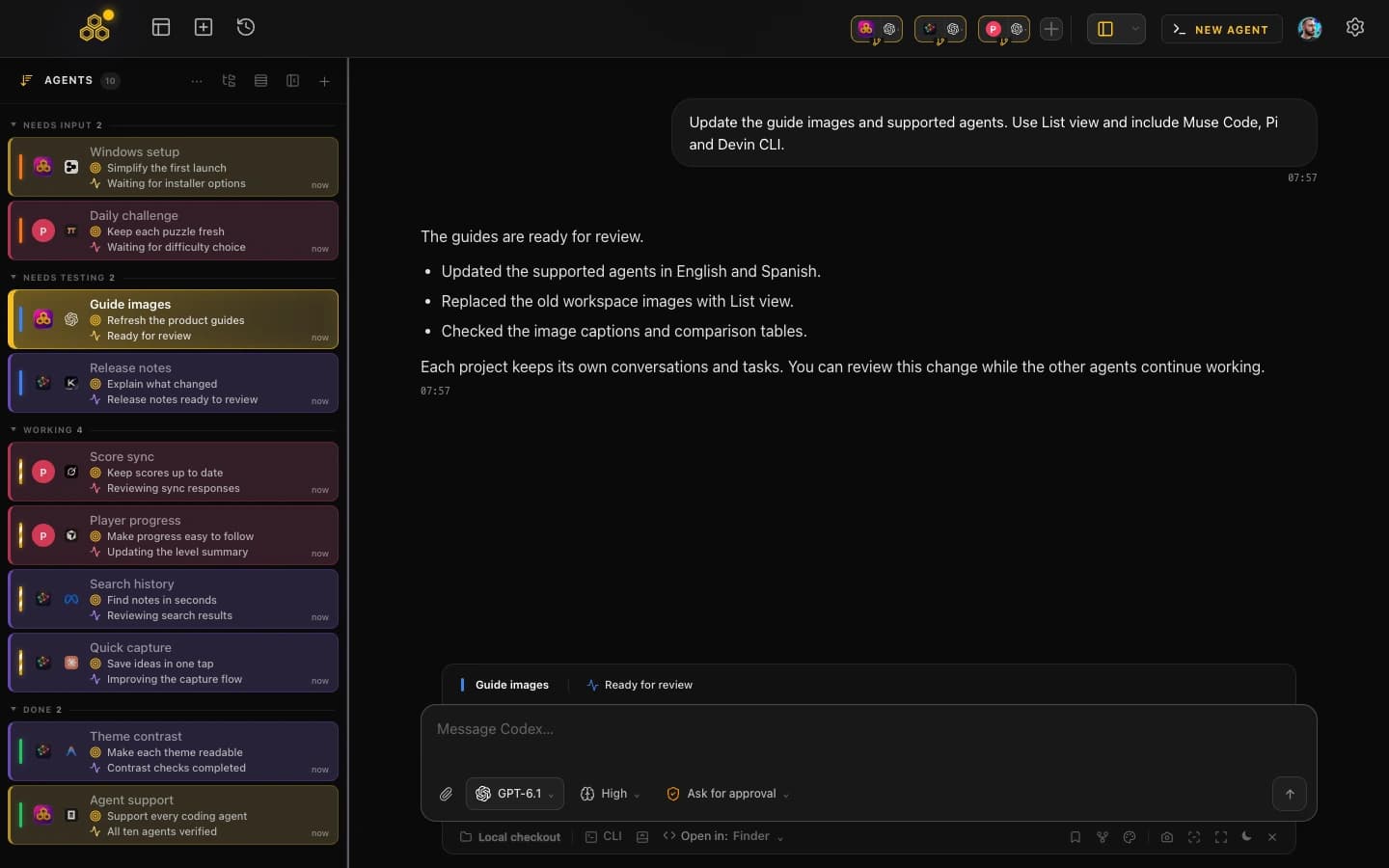
CodeAgentSwarm puts every session in one window. Pick GitHub Copilot CLI in the agent picker for each session you want, and open each one in its own project or git worktree. Copilot sessions sit next to Claude Code, Codex, OpenCode, Kimi Code, Antigravity, Grok Build, Cursor Agent, Pi, Devin CLI, Muse Code and Cline.
Grid, tabs or list
Grid shows several sessions side by side. Tabs give each one the full window. List shows every session as a row with its agent, status and current activity, which is the fastest way to scan a large swarm.
Notifications and status per session
In Chat, each Copilot session shows whether it is working or waiting for you, and you get a desktop notification when it finishes or needs you. You stop checking tabs and come back when a session actually needs you. More on that in CodeAgentSwarm notifications.
Chat or terminal for each session
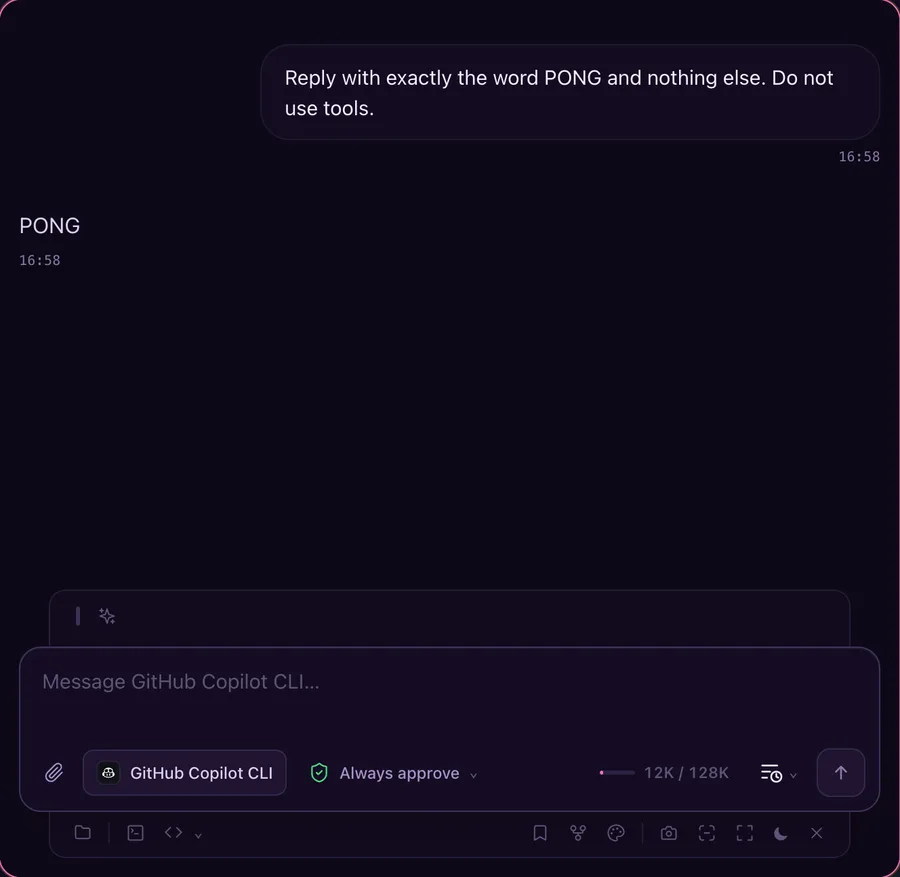
Chat talks to Copilot through its ACP server, with the model picker, the Agent, Plan and Autopilot modes and permission requests you approve in place. The terminal view runs the normal copilot interface, and switching keeps the conversation. Run fleet prompts from the terminal view.
One history for every session
Conversation History lists your Copilot sessions, filters them by agent and project, searches their messages and reopens any of them in Chat or in the terminal. Subagent turns from /fleet stay inside their parent conversation instead of showing up as separate rows.
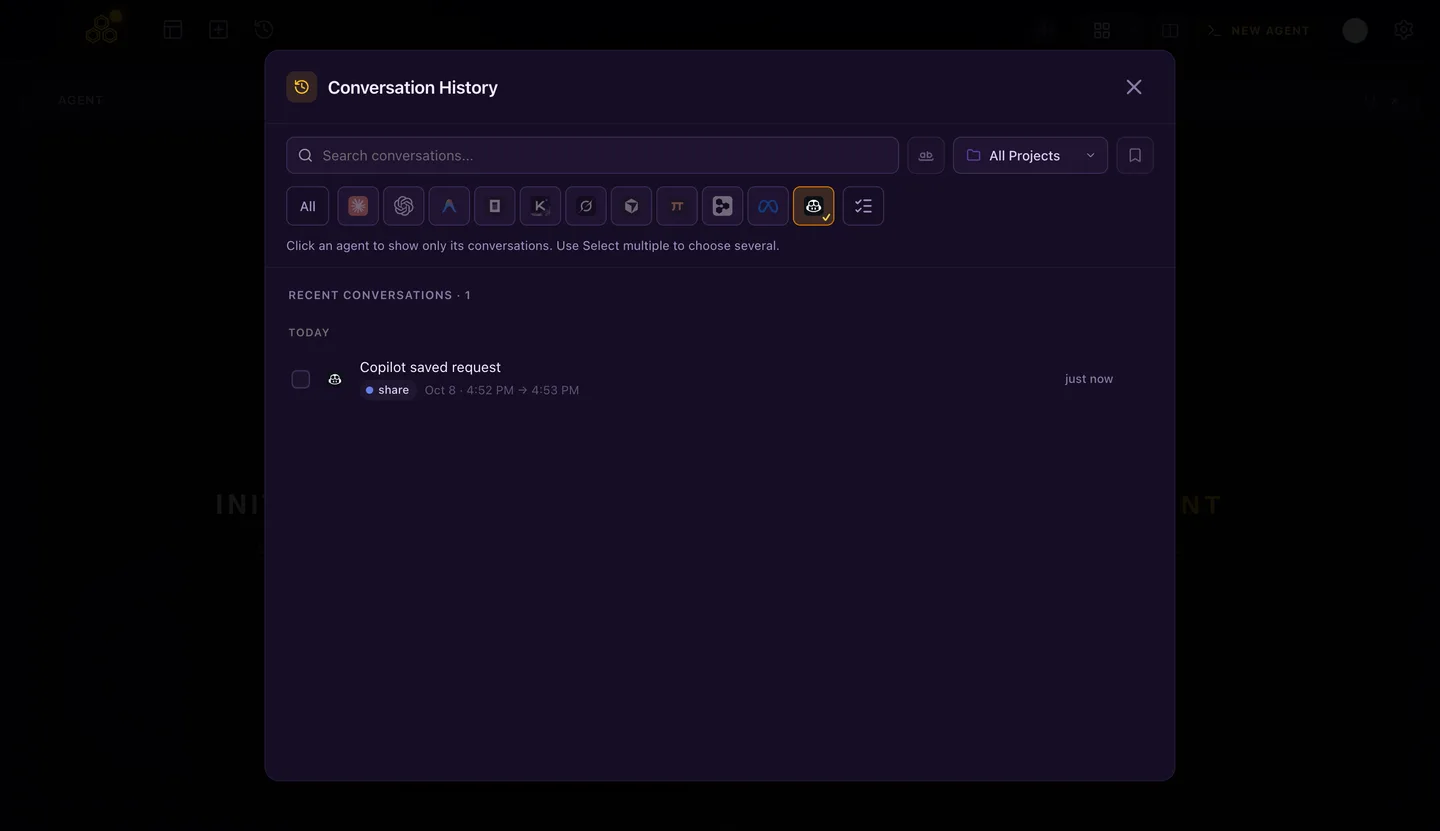
The Always approve permission level equals copilot --yolo. In a swarm it saves you approvals, but every session can then edit and run commands on its own. Read GitHub Copilot CLI YOLO mode before you turn it on everywhere.
How to split work and avoid file conflicts
- One task per session. A clear goal per session is easier to review than one session juggling three changes.
- One git worktree per session. Each session edits its own copy of the repository on its own branch, and you merge through git when it is done.
- Name the sessions.
copilot -n authmakes the session easy to find and resume later. - Keep shared files with one owner. Lockfiles, migrations and shared config should change in a single session, not in three.
- Keep folder access narrow. By default Copilot can only touch the working folder, its subfolders and the system temp folder.
--add-dirwidens that, so use it only when a task really needs another folder.
Two sessions started in the same folder work on the same files and can overwrite each other's changes. Separate worktrees avoid that.
For the details of worktrees, see git worktrees for AI coding agents and git worktree vs branch for parallel agents.
Keep an eye on the monthly AI credits
Every Copilot CLI session draws from the same monthly allowance. Pro includes 1,500 AI credits a month, Pro+ 7,000 and Max 20,000. Copilot Free has no AI credits and runs the CLI with automatic model selection inside a limited monthly Chat allowance. The allowance resets at 00:00 UTC on the first day of each month, and unused credits do not carry over. With a budget set, extra usage costs $0.01 per credit. Source: GitHub billing for individuals, checked October 8, 2026.
Several sessions working at once empty that pool faster than one. A few habits help:
- Check the remaining budget in the Copilot footer, and run
/usagein a session to see what it has used so far. - Pick the model per session with
/model.autolets Copilot route each request. - Remember that
/fleetmay consume more credits than the same task done by one agent. - In CodeAgentSwarm, the usage panel shows the Copilot monthly allowance and reset date next to your other agents. It reads it from an environment token or a signed-in GitHub CLI, never from the keychain.
Plans, models and the usage panel are covered in GitHub Copilot CLI models, AI credits and usage limits.
Limits to know
- The ACP server that Chat uses is a public preview. Commands that need a picker, such as
/login,/resumeor/diff, do not work inside Chat. - Reasoning effort is a launch option (
--reasoning-effort), so Chat has no effort selector for Copilot. - Subagent text can appear inline in the Chat stream.
- The terminal asks for folder trust once per folder, which means once per new worktree.
To compare Copilot with other agents you can run in the same swarm, see GitHub Copilot CLI vs Claude Code and AI CLI agent swarm.
FAQ
Can I run multiple GitHub Copilot CLI sessions at once?
Yes. Every copilot command starts an independent session with its own conversation and working folder. Open several terminals, ideally one git worktree each, and run copilot in each one.
What is the difference between /fleet and running several sessions?
/fleet works inside one session: the main agent splits a prompt into subtasks and runs subagents in parallel as their orchestrator. Separate sessions are fully independent, each with its own task, folder and conversation that you follow and review on its own.
What does /delegate do in Copilot CLI?
It hands the task to the Copilot cloud agent on GitHub. Copilot creates a branch, opens a draft pull request and works in the background, so the task continues even if your computer is off. You review the result as a pull request.
Do parallel Copilot CLI sessions use more AI credits?
Each session spends credits for the work it does, and they all come from the same monthly allowance, so several sessions at once empty it faster. GitHub also notes that /fleet may consume more credits than one agent doing the same task.
Does CodeAgentSwarm already support GitHub Copilot CLI?
Support arrives in CodeAgentSwarm 2.5.0, in beta. It covers installation, sign-in from Chat, Chat and terminal views and history for Copilot sessions next to your other agents.