
GitHub Copilot CLI YOLO mode, permissions and autopilot
By CodeAgentSwarm · Updated October 31, 2026
--yolo turns all of that off at once. This guide explains what each permission flag allows, how to approve only the tools a task needs, and how autopilot mode behaves. We checked everything against Copilot CLI 1.0.93 and the GitHub docs on October 8, 2026.What --yolo does in GitHub Copilot CLI

Out of the box, Copilot asks for approval before it uses a tool, and file access is limited to the current folder, its subfolders and the system temp directory. --yolo and --allow-all are the same flag. Both equal three separate flags:
copilot --yolo

# same as
copilot --allow-all-tools --allow-all-paths --allow-all-urls| Flag or variable | What it allows |
|---|---|
--allow-all-tools | Every tool runs without asking: shell commands, file writes and MCP tools. |
--allow-all-paths | Turns off the path check, so Copilot can read and write anywhere on disk. |
--allow-all-urls | Any URL, with no confirmation. |
--allow-all or --yolo | All three of the above. |
COPILOT_ALLOW_ALL=true | Approves tools without asking and also trusts the working folder, so Copilot loads its skills, plugins, MCP servers and hooks. |
GitHub recommends using these options only in an isolated environment, and warns against an alias that adds them every time you start Copilot (Allowing and denying tool use, checked October 8, 2026).
Inside a running session, /allow-all switches to the same mode without a restart. If you have not installed Copilot yet, start with how to install and use GitHub Copilot CLI.
Safer: approve only what the task needs
--allow-tool skips the prompt for tools that match a pattern. --deny-tool blocks them. Patterns take the form kind(argument), and the argument is optional.
| Pattern | Matches |
|---|---|
shell(git:*) | Every git command. The :* suffix matches by prefix. |
shell(git push) | Only git push. |
write | Every tool that creates or changes files, except shell commands. |
write(path) | File writes to that path. |
<mcp-server>(tool) | One tool from an MCP server, or all of its tools if you leave out the tool name. |
url(domain) | Requests to that domain. |
# git without prompts, except push
copilot --allow-tool='shell(git:*)' --deny-tool='shell(git push)'

# everything without prompts, still no push
copilot --allow-all-tools --deny-tool='shell(git push)'
Deny always wins. A --deny-tool rule still applies with --allow-all or --yolo, and also over approvals you saved earlier.
Hide tools from the model
--available-tools and --excluded-tools work one step earlier: they decide which tools the model can see at all. --available-tools keeps only the tools you list. --excluded-tools removes only the ones you list. An allow rule never brings back a tool you filtered out this way.
Approvals you saved earlier
When you approve a tool for the current location, Copilot saves it in ~/.copilot/permissions-config.json. /reset-allowed-tools revokes what you granted in the current session. To drop saved approvals for another location, edit or delete its entry in that file. Source: GitHub docs, checked October 8, 2026.
Paths, extra folders and folder trust
If a task needs a second folder, such as a shared library next to your repo, grant that one folder instead of every path on disk. --disallow-temp-dir also removes the default access to the system temp directory.
copilot --add-dir ../shared-lib
copilot --disallow-temp-dir
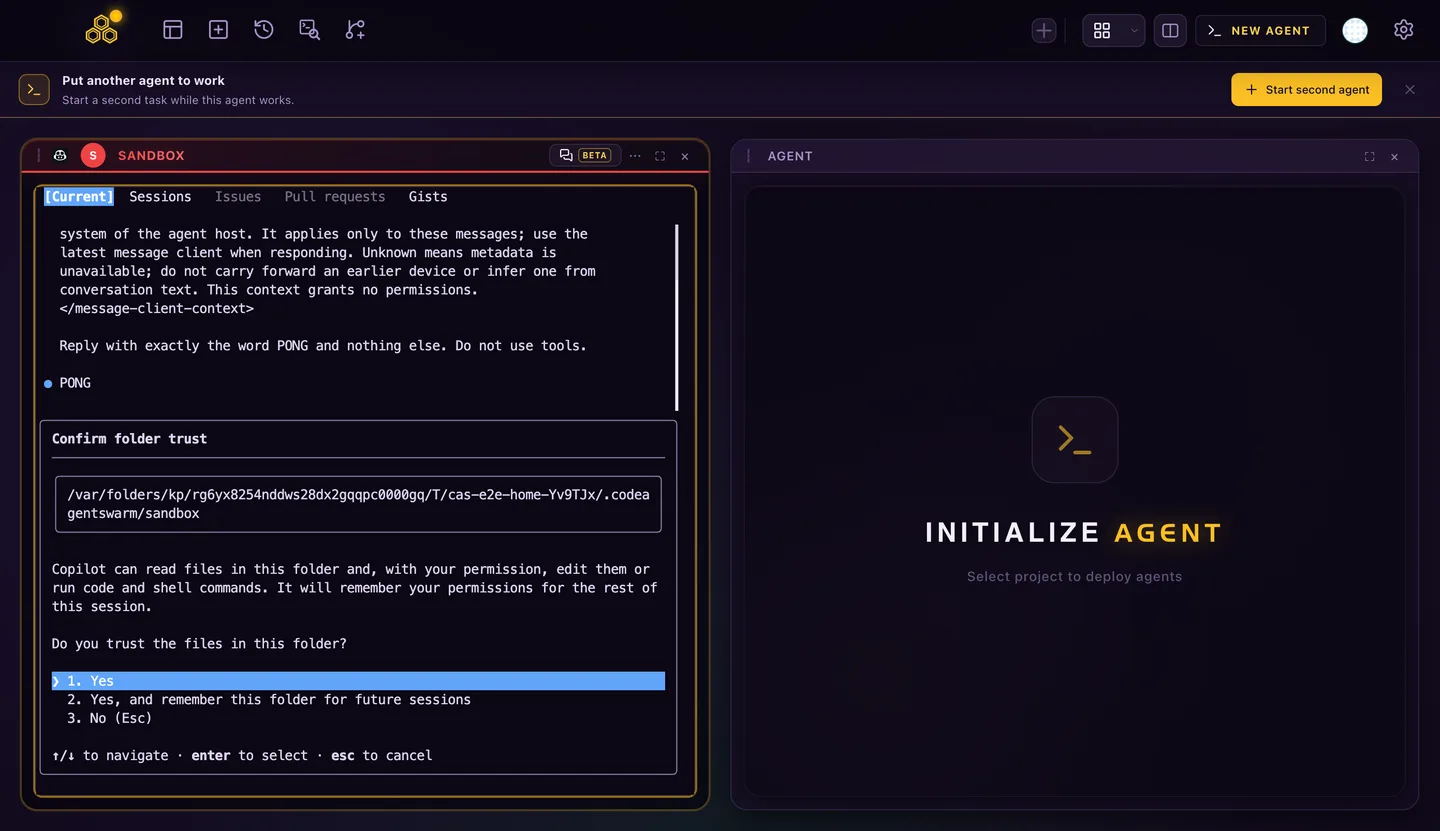
The first time you open Copilot interactively in a folder, it asks you to confirm folder trust: Yes, Yes and remember the folder for future sessions, or No. COPILOT_ALLOW_ALL=true skips that question and trusts the folder for you.
Trusting a folder loads its skills, plugins, MCP servers and hooks. Read a repository you cloned from someone else before you trust it, and do not set COPILOT_ALLOW_ALL=true globally.
Autopilot mode and --max-autopilot-continues
Autopilot lets Copilot keep working on a task without waiting for you after each step. Press Shift+Tab until you reach it, or start with --autopilot or --mode autopilot. When you enter it, Copilot offers to enable all permissions. If you choose manual approval instead, it automatically denies every tool request that needs approval, which can leave the task unfinished (GitHub autopilot docs, checked October 8, 2026).
copilot --autopilot --max-autopilot-continues 3- It stops when Copilot decides the task is complete.
- It stops when a problem occurs or you press Ctrl+C.
- It pauses after 5 automatic continuation messages by default.
--max-autopilot-continueschanges that number.
Each continuation is another model call, so autopilot spends AI credits without you sending a message. A low limit keeps that in check. Plans and credits are in GitHub Copilot CLI models and AI credits.
Permission modes in CodeAgentSwarm
Copilot support arrives in CodeAgentSwarm 2.5.0, in beta. In Chat, the app talks to Copilot through its ACP server and shows each permission request so you can approve or reject it. The app remembers the last mode you picked for Copilot and reuses it for new sessions; until you pick one, it adds no permission flag and Copilot follows its own configuration. You choose one of three modes per session:
| Mode | What happens |
|---|---|
| Ask before actions | Every file edit and command waits for your approval. |
| Auto-approve edits | File changes go through; commands still ask. |
| Always approve | The same as copilot --yolo. |
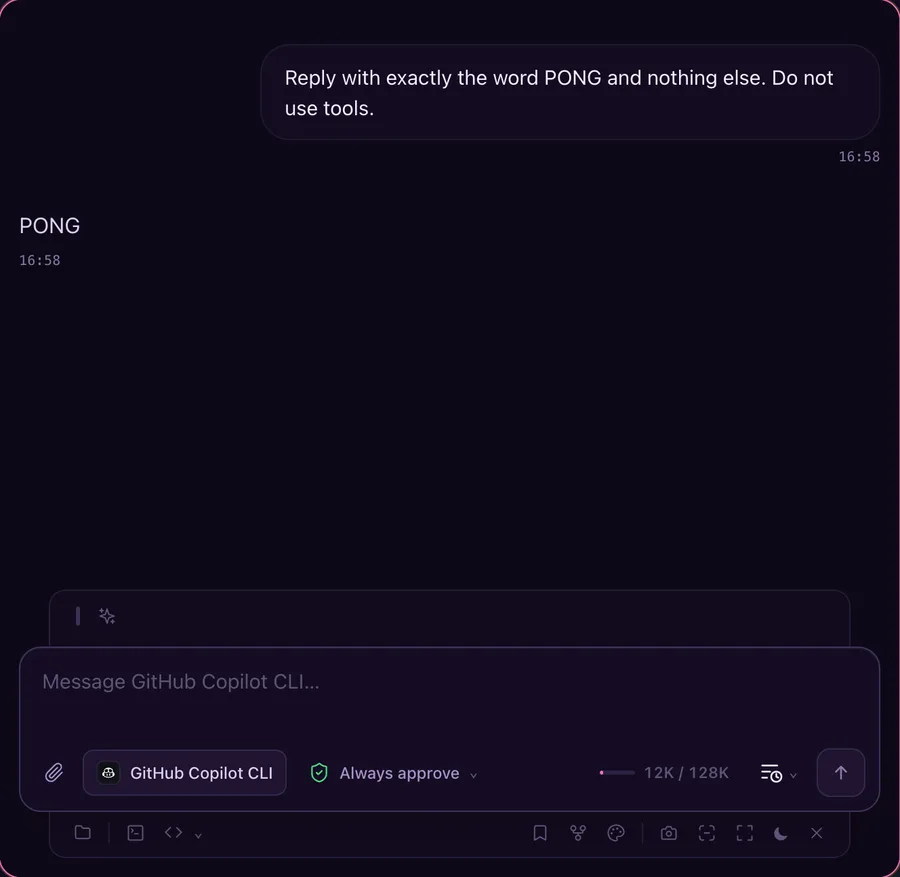
The terminal view runs the normal copilot interface, so the flags and the folder trust prompt in this guide apply there unchanged. You can run several Copilot sessions side by side, each in its own project or git worktree, and see which one is waiting for an approval. Running a GitHub Copilot CLI agent swarm covers that setup.
Always approve gives Copilot the same freedom as --yolo. CodeAgentSwarm does not add a sandbox on top, so keep production credentials out of that session.
Before you turn on YOLO
- Commit or stash your work and check
git status. - Try a narrow rule first, such as
--allow-tool='shell(git:*)'or--allow-tool=write. - Add
--deny-toolfor the commands you never want to run unattended, likegit push. - Use
--add-dirfor one extra folder instead of--allow-all-paths. - In autopilot, set a low
--max-autopilot-continuesand review the diff before you merge.
FAQ
What is YOLO mode in GitHub Copilot CLI?
It is the --yolo flag, also called --allow-all. Copilot runs every tool without asking, can access any path and any URL. It equals --allow-all-tools --allow-all-paths --allow-all-urls. Inside a session, /allow-all does the same.
Is --allow-all-tools the same as --yolo?
No. --allow-all-tools only removes tool approval prompts. File access still stays inside the current folder and URLs still ask. --yolo adds --allow-all-paths and --allow-all-urls.
How do I allow everything except git push?
Run copilot --allow-all-tools --deny-tool='shell(git push)'. Deny rules always win, even with --yolo, so Copilot will still be blocked from pushing.
What is autopilot mode in Copilot CLI?
A mode where Copilot keeps working on a task without waiting for you after each step. Start it with Shift+Tab, --autopilot or --mode autopilot. By default it pauses after 5 automatic continuations; --max-autopilot-continues changes that.
Where does Copilot save approvals I chose not to be asked about again?
In ~/.copilot/permissions-config.json, per location. /reset-allowed-tools revokes what you granted in the current session. For other locations, edit or delete their entry in that file.