
How to Run Multiple Codex CLI Sessions at Once
By CodeAgentSwarm · Updated October 5, 2026
Short answer: yes, each Codex session is its own process
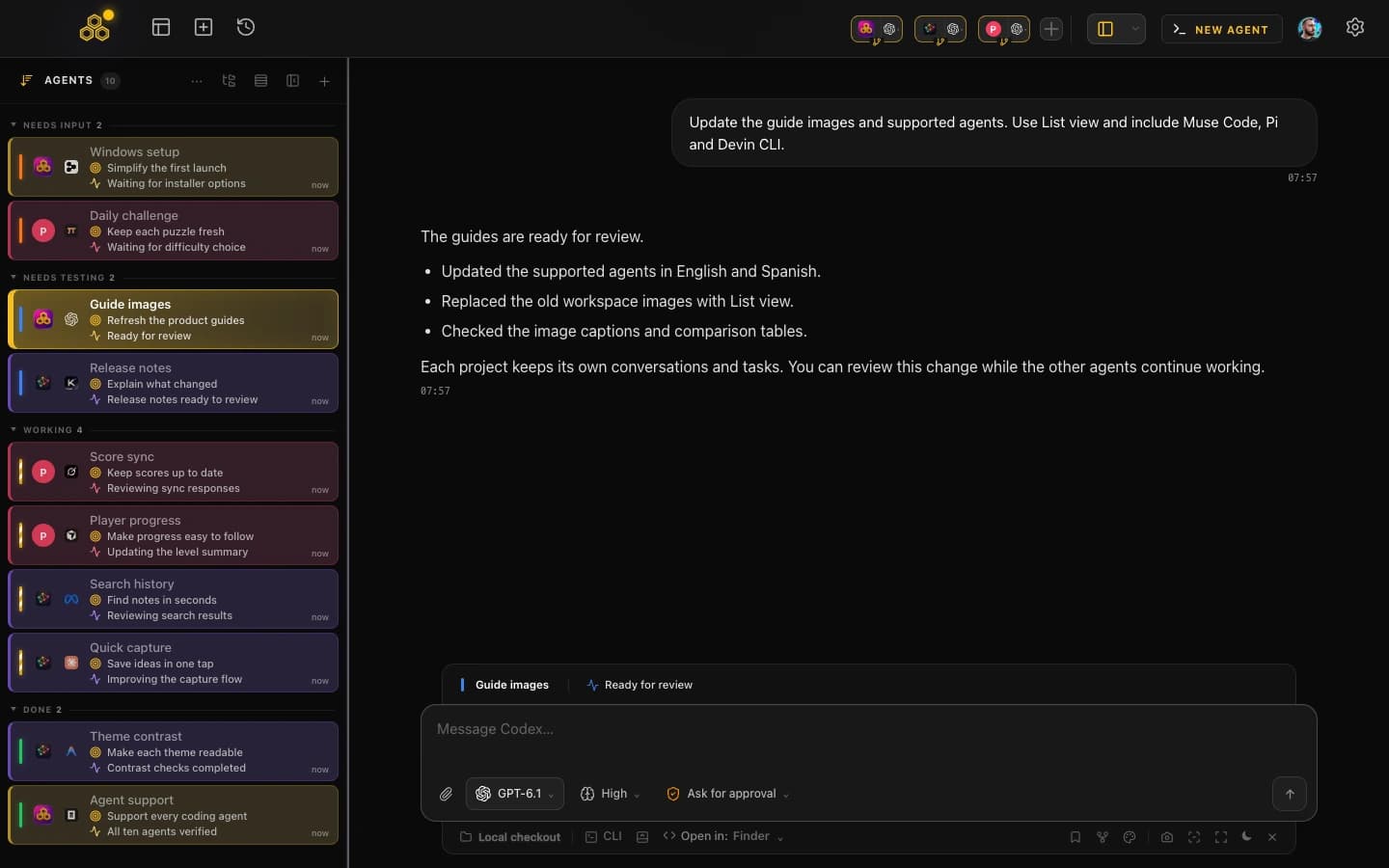
A Codex CLI session is just a process. You start it with the codex command, sign in once with codex login, and from then on each session keeps its own conversation, its own context, and its own working directory. Two sessions know nothing about each other.
So running multiple Codex CLI sessions at once is not a special mode you have to unlock. Open a second terminal, run codex again, and you already have two independent sessions. One can be migrating a database layer while the other writes integration tests. If you want the bigger picture of what that looks like at scale, the Codex agent swarm guide covers the concept in depth.
You are not limited to Codex either. Because each agent is its own process, you can run Codex CLI in some terminals and Claude Code or Antigravity CLI in others, all on the same repository. Running Codex and Claude Code together is a common setup, and the AI CLI agent swarm overview shows how the different tools fit side by side.
Each Codex session uses your existing OpenAI account independently. There is no separate plan and no surcharge for running several sessions in parallel. You pay for what each session actually does.
Several sessions can share one login. If you need personal and work subscriptions signed in side by side, the multiple Claude Code and Codex accounts guide covers account isolation, defaults, switching and per-account quota.
The real question is how you keep several sessions legible once you go past one or two. That is what the three methods below are about.
Method 1: Multiple terminal tabs (free, basic)
The most direct way to run two Codex sessions at once is to open several terminal tabs, move into your project in each one, and start Codex CLI. Nothing to install beyond Codex itself.
# Terminal tab 1
cd ~/my-project
codex

# Terminal tab 2
cd ~/my-project
codex

# Terminal tab 3
cd ~/my-project
codex
Each tab is now an independent Codex session. Hand each one a different task and switch between them as they work. If you run Codex in an approval mode rather than full auto, every tab stops and waits for you to approve actions, so you end up bouncing between tabs just to keep them moving.
Pros
- Free, nothing to set up beyond Codex CLI
- Works instantly with tools you already have
- Easy to reason about, one tab is one session
Cons
- You lose track of which tab is running which task almost immediately
- No notification when a Codex session finishes or stops for an approval
- No shared view, you have to click into each tab to check progress
- No way to search across the conversation history of different sessions
- If two sessions edit the same file, untangling it is on you
- With three or more tabs they all look the same
For two Codex sessions this is fine. Beyond that, the time you spend hunting for the tab that is waiting on an approval starts to cancel out the speed you gained by going parallel in the first place.
Method 2: tmux or screen (free, advanced)
If you live in the terminal, tmux lets you split one window into panes and keep sessions alive in the background. You can watch several Codex CLI sessions at once without flipping between tabs, which is closer to running Codex CLI in parallel than tabs ever get.
# Start a new tmux session
tmux new-session -s codex

# Split horizontally
tmux split-window -h

# Split the right pane vertically
tmux split-window -v

# Now you have 3 panes - run codex in each one
tmux also lets you detach and reattach, so your Codex sessions keep running even after you close the terminal window. That is genuinely useful for long migrations or refactors running in full auto.
Pros
- Free and available on almost any Unix machine
- See several panes at once, no tab switching
- Sessions survive disconnects, good for long full-auto runs
- Scriptable and configurable down to the keybinding
Cons
- Real learning curve if you have never used tmux
- Still no desktop notification when a session finishes or asks for approval
- No conversation history or cross-session search
- Text-only panes get cramped past three or four Codex sessions
- No task board or organization layer on top
- You rebuild the layout by hand every session unless you script it
- Conflicts between sessions touching the same file are still your problem
tmux is a great general-purpose multiplexer and plenty of developers already use it. But it was never built for supervising AI agents specifically. The moment a Codex session in pane 3 quietly stops for an approval while you are reading pane 1, you feel the gap.
Method 3: CodeAgentSwarm (visual, full-featured)
CodeAgentSwarm is a desktop app built for exactly this: running and supervising several AI CLI sessions in one place. It runs on macOS, Windows and Linux, gives you multiple terminals in a single workspace, and lets you choose the agent per terminal. To run Codex CLI in parallel you just pick "codex cli" in the SELECT AI AGENT picker in each terminal you want running Codex. It is effectively a GUI for Codex CLI, so you get the terminal agent with a visual layer on top.
Here is what that gives you when several Codex sessions are running at once:
Multiple Codex sessions in parallel
Set every terminal to "codex cli" to run several Codex sessions at once, or mix in Claude Code and Antigravity CLI where they fit better. Each terminal is a fully independent Codex process with its own conversation and project context. CodeAgentSwarm runs on top of your existing subscriptions, so it is not a model provider, it just orchestrates the agents you already pay for. If Claude Code is your main agent, the same setup is covered in the running multiple Claude Code sessions guide.
Real-time visibility with dynamic titles
Every terminal updates its own title to reflect what its Codex session is doing right now. Instead of several tabs all labelled "codex", you read titles like "Migrating User Schema", "Writing API Tests", "Refactoring Auth". You can tell which session is on which task without clicking into any of them.
Desktop notifications
This is the single biggest fix when you run several sessions. When a Codex session finishes its task or stops to ask for an approval, you get a native desktop notification. You stop babysitting panes and let the sessions call you when they actually need you, which is the whole point of running them in parallel.
Full conversation history, searchable
Every conversation across every terminal is saved and searchable, including across different agents. You can go back and find what a Codex session decided yesterday, resume it, or trace exactly which session made a given change. With several sessions running, that audit trail is what keeps the whole thing legible.
Built-in task board
A kanban task board sits next to your terminals, and the agents update it themselves over MCP. You create tasks, hand them to terminals, and watch cards move as each Codex session picks up, works, and finishes. When several sessions are chipping away at related features, the board keeps the plan visible instead of living in your head.
Turbo Mode and granular permissions
Codex has its own approval modes, from suggest-only up to full auto with --full-auto, plus a sandbox. CodeAgentSwarm sits above that with Turbo Mode and per-terminal permissions, so you can let sessions run in full auto on the safe operations while still gating the dangerous ones. That is the practical way to keep several Codex sessions fast without leaving them unsupervised. The Turbo Mode guide covers the setup.
Per-terminal live file diffs
You can watch the file changes each Codex session is making in real time, per terminal and at the project level. When two sessions edit the same file, you see it as it happens instead of discovering it in a messy diff later. Git still handles the merge, but the visibility means overlapping edits never surprise you.
New to running several terminals at once? The multi-terminal guide walks through the layout and workflow, and applies the same way whether the agent is Codex or Claude Code.
Quick comparison
Here is how the three ways to run multiple Codex CLI sessions compare on the things that actually bite once you scale past two:
Cost
- Terminal tabs: Free
- tmux/screen: Free
- CodeAgentSwarm: All Pro features are free during the open beta. Your Codex usage is billed by OpenAI as usual.
Setup time
- Terminal tabs: Zero, just open tabs and run codex
- tmux/screen: 10-30 minutes to learn the basics, longer to script a reusable layout
- CodeAgentSwarm: A couple of minutes to download, open, and pick codex cli per terminal
Notifications
- Terminal tabs: None
- tmux/screen: None unless you script something custom
- CodeAgentSwarm: Native desktop notifications when a session finishes or needs an approval
Conversation history
- Terminal tabs: Gone when you close the tab
- tmux/screen: Kept while the session lives, no search
- CodeAgentSwarm: Saved permanently and searchable across every session
Full-auto supervision
- Terminal tabs: All on you, one tab at a time
- tmux/screen: Visible in panes, but no guardrails or per-session policy
- CodeAgentSwarm: Turbo Mode plus granular permissions so full-auto stays safe
Learning curve
- Terminal tabs: None
- tmux/screen: Moderate to steep, with keybindings and config files
- CodeAgentSwarm: Low, a visual interface with familiar patterns
If you only ever need two Codex sessions at once, terminal tabs are perfectly fine. If you already run your day inside tmux, dropping a few Codex sessions into your existing panes is natural. But once you regularly run three or more Codex sessions in full auto and want to actually see what each one is doing, CodeAgentSwarm removes the coordination overhead that the other two leave on your plate.
FAQ
Can you run multiple Codex CLI sessions at once?
Yes. Each time you run the codex command you get an independent session with its own conversation and context, so you can open several terminals and run Codex CLI in each one. They do not share state or step on each other unless they edit the same files. CodeAgentSwarm supports multiple terminals so you can supervise several Codex sessions in one window.
How do I run two Codex sessions at the same time?
Open two terminal tabs, move into your project in each one with cd, and run codex in both. Each tab is now a separate Codex session you can give different instructions to. For more than two, tmux split panes or CodeAgentSwarm make the extra sessions much easier to keep track of.
Does running multiple Codex sessions cost more?
There is no surcharge for running sessions in parallel. Each Codex session uses your existing OpenAI account and you are billed for the work each one actually does, the same as if you ran them one after another. Running them at the same time finishes sooner, it does not change the per-session cost.
Can I run Codex and Claude Code together?
Yes. Because every agent is just a separate process, you can run Codex CLI in some terminals and Claude Code or Antigravity CLI in others, all on the same project. In CodeAgentSwarm you choose the agent per terminal with the SELECT AI AGENT picker, so a mixed setup of Codex and Claude Code is the default rather than a workaround.
How do I run Codex CLI sessions in full auto?
Codex has its own approval modes, from suggest-only up to full auto, which you reach with the --full-auto flag, backed by a sandbox. When you run several sessions in full auto at once, the risk is that they act without you watching. CodeAgentSwarm adds Turbo Mode and per-terminal permissions on top, so you can auto-approve safe operations while still gating the dangerous ones.
How many Codex sessions can I run at once?
There is no hard limit from Codex CLI itself, since each session is just a process. In practice your machine resources and screen space are the constraints. CodeAgentSwarm supports multiple simultaneous terminals with a layout that keeps several Codex sessions manageable in one window.
Running multiple Codex sessions vs tmux, which is better?
tmux can host several Codex sessions in split panes for free, and if you already use it that works well. What it lacks is anything built for AI agents: no desktop notification when a session finishes or asks for an approval, no searchable history across sessions, no dynamic titles, no task board, and no permission layer for full-auto runs. CodeAgentSwarm adds all of that, which matters most exactly when you are running several Codex sessions at once.