
Can You Run Multiple Claude Code Sessions at Once? Yes, Here's How
By CodeAgentSwarm · Updated October 5, 2026
The short answer: yes, you can
Claude Code sessions are independent processes. When you open a terminal and run claude, that session has its own conversation thread, its own context window, and its own working state. Conversations are separate, but sessions in one checkout still share files and an account can share usage limits.
That means you can open a second terminal, run claude again, and you now have two completely separate AI coding sessions running side by side. One can be refactoring your auth module while the other writes tests for your API layer. They do not know about each other.
Running several sessions like this is what people mean by a Claude Code agent swarm, and that guide covers how it differs from subagents and how to stop parallel agents overwriting each other. This is not limited to Claude Code either. The same principle applies to Codex CLI and Antigravity CLI. You can even mix different agents in parallel: the AI CLI agent swarm guide covers running them together. If you are still deciding which agent to make your main one, the Claude Code vs Cursor vs Codex comparison breaks down pricing and strengths. And everything here works the same on Windows - see the Claude Code on Windows guide for the platform setup.
Each terminal session uses your Claude subscription independently. There is no special "multi-session" plan or extra cost for running sessions in parallel.
Several sessions can share one login. If you need personal and work subscriptions signed in side by side, the multiple Claude Code and Codex accounts guide covers account isolation, defaults, switching and per-account quota.
The question is really about how you manage those sessions once you have more than one or two running. That is where the three methods below come in.
For a reproducible check of what stays isolated, see our two-worktree file isolation test. It includes observed results, a runnable example and the limits to check before merging.
For a visual way to open and supervise these sessions, see the Claude Code GUI guide.
Method 1: Multiple terminal windows (free, basic)
The simplest approach is one you probably already know. Open multiple terminal tabs or windows, navigate to your project directory in each one, and start a Claude Code session.
# Terminal tab 1
cd ~/my-project
claude

# Terminal tab 2
cd ~/my-project
claude

# Terminal tab 3
cd ~/my-project
claude
That is it. Each tab now has an independent Claude Code session. You can switch between tabs and give each one different instructions.
Pros
- Free, no extra tools needed
- Works immediately, no setup required
- Simple to understand
Cons
- You quickly lose track of which tab is doing what
- No notifications when a session finishes or needs input
- No shared visibility across sessions, you have to click into each tab to check
- Cannot search across conversation history from different sessions
- If two sessions edit the same file, you have to resolve conflicts manually
- Tabs start looking identical, especially with three or more
This method works fine for two sessions. Once you go beyond that, the overhead of switching and tracking starts to eat into the time you saved by going parallel.
Method 2: tmux or screen (free, advanced)
If you are comfortable in the terminal, tmux gives you split panes and persistent sessions. You can see multiple Claude Code sessions on screen at the same time without switching tabs.
# Start a new tmux session
tmux new-session -s coding

# Split horizontally
tmux split-window -h

# Split the right pane vertically
tmux split-window -v

# Now you have 3 panes - run claude in each one
With tmux you can also detach from a session and reattach later, which means your Claude Code sessions survive if you close your terminal window.
Pros
- Free and widely available
- See multiple panes at once without tab switching
- Persistent sessions that survive disconnects
- Highly customizable with configuration files
Cons
- Steep learning curve if you have never used tmux before
- Still no desktop notifications when a session finishes
- No conversation history or search across sessions
- Text-only interface, panes get cramped with more than 3-4 sessions
- No task management or organization layer
- Manual setup every time you start a new coding session
- Conflict resolution between sessions is still on you
tmux is a solid tool and many developers already use it daily. But it was built as a general-purpose terminal multiplexer, not specifically for managing parallel AI coding agents. The gaps show up once you are running three or more Claude Code sessions regularly.
Method 3: CodeAgentSwarm (visual, full-featured)
CodeAgentSwarm was built specifically for this problem: running multiple AI coding sessions in parallel with real visibility and control. It is a desktop app that gives you multiple terminals in a single workspace, with features designed around how parallel AI agents actually behave.
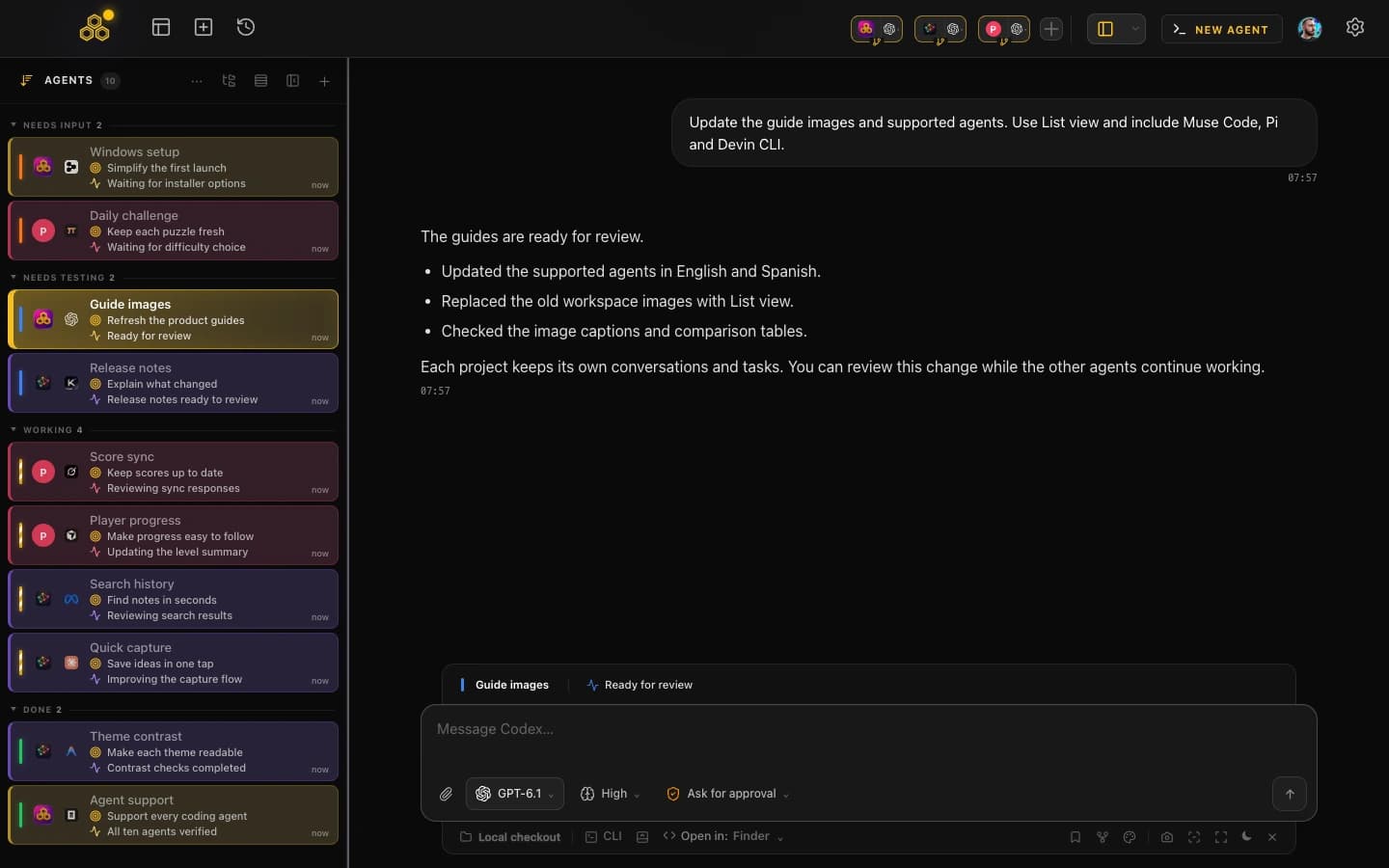
Here is what you get out of the box:
Multiple AI terminals in parallel
Run Claude Code, Codex CLI, or Antigravity CLI in any combination. Each terminal is independent, with its own conversation and project context. You can mix and match agents depending on the task.
Real-time visibility with dynamic titles
Each terminal automatically updates its title based on what the agent is currently doing. Instead of several identical "claude" tabs, you see titles like "Refactoring Auth", "Writing API Tests", "Fixing CSS Layout". At a glance, you know exactly what each session is working on.
Desktop notifications
When a session finishes its task or needs your input, you get a native desktop notification. No more switching between tabs to check if something is done. You can focus on one terminal and let the others notify you when they need attention. For a deeper look at how this works, check the notification system guide.
Full conversation history, searchable
Every conversation across all terminals is saved and searchable. You can go back and find what a session did yesterday, resume a conversation, or review the full history of changes. This is especially useful when you are running many parallel sessions and need to trace what happened where. More details in the conversation history guide.
Built-in task board
Organize your work with a kanban-style task board that connects directly to your terminals. Create tasks, assign them to terminals, and track progress visually. When two terminals are working on related features, the task board helps you keep the big picture in focus.
Permission controls with Turbo Mode
Running multiple sessions means more actions happening in parallel, which makes permission management more important. Turbo Mode lets you auto-approve safe operations while keeping dangerous ones gated. You decide what gets approved automatically and what still needs your confirmation. See the Turbo Mode guide for the full setup.
Conflict awareness
When two terminals touch the same file, CodeAgentSwarm helps you see it happening. You can track real-time file changes per terminal and at project level, so overlapping edits do not catch you off guard. Claude handles Git conflicts well on its own, but having visibility into what each session is changing makes the whole workflow smoother. Learn more in the real-time changes guide.
For a detailed walkthrough on setting up and using multiple terminals, see the complete multi-terminal guide.
Quick comparison
Here is how the three methods stack up across the things that matter when running multiple AI coding sessions:
Cost
- Terminal tabs: Free
- tmux/screen: Free
- CodeAgentSwarm: All Pro features are free during the open beta
Setup time
- Terminal tabs: Zero, just open tabs
- tmux/screen: 10-30 minutes to learn basics, longer to customize
- CodeAgentSwarm: 2 minutes to download and open
Notifications
- Terminal tabs: None
- tmux/screen: None (unless you script something custom)
- CodeAgentSwarm: Native desktop notifications when sessions finish or need input
Conversation history
- Terminal tabs: Lost when you close the tab
- tmux/screen: Preserved while session is alive, no search
- CodeAgentSwarm: Full history saved permanently, searchable across all sessions
Multiple projects
- Terminal tabs: Possible but disorganized
- tmux/screen: Possible with named sessions
- CodeAgentSwarm: Project-aware workspaces with per-project file tracking
Learning curve
- Terminal tabs: None
- tmux/screen: Moderate to steep (keybindings, config files, pane management)
- CodeAgentSwarm: Low, visual interface with familiar patterns
If you just need two sessions occasionally, terminal tabs work fine. If you already live in tmux, adding Claude Code sessions to your existing setup is natural. But if you regularly run three or more parallel sessions and want real visibility into what each one is doing, CodeAgentSwarm removes the friction that the other approaches leave in place.
FAQ
Can you run two Claude Code chats at the same time?
Yes. Each terminal runs an independent Claude Code process with its own conversation and context. You can run as many as your machine can handle.
Does running multiple Claude Code sessions cost more?
Each session uses your Claude subscription normally. There is no extra cost for running sessions in parallel - you are just using the same subscription from multiple terminals.
Can multiple Claude Code terminals work on the same project?
Yes, and this is one of the most powerful use cases. Two or more sessions can work on the same codebase simultaneously. When they edit different files there is no issue at all. When they touch the same file, Git handles the merge and Claude resolves conflicts automatically. CodeAgentSwarm adds visibility so you can see which files each session is changing in real time.
What happens when two Claude Code sessions edit the same file?
The second session to save will encounter a Git conflict. Claude Code is quite good at detecting and resolving these conflicts automatically. In practice, it handles this reliably without manual intervention.
Can I mix Claude Code with Codex or Antigravity CLI?
Yes. Since each terminal is independent, you can run different AI agents in different terminals. CodeAgentSwarm supports Claude Code, Codex CLI, and Antigravity CLI in the same workspace, so you can use whichever agent fits the task.
How many Claude Code sessions can I run at once?
There is no hard limit from Claude Code itself - each session is just a process. Practically, your machine resources and screen space are the constraints. CodeAgentSwarm supports multiple simultaneous terminals with a visual layout that keeps everything manageable.
Is tmux better than CodeAgentSwarm for multiple terminals?
tmux is an excellent terminal multiplexer and it is free. If you already use it and only need basic pane splitting, it works well. CodeAgentSwarm adds layers that tmux does not have: desktop notifications, searchable conversation history, dynamic titles showing what each agent is doing, a task board, and real-time file change tracking. For managing AI coding agents specifically, CodeAgentSwarm is purpose-built for that workflow.