
Codex GUI: A Visual Desktop App for OpenAI Codex CLI
By CodeAgentSwarm · Updated October 5, 2026
When to use a Codex GUI
If you need a command or want to continue one session, Codex CLI can do that. CodeAgentSwarm helps when you want to see several sessions, switch projects or find a conversation across agents. It is an independent application. For OpenAI’s own desktop interface, see the official documentation for codex app.
| Your goal | Where to start |
|---|---|
| Run a task in the terminal | Use Codex CLI with the appropriate project and permissions. |
| Supervise several sessions | Set up multiple Codex sessions |
| Find and continue a conversation | Read the history guide |
| Get started on Windows | Check the Codex Windows setup |
To try the app, download CodeAgentSwarm using the button on this page, open your project and select Codex when creating a session. Choose Chat for an integrated conversation or the terminal if you prefer the CLI interface.
What you can do in CodeAgentSwarm
See independent sessions
Each session can work on a task or project. Read titles and statuses in the grid or list, then open the conversation that needs your attention. Prepare separate worktrees if two tasks will modify the same files.
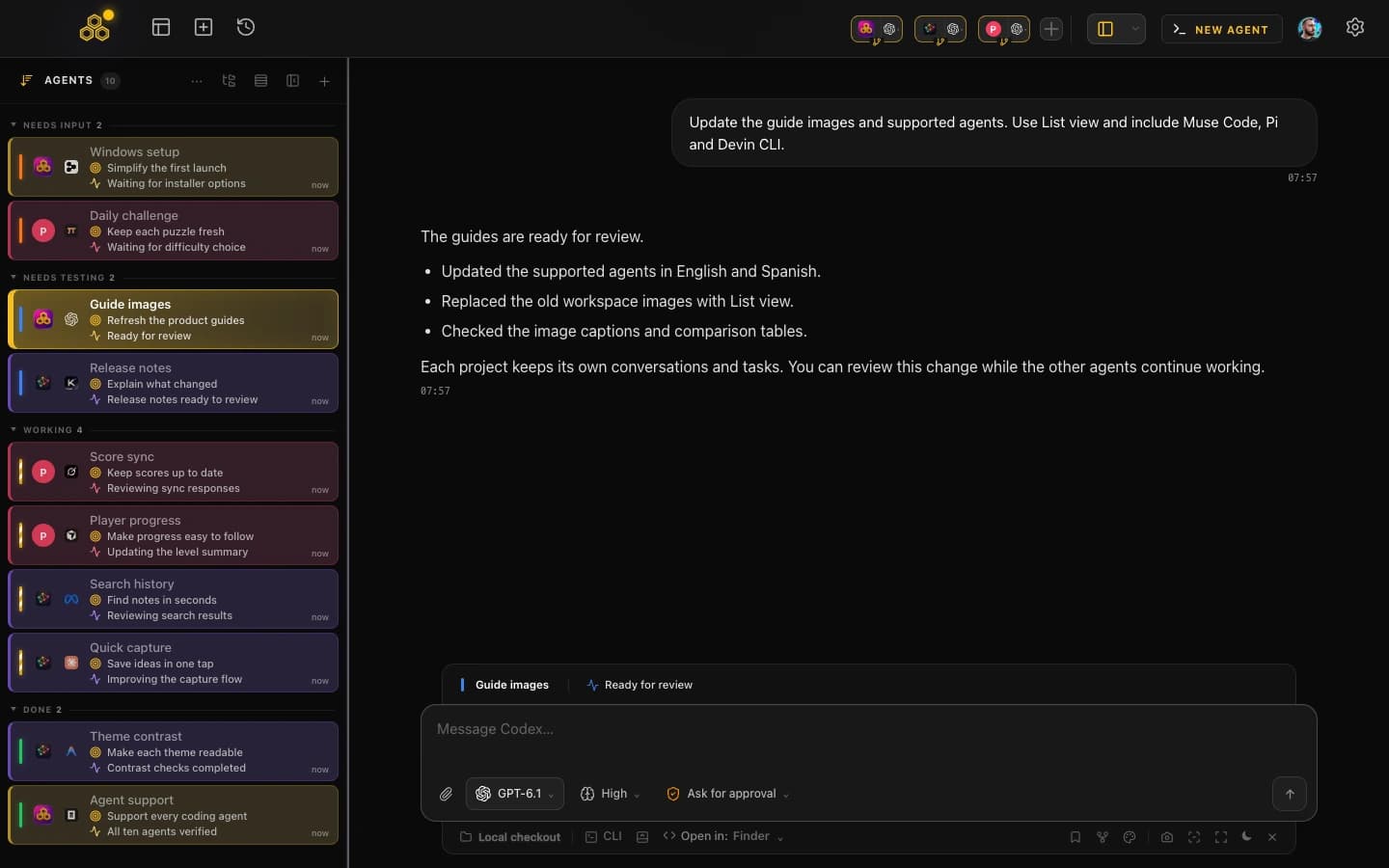
Organize tasks
Use the board to organize work. With the CodeAgentSwarm MCP configured, you can ask an agent to read and update the relevant tasks. Check the result before considering a task finished.
Search conversations
Search text in saved conversations and filter by project or agent. Open a result to recover its context. Codex also provides its own resume commands; the app adds a shared view across agents.
Review changes
Review modified files and the project diff before committing. Sessions that share a folder also share its files: opening two chats does not automatically separate their changes.
Act on notifications
Use notifications and session statuses to return to a conversation when it needs a reply. Check operating-system notification permissions if alerts do not arrive.
Choose permissions
Check each session’s permission mode. Turbo Mode in the Codex terminal bypasses approvals and sandboxing; it does not add an automatic dangerous-command block. The Codex YOLO and sandbox guide explains the options.
Set up projects and tools
Save the projects you use and add the skills or MCP connections you need. External tools may require their own setup and account.
Codex CLI or a graphical interface
One task from the terminal
The CLI provides conversation, command execution and session resumption. If that workflow already works for you, keep using it. You do not need another app to enable Codex options.
Several projects and agents
When you switch between tasks, a shared view helps you find the right conversation and check what is pending. That is a reason to try CodeAgentSwarm with real work.
Try it with a familiar task
Start with a familiar project and a small task. Check how messages appear, where to find history and how to review the diff. Add a second session once you understand that workflow.
Download and set up CodeAgentSwarm for Codex
- Download the CodeAgentSwarm installer for your system using the button on this page. On a phone, you can email yourself the link.
- Install the app and open or add your project folder.
- Create a session, select Codex, and choose Chat or terminal.
- Complete Codex setup and sign-in if needed. Use your own provider account.
- Check permissions, send a small task and review the changes before continuing.
The public app is available for macOS, Windows and Linux. Model access and limits depend on your Codex account. CodeAgentSwarm does not include an OpenAI subscription.
FAQ
What is a Codex GUI?
A visual interface for working with Codex. CodeAgentSwarm provides Chat, terminals, history and project change review in an independent app for macOS, Windows and Linux.
Is CodeAgentSwarm the official OpenAI app?
No. It is an independent application that integrates Codex alongside other agents. It uses your provider account and does not include additional model access.
Can I use CodeAgentSwarm with Codex on Windows?
Yes. Download the Windows installer, open your project, select Codex and complete its setup and sign-in.
Is there a Linux version of CodeAgentSwarm?
Yes. CodeAgentSwarm runs on Linux as well as macOS and Windows. Download the .deb or AppImage from codeagentswarm.com, open your project, select Codex and complete its setup and sign-in.
Do I need Turbo Mode?
No. You can work with normal permissions. Codex terminal Turbo Mode bypasses approvals and sandboxing, and is not required to open several sessions.
Can I use my Codex account?
Yes. Use your Codex account with its applicable limits. CodeAgentSwarm does not replace provider access or billing.