
Claude Code YOLO Mode: What It Is, the Risks, and How to Enable It Safely
By CodeAgentSwarm · Updated August 11, 2026
What is YOLO mode in Claude Code?
"YOLO mode" is the community nickname for running Claude Code with the --dangerously-skip-permissions flag. The name is not official - Anthropic does not call it that - but it stuck because it captures the idea perfectly: you only live once, so skip the prompts and let Claude do its thing.
The core motivation is simple. When you are iterating on a feature, fixing bugs, or refactoring code, Claude asks for permission before every action: editing a file, running a test, installing a package, using an MCP tool. On a typical task, that can mean dozens of prompts. Most developers just spam "yes" anyway, which defeats the purpose of having safeguards.
YOLO mode removes all those prompts at once. Claude reads, writes, runs commands, and calls tools without asking. For repetitive or well-scoped tasks, this feels like unlocking the real potential of an AI coding agent.
The tradeoff is that you lose all guardrails. Every action auto-approves, including the ones you would normally want to review. That is why the flag is named "dangerously" - it is an honest warning from Anthropic that this mode trades safety for speed.
What --dangerously-skip-permissions actually does
Normally, Claude Code asks for explicit permission before performing actions in these categories:
- File operations - Writing, editing, or creating files in your project
- Shell commands - Running anything in the terminal (npm install, git commands, scripts)
- Network access - Making HTTP requests or accessing external services
- MCP tools - Calling tools from connected MCP servers (Supabase, Playwright, etc.)
With --dangerously-skip-permissions, all of these auto-approve without any prompt. Claude gets full autonomy over your machine within the session.
How to run it
The simplest way is passing the flag directly:
claude --dangerously-skip-permissions "refactor the auth module"You can also set it as a permission mode, which is equivalent:
claude --permission-mode bypassPermissionsAuto mode - a safer built-in alternative
Anthropic introduced a middle ground called Auto mode. Instead of skipping everything or asking everything, it uses a classifier to decide which actions are safe to auto-approve and which need your confirmation. You can read more about all available options in the permission modes documentation:
claude --permission-mode autoAuto mode is a step in the right direction - it reduces prompts for low-risk actions like reading files or running tests while still asking about riskier ones. However, you do not control the classification. What the classifier considers "safe" might not match your preferences, and it can still interrupt you on actions you are comfortable auto-approving.
The real risks of YOLO mode
Let us be direct about this: the risks are not theoretical. These are things that actually happen when developers use --dangerously-skip-permissions without additional safeguards.
- Git push to the wrong branch - Claude decides to commit and push your half-finished changes to main. Or worse, force-pushes and overwrites your team's work.
- Deleting files or directories - A misinterpreted instruction leads to
rm -rfon a directory you did not intend to remove. - Destructive shell commands -
DROP TABLE,docker system prune, or any command that cannot be undone. - Installing malicious packages - Claude runs
npm installfor a package that looks right but is a typosquat or compromised dependency. - Unintended network requests - API calls to production endpoints, sending data to external services, or triggering webhooks you did not expect.
- Overwriting uncommitted changes - Claude starts editing files you were working on, and your uncommitted changes are lost before you noticed.
These are not edge cases. In active projects with real data and real Git histories, any of these can happen within a single session. The more autonomous Claude is, the more important it is to have some form of guardrails.
The key insight is that YOLO mode is not inherently bad. The problem is that it is all-or-nothing. You either ask for everything or skip everything, with no way to say "auto-approve file edits but block git push" using the native CLI flag alone.
How to enable YOLO mode safely
There are three approaches, from most risky to most controlled.
Method 1: The raw flag (not recommended for daily use)
claude --dangerously-skip-permissions "your prompt here"This works for quick, isolated tasks where you are confident Claude will not do anything destructive. Think "rename this variable everywhere" or "add JSDoc to these functions." For anything involving Git operations, file deletions, or network calls, this is a gamble.
Method 2: Auto mode (Anthropic's official safer alternative)
claude --permission-mode autoAuto mode uses an internal classifier to auto-approve actions it deems safe and prompt for risky ones. It is better than the raw flag, but you cannot customize what counts as "safe" - the classifier decides for you. If you want reads and diffs to auto-approve but Git operations to always ask, you cannot configure that with Auto mode.
Method 3: CodeAgentSwarm Turbo Mode (recommended)
Turbo Mode in CodeAgentSwarm gives you the speed of YOLO mode with the control you actually need. Instead of a single on/off switch, you get a full permission system where you decide exactly what auto-approves and what gets blocked.
Here is what makes it different:
- Granular permissions per tool category - Set Allow, Ask, or Deny for file operations, shell commands, Git actions, network access, and more. Each category is independent.
- Git guardrails - Block push, force-push, merge, and branch delete while keeping status, diff, and log on auto-approve. This single setting prevents the most common YOLO disasters.
- MCP tool permissions - Control which MCP tools can auto-execute and which need confirmation. Allow Supabase reads but block migrations, for example.
- Visual permission manager - A UI where you configure everything instead of editing JSON files or remembering CLI flags.
The practical difference is significant. With the raw flag, you either accept all risk or spend your day clicking "yes." With Turbo Mode, you configure once and get the speed of YOLO mode where it is safe, with automatic blocks where it matters.
The next section walks through the exact setup, screen by screen.
Turbo Mode setup, step by step
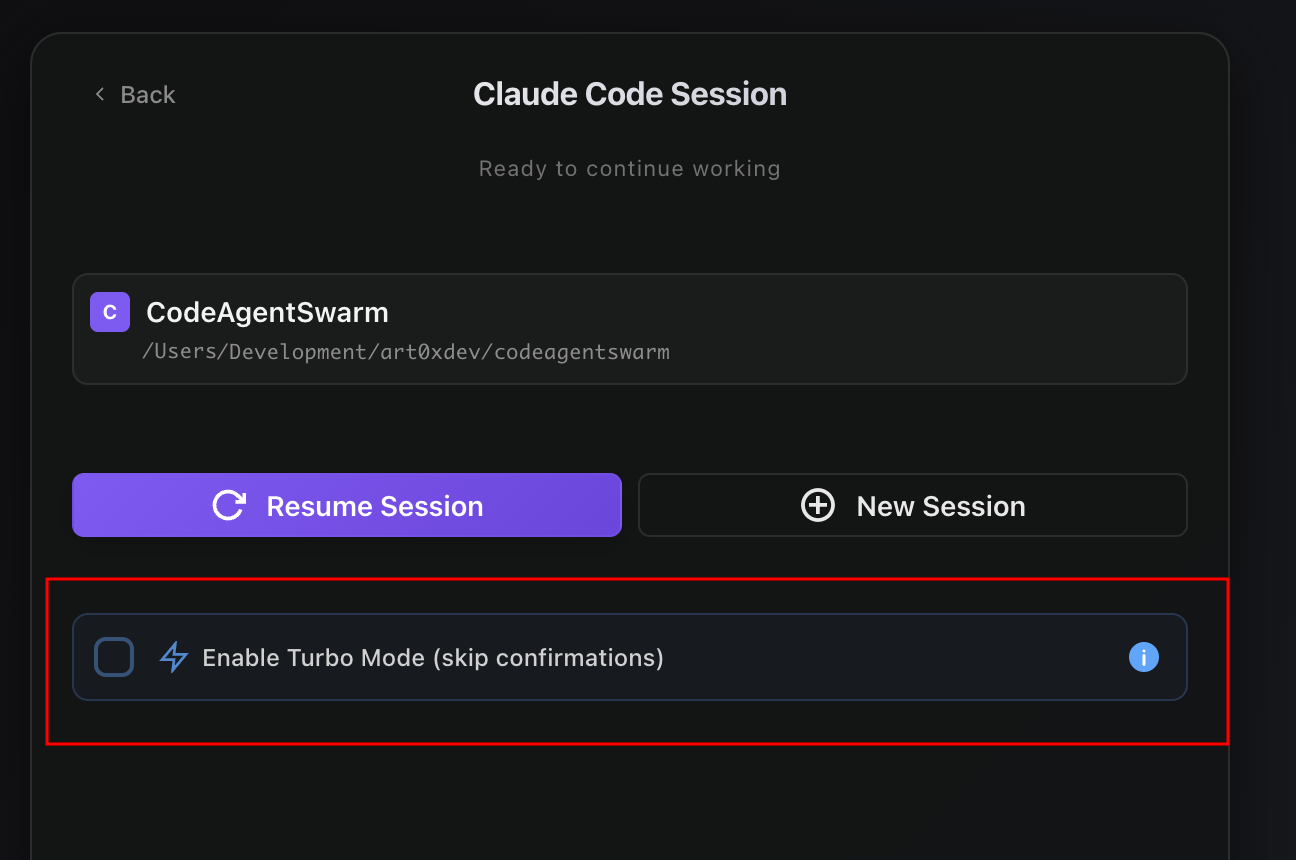
Enabling it takes one click: on the project start screen, turn on "Enable Turbo Mode (skip confirmations)".
Quick security presets
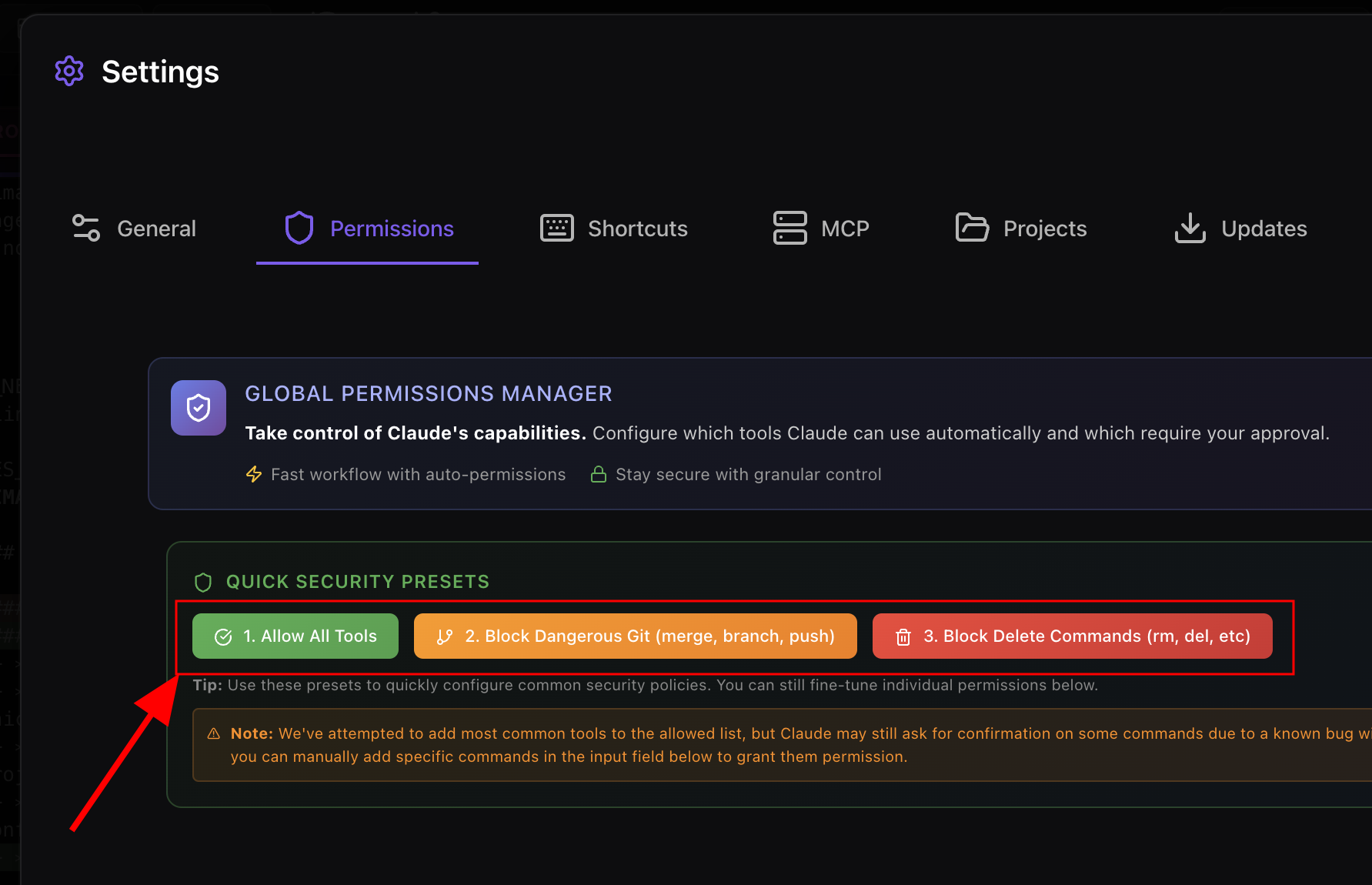
Before letting anything run unattended, apply a preset in the Global Permissions Manager:
- Allow All Tools
- Block Dangerous Git (merge, branch, push)
- Block Delete Commands (rm, del, etc.)
One click applies the policy, and you will usually need to restart the Claude session for it to fully take effect. If you only pick one, pick "Block Dangerous Git": a push or merge at the wrong time is the most expensive YOLO accident and the easiest to miss.
Tool permissions: Allow, Ask, Deny
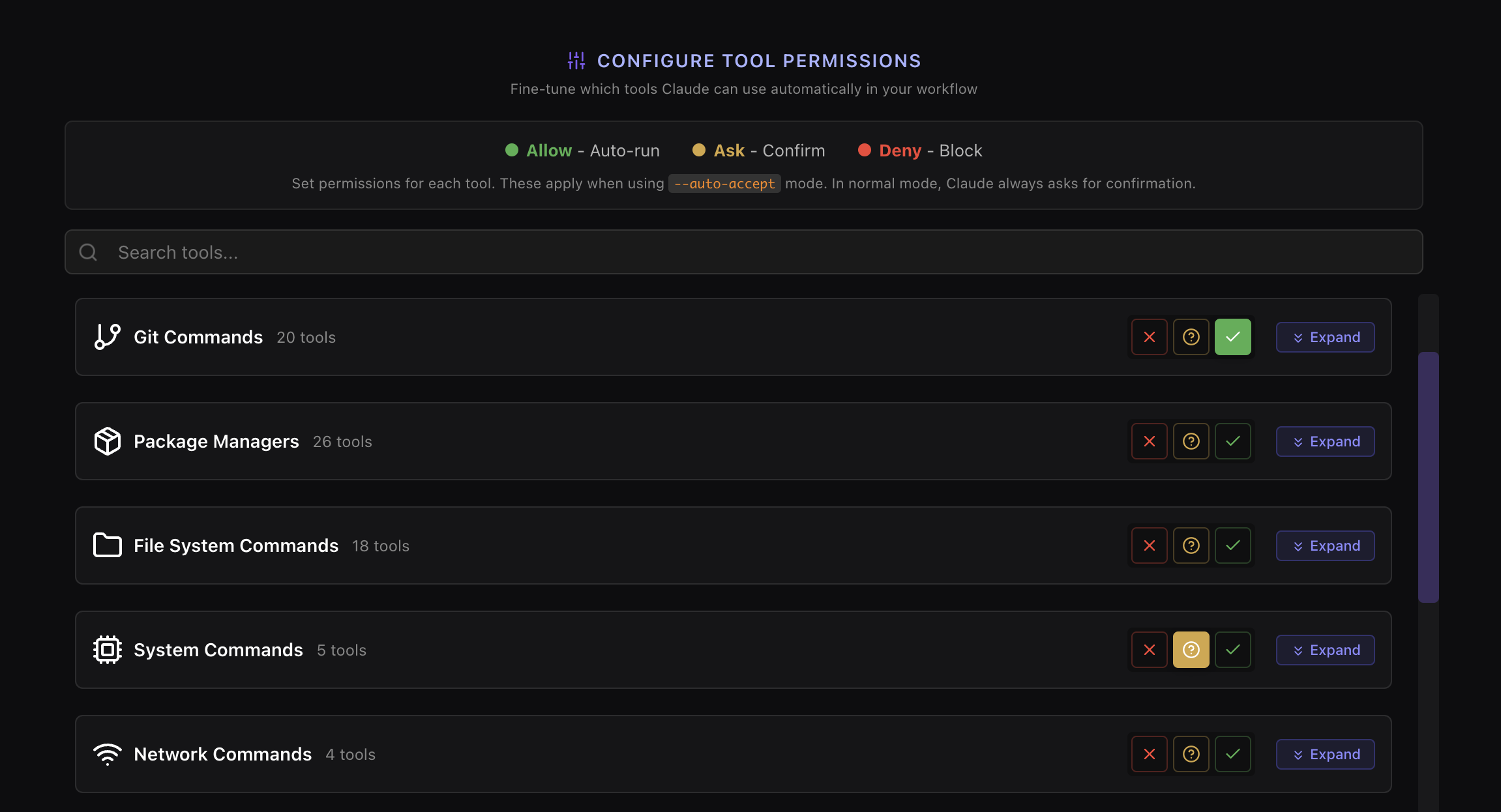
You can fine-tune permissions per category and per individual tool. Allow runs the action automatically, Ask prompts for confirmation, and Deny blocks it completely. One important nuance: while "skip confirmations" is on, Ask behaves like Allow in practice, so use Deny for anything you never want running without you noticing.
MCP permissions
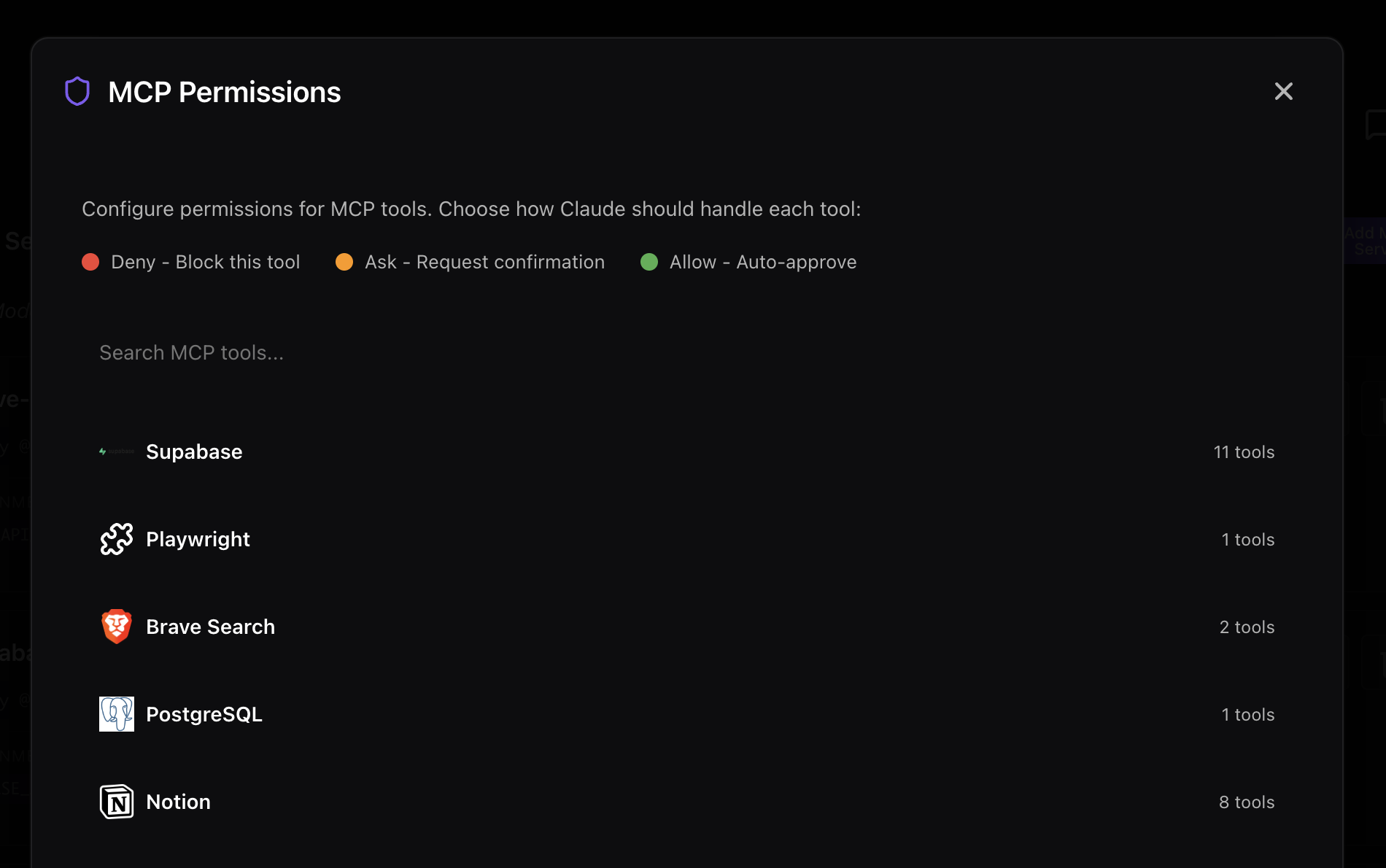
With MCP servers connected, Claude can touch real data sources, so permission control matters even more here. CodeAgentSwarm applies the same Allow/Ask/Deny model per MCP server and per MCP tool. Rule of thumb: list and read operations on Allow, destructive actions (write, migrate, delete) on Deny.
A recommended fast and safe policy
- Git - status, diff and log on Allow; commit, push, merge and branch on Deny
- File operations - read, edit and write on Allow; delete on Deny
- Network - mostly Deny
- MCP - list and read on Allow; write, migrate and delete on Deny
Running several terminals in parallel
Turbo Mode is even more useful with multiple terminals running in parallel. The downside is visibility: it is easy to lose track of which terminal finished or needs your input. Notifications solve that - enable them and let the app ping you when something finishes or gets blocked. You can set them up following the CodeAgentSwarm notifications guide.
Best practices for auto-approve workflows
Regardless of which method you use, these habits will save you from the worst YOLO-mode accidents:
- Always work on a feature branch, never main. If Claude makes a mess, you can throw away the branch. If it messes up main, your whole team feels it.
- Commit before starting a YOLO session. This gives you a clean restore point. If something goes wrong,
git checkout .brings you back instantly. - Block dangerous Git operations. Push, force-push, merge, and branch delete should require manual confirmation even in YOLO mode. These are the highest-impact actions and the hardest to undo.
- Review changes before committing. Use a live diff viewer to see what Claude changed in real time. In CodeAgentSwarm, the per-terminal file change tracker shows exactly what was modified during the session.
- Start with "Block Dangerous" preset, loosen as needed. It is much safer to start restrictive and open up specific permissions than to start open and try to lock things down after something goes wrong.
- Keep sessions focused. The more specific your prompt, the less likely Claude is to go off-script. "Refactor the auth middleware to use JWT" is safer than "improve the codebase."
The combination of feature branches + blocked Git push + live diff gives you 90% of YOLO speed with almost none of the risk. Most developers who try this setup never go back to the raw flag.
FAQ
What does --dangerously-skip-permissions do in Claude Code?
It skips all permission prompts. Claude Code will auto-approve every action - file edits, shell commands, network requests, MCP tool calls - without asking for your confirmation. This gives maximum speed but removes all safety guardrails.
Is YOLO mode safe to use?
The raw --dangerously-skip-permissions flag is risky because it auto-approves everything, including destructive actions like git push or file deletion. For safer alternatives, use Anthropic's Auto mode (which classifies actions by risk) or CodeAgentSwarm Turbo Mode (which lets you configure permissions per tool category).
How do I enable YOLO mode in Claude Code?
Run claude --dangerously-skip-permissions followed by your prompt, or use claude --permission-mode bypassPermissions. For a safer approach, use claude --permission-mode auto or enable Turbo Mode in CodeAgentSwarm.
What is the difference between YOLO mode and Auto mode?
YOLO mode (--dangerously-skip-permissions) skips every single permission prompt. Auto mode (--permission-mode auto) uses an internal classifier to auto-approve actions it considers safe while still prompting for risky ones. Auto mode is safer but you cannot customize what it considers "safe."
Can YOLO mode delete my files?
Yes. Without guardrails, Claude can run rm -rf, delete directories, overwrite files, and execute any destructive shell command - all without asking. This is one of the main reasons to use a permission system like CodeAgentSwarm Turbo Mode instead of the raw flag.
What is Turbo Mode in CodeAgentSwarm?
Turbo Mode is CodeAgentSwarm's implementation of auto-approve for Claude Code, with granular permission controls. You can set Allow, Ask, or Deny per tool category, block specific Git operations, and control MCP tool permissions. It gives you YOLO-mode speed with configurable safety.
Can I use YOLO mode in VS Code?
Yes. In the Claude Code VS Code extension settings, enable "Allow Dangerously Skip Permissions." This is the equivalent of the --dangerously-skip-permissions CLI flag but applied within the extension. The same risks apply.
What is the safest way to skip confirmations in Claude Code?
Use CodeAgentSwarm Turbo Mode with the "Block Dangerous Git" preset. This auto-approves file edits and reads while blocking push, force-push, merge, and branch delete. Combined with working on a feature branch, this gives you fast iteration with minimal risk.
How to prevent Claude Code git push?
Use the "Block Dangerous Git" preset in Global Permissions Manager. This automatically blocks push, merge, and branch operations. You can still allow status, diff, and log to review changes safely.
How to block git push merge branch Claude Code?
Apply the "Block Dangerous Git" preset in CodeAgentSwarm. It sets all risky Git operations (push, merge, branch create/delete) to Deny while keeping safe operations like status and diff on Allow.
How do Claude Code tool permissions Allow Ask Deny work?
Allow: action runs automatically. Ask: prompts for confirmation (but acts like Allow in Turbo Mode). Deny: blocks the action completely. You can configure these per category and per individual tool.
How do Claude Code MCP permissions work?
MCP permissions use the same Allow/Ask/Deny model as tool permissions, but are configured per MCP server and per individual tool. This lets you, for example, allow Supabase reads while blocking writes or migrations.