
How to Run Multiple Claude Code Terminals in Parallel with CodeAgentSwarm
By CodeAgentSwarm · Updated October 5, 2026
Why use multiple Claude Code terminals?
Some days you just do one thing and that's it. But there are other days when you're touching backend, interface, tests and docs all at the same time.
Or you're even working on multiple features simultaneously. Imagine you're building a new project and you've implemented a chat.
You'll probably want to do several things at once with this implementation - like adding user avatars, an emoji selector, notifications. In the traditional way you'd have a single Claude Code terminal and do all of this sequentially.
Using multiple Claude Code terminals in parallel lets you:
- Separate tasks well to go faster
- Each terminal has its own context, with more efficient management
- See the changes each terminal is making in isolation
- Claude handles conflicts very well - it will always resolve them automatically without any issues, very reliable
- You'll know when one finishes or needs confirmation because you'll get a notification
Once you get the hang of it, you really notice the difference. Plus it's super satisfying to knock out 6 tasks in one shot.
What does this look like in practice?
Following the chat example, you could have something like this:
- Terminal 1: Implementing user avatars
- Terminal 2: Adding push notifications
- Terminal 3: Allowing message editing
- Terminal 4: Easily sending gifs
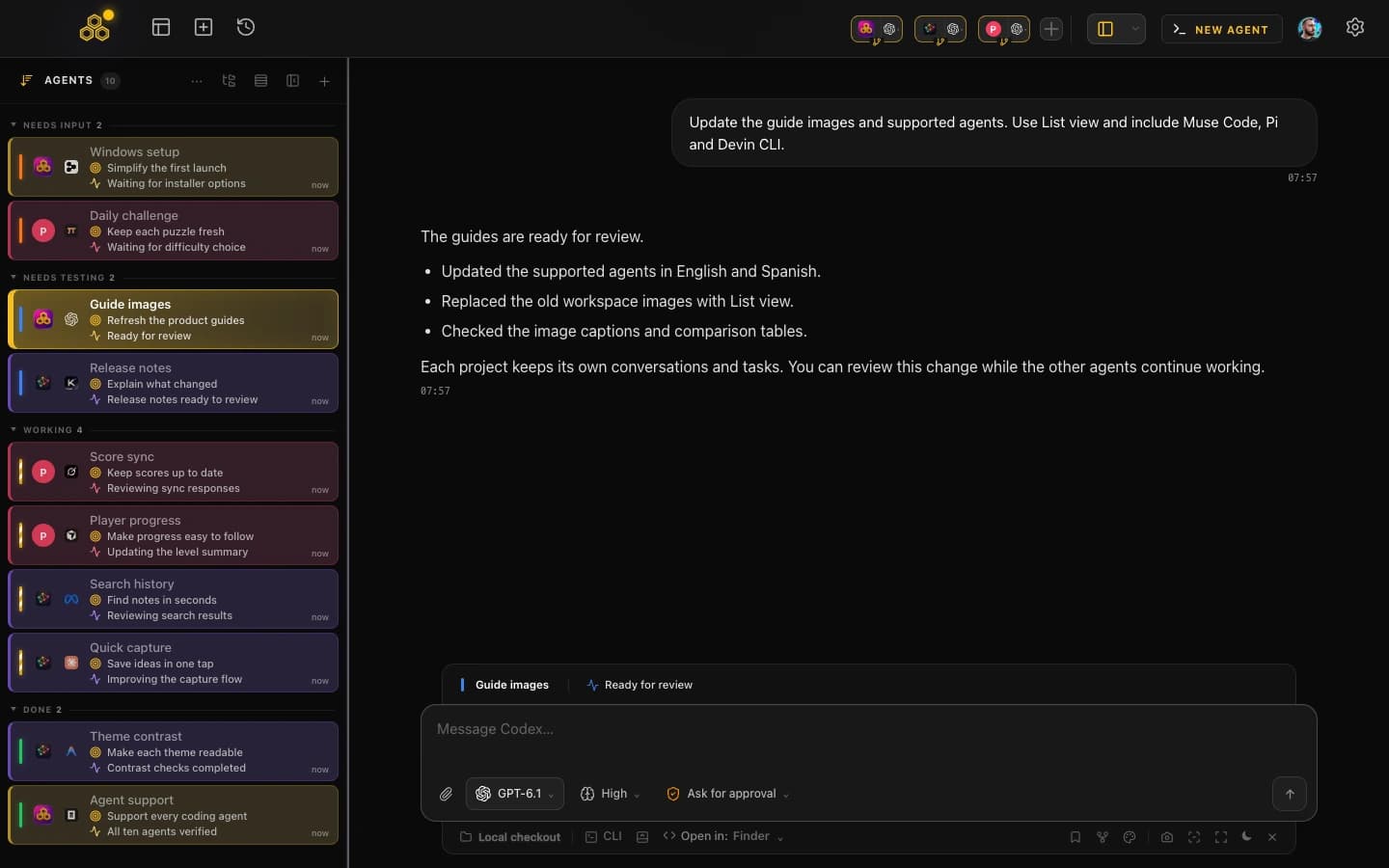
You see everything progressing at once. It's very satisfying to watch each terminal completing its part while you supervise or keep giving instructions.
And when there are code conflicts (because two terminals touched the same file), Claude resolves them automatically. You don't have to do anything.
What does CodeAgentSwarm offer you?
CodeAgentSwarm is the tool that makes all this possible comfortably. Out of the box you get:
- Multiple Claude Code terminals in parallel
- Complete conversation history with built-in search to recover old conversations
- Notifications when a terminal finishes or needs your attention
- Grid view to see everything at once or tab mode
- Dynamic titles that automatically change based on what each terminal is doing
To learn how to resume context quickly and save time with conversation history, see this guide: How to Use Claude Code History to Recover Context and Save Time.
If you want to make sure you never miss when a terminal finishes or needs attention, see this guide: How to Use CodeAgentSwarm Notifications to Stay in Focus with Claude Code.
To inspect what's changing in each session and at project level, see this guide: How to view Claude Code changes in real time (and know what the AI is doing).
Instead of having loose tabs or windows scattered around, you have everything in one place.
How to get started (step by step)
1. Open CodeAgentSwarm and create your terminals
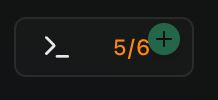
Open the app and create multiple terminals by clicking on the following button:
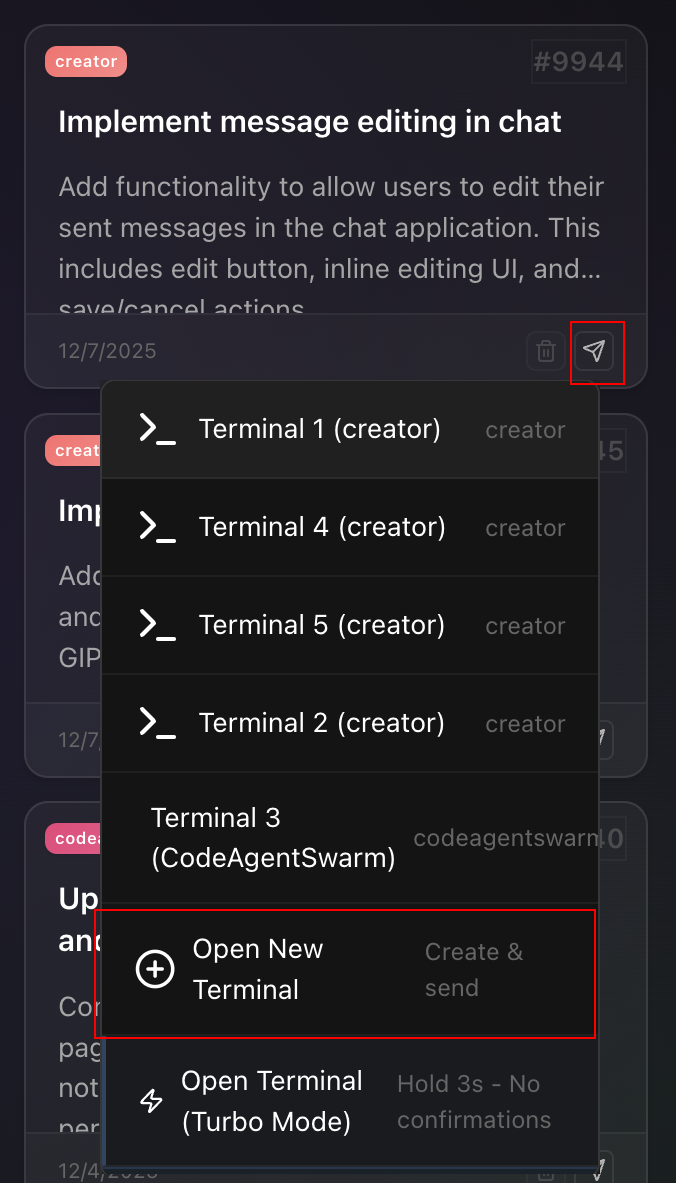
You can also create tasks from the kanban and create terminals from there, sending the task directly.
2. Give instructions to each terminal
Each terminal has its own context. You explain once what it needs to do and it gets to work. It doesn't mix anything with the others.
3. Watch them work
As each terminal starts working, it will dynamically change its title to show you what it's working on at any moment. You can also see the current changes it's making.
Practical tips
- You don't have to use all the terminals always - use what you need
- If a task is big, break it into subtasks and give each one to a terminal
- Close terminals that are done to keep the workspace clean
FAQ
Does Claude mix contexts between terminals?
No. Each terminal is completely independent. What you tell one doesn't affect the others.
What if two terminals touch the same file?
Claude handles conflicts automatically. We've tested it a lot and it's very reliable. You don't have to do anything.
How many terminals can I use at once?
Multiple in parallel. But you don't have to use them all - use what you need for your task.
Do I need a special Claude subscription?
You need to have Claude Code active. CodeAgentSwarm works on top of your existing subscription.
Is it really faster than a single terminal?
Yes, quite a bit. Especially when you have several independent things to do. Instead of waiting for one to finish before starting another, they all go at once.