
Search and Resume Any Claude Code Conversation with CodeAgentSwarm History
By CodeAgentSwarm · Updated September 5, 2026
What is Claude Code history in CodeAgentSwarm
Quick answer: to see your Claude Code history right now, run claude --continue to resume your most recent conversation, or claude --resume to pick from recent sessions. The raw history lives in ~/.claude/projects/ as JSONL files. The rest of this guide shows how to make all of it searchable.
claude --continue        # resume the most recent conversation
claude --resume          # pick from a list of recent sessions
ls ~/.claude/projects/   # where the raw history (JSONL files) lives
Claude Code history in CodeAgentSwarm is the feature that automatically stores all your conversations with Claude: what you write, what it replies, which project you were in and when it happened.
In practice, it is a long term memory of everything you have been building with the AI, organized by project and date so you can search, filter and resume any conversation in seconds.
If you already use Claude Code, you have probably used "claude --continue" or "claude --resume" to get back into a past session. The native session picker supports search, previews and other projects. CodeAgentSwarm integrates history into your multi-agent workspace: full text search, project filters, a global view of all your conversations and the ability to resume any conversation from any project in any terminal.
Why history is so important
Claude is not just a chat that spits out answers. When you keep using the same conversation for a specific part of your system, that thread accumulates:
- Design decisions
- Explanations you already gave
- Functional context
- Domain details you do not want to repeat
If you lose that conversation, you have to explain the module again from scratch, rework previous logic, and risk taking different decisions without noticing.
With CodeAgentSwarm history, you can go back to those conversations and keep building on top of what you already did instead of restarting every time.
On a small project this might not feel essential. But on large projects, where there are complex modules and giving Claude context about a specific part of the system can take several messages, history becomes indispensable. It is the difference between wasting 10 minutes explaining the same thing again or resuming in seconds exactly where you left off.
How history is organized by project and date
To avoid a giant flat list of chats, history is organized like this:
- By project
- By date, with the most recent first
- By conversation chain, grouping continuations together
- With colors per project so you can recognize them quickly
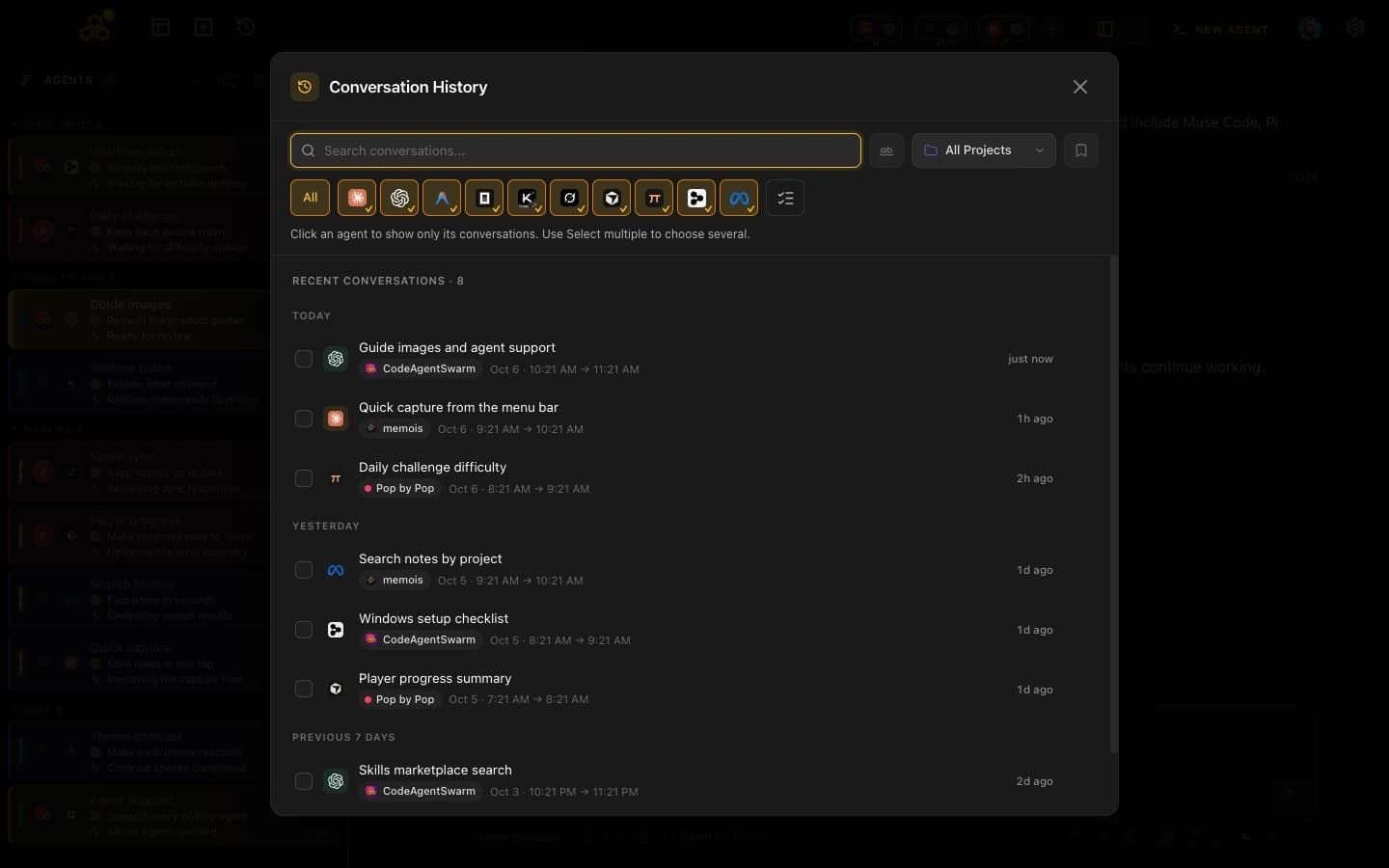
How to open history from any terminal
No matter which terminal you are in, history is always one click away:
- In any Claude Code terminal, click the "History" button.
- A modal opens with your recent conversations.
- From there you can search, filter and open conversations.
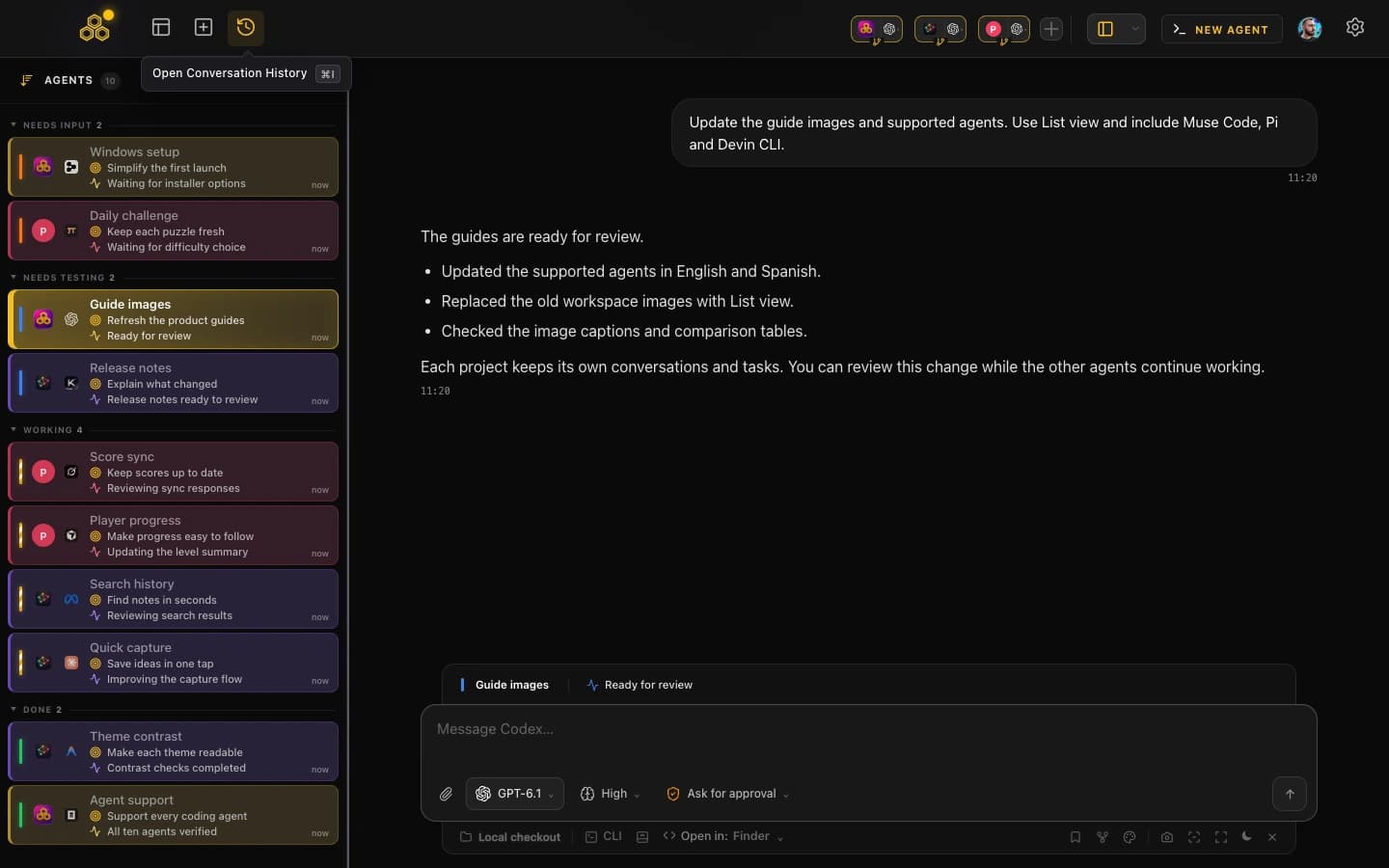
How to search past conversations by text and project
The history search does not only look at titles. It can search inside the content of your conversations.
You can search by:
- Things you wrote - like "Add dark mode" or "Fix auth bug"
- Functional concepts - like "authentication" or "database migration"
- Domain specific module names - like "Skills Marketplace"
- And you can filter by project if you work on several at once
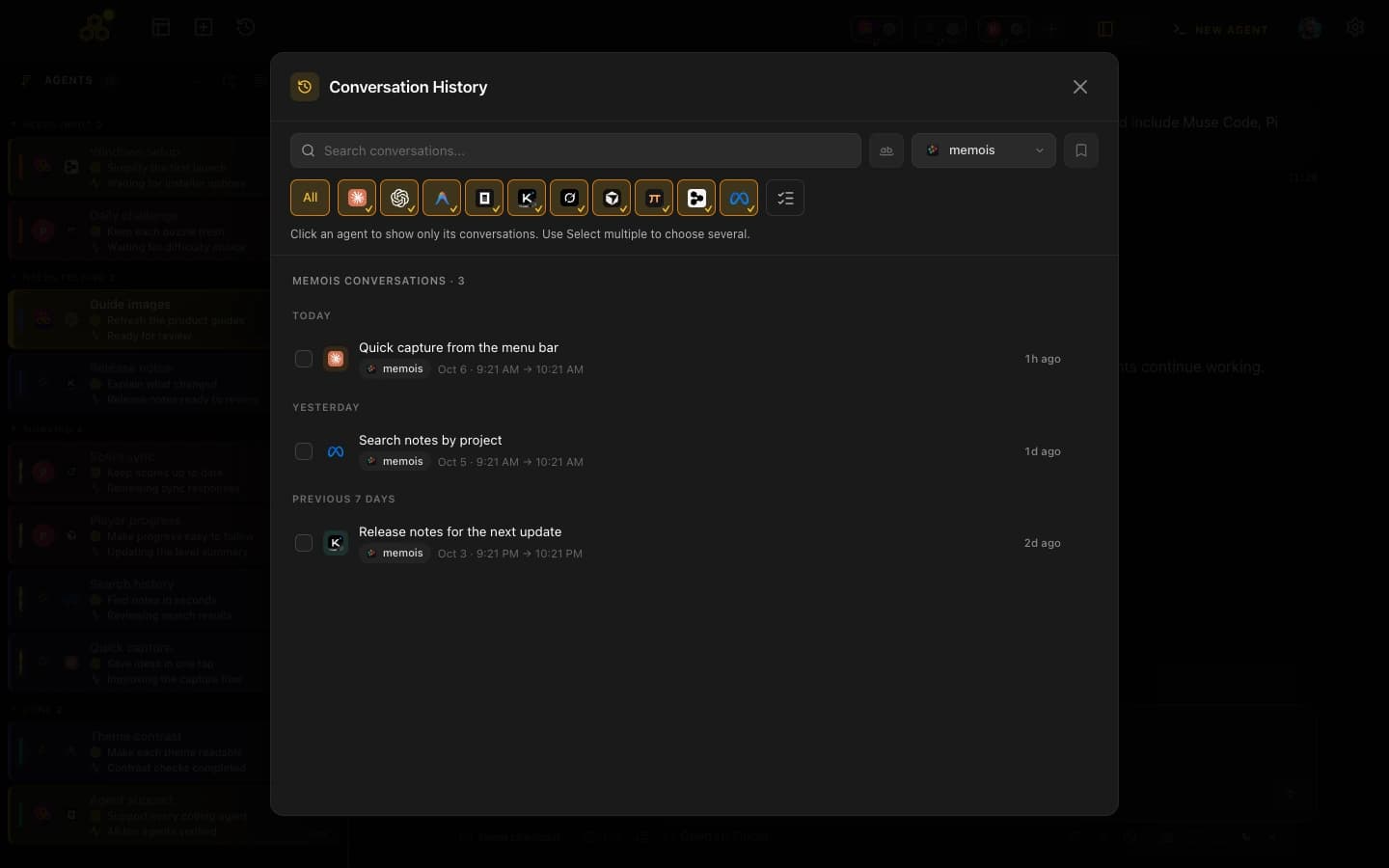
Example: searching for Skills Marketplace conversations
This sample project includes work on the Skills Marketplace.
It is a fairly complex area of the code: integrations, business rules, data models. Not something you want to explain from scratch to Claude every week.
Instead of opening a brand new chat and rewriting the whole story, the ideal flow is:
- Open history from a terminal.
- Search for "Skills Marketplace".
- See all the conversations where you already worked on that module.
- Open the conversation that makes the most sense.
- Keep working from there.
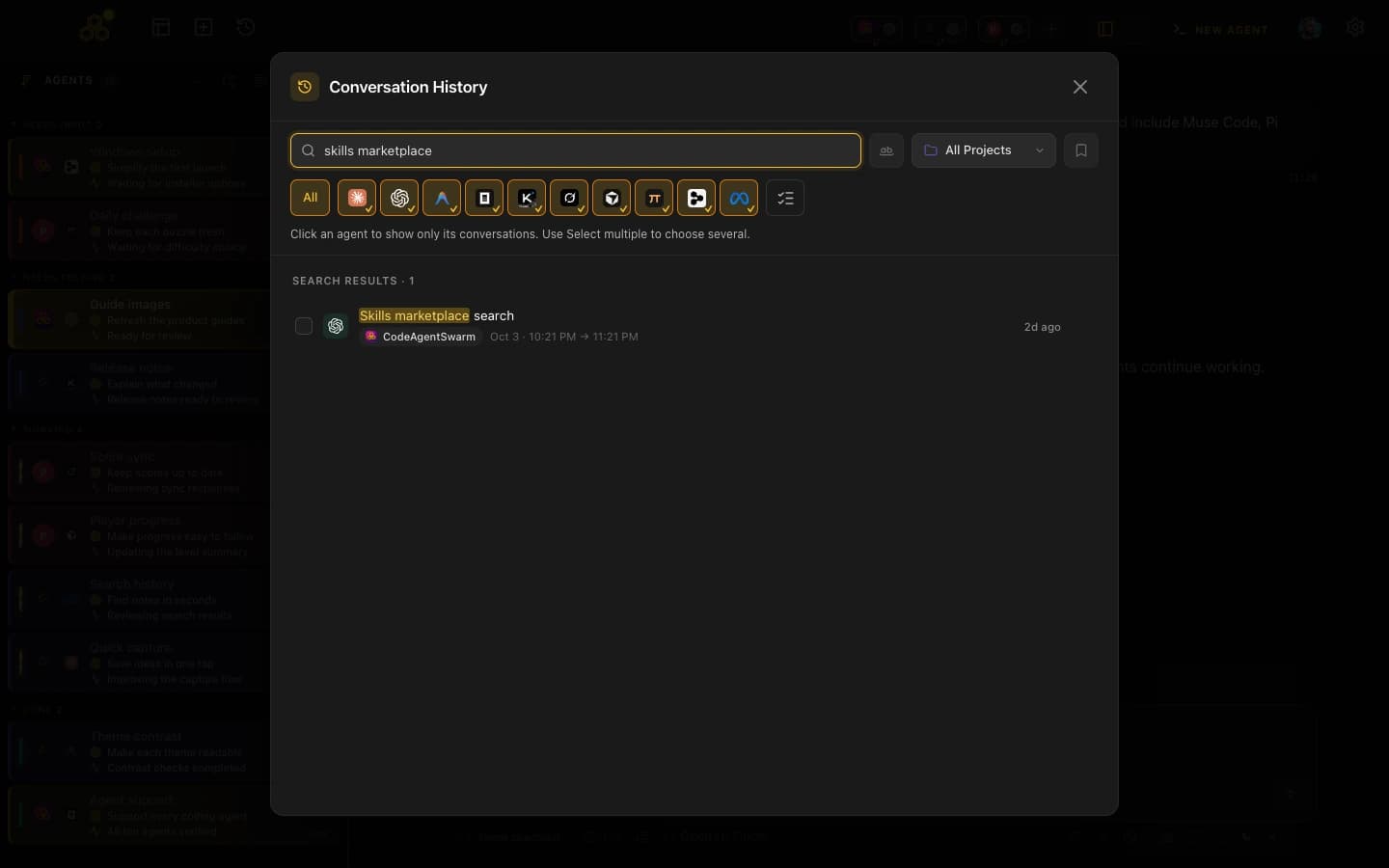
What happens when you select a conversation
When you select a conversation, if you used the search bar, you will see the messages where your search terms appear. This lets you quickly confirm it is the right conversation before opening it.
Once you choose the conversation you want to continue:
- CodeAgentSwarm opens a new terminal with all the previous context loaded.
- Claude remembers what you decided and what you built in that conversation.
- You keep working as if no time had passed.
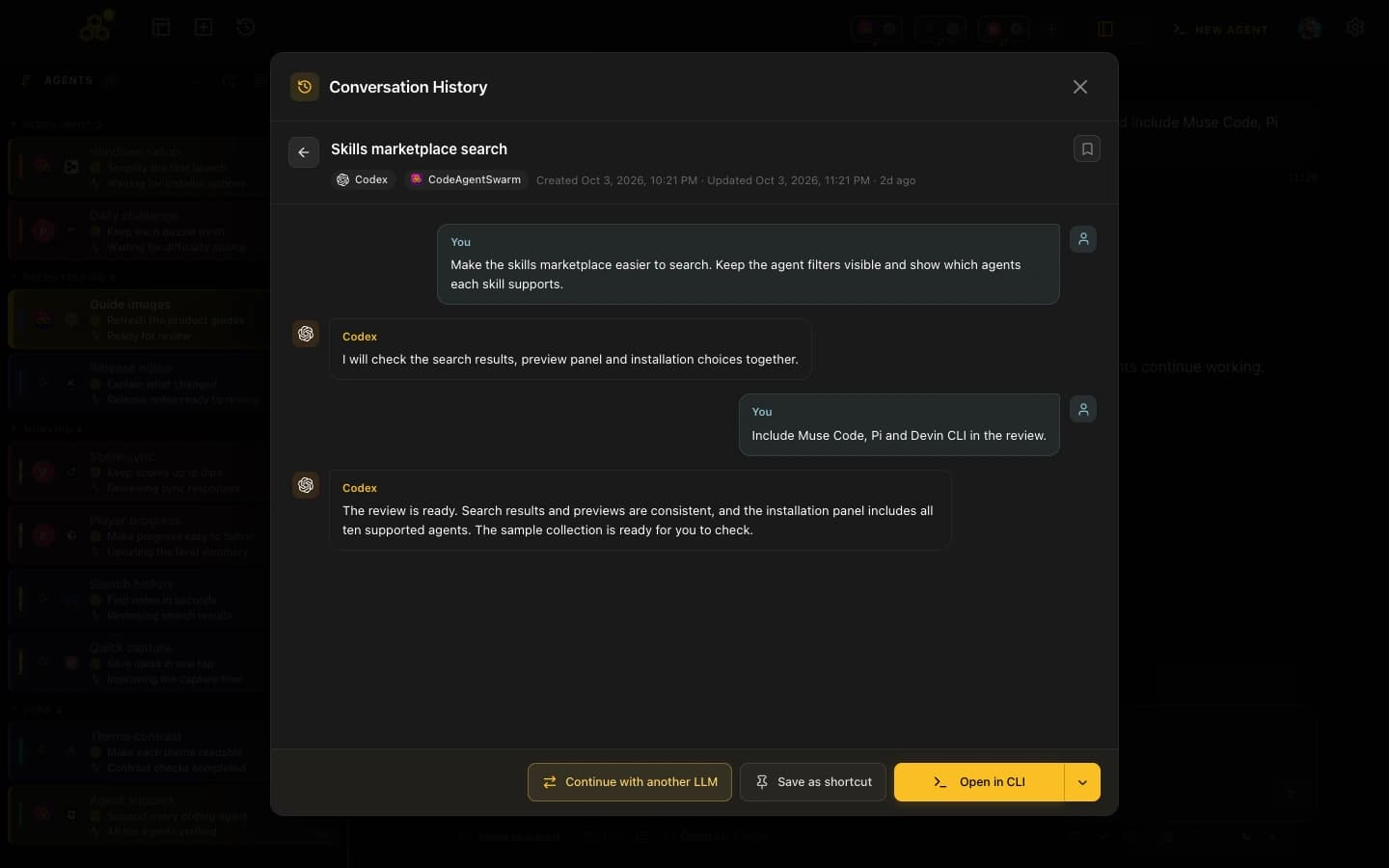
How to select which conversation to resume when opening a project
When you open a project, you can choose between normal mode (new conversation) or resume mode. If you choose resume mode, CodeAgentSwarm shows you a view with all your recent conversations from that project so you can pick which one to continue.
From this view you can:
- See all your previous conversations organized by date
- Search for specific conversations by text
- Choose exactly which conversation to continue
- Or start a new conversation if you prefer
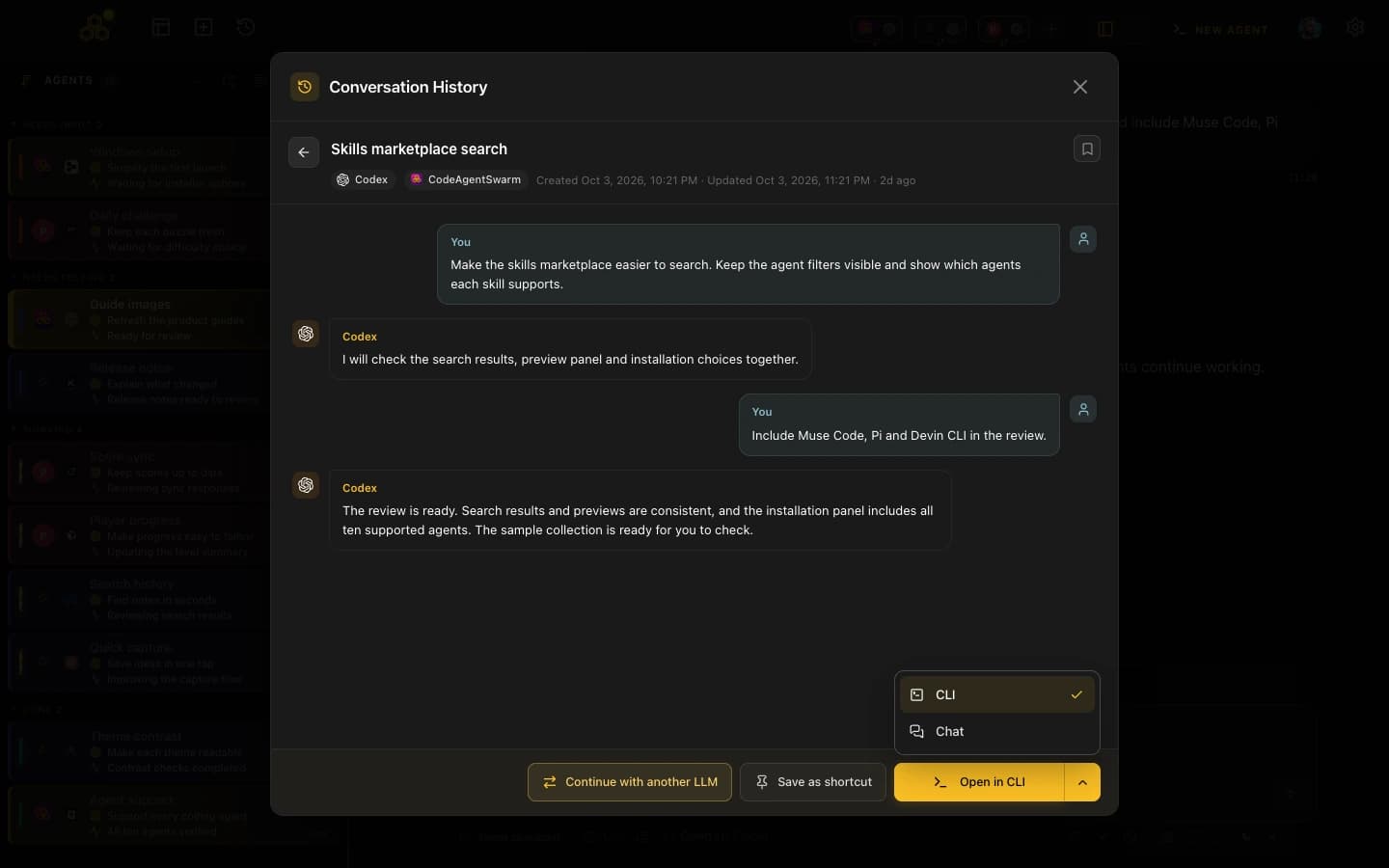
This gives you full control over your context. You do not have to guess where your needed conversation is - you search for it, select it and keep working.
Real benefits of using history properly
Using Claude Code history like this has a direct impact on your everyday work:
- You never lose context on important parts of the system
- You stop re-explaining the same modules to Claude every week
- Architecture decisions stay consistent over time
- Handling multiple projects at once becomes much more manageable
- The time you spend "bringing the AI up to speed" drops a lot
- You save tokens by not having to repeat context that already exists in previous conversations
When you master history, working with multiple sessions becomes much easier. To learn how to set up several terminals, see this guide: How to Use Multiple Claude Code Terminals (Without Losing Your Head).
Typical use cases
Some classic scenarios where Claude Code history shines:
- "How did we fix that auth bug three days ago?" - Search "auth" and see exactly what you did.
- "I want to continue what I was doing yesterday." - Open History, pick the latest relevant conversation and continue.
To see exactly what changed in a particular session or across the entire project before you resume work, see this guide: How to view Claude Code changes in real time (and know what the AI is doing).
Conclusion
Claude Code history in CodeAgentSwarm is not just a pile of old chats. It is your living memory of how you have been building your projects with AI.
Next time you have to work on some functionality, instead of explaining everything to Claude from scratch, use the conversation history and pick up where you left off.
And if you also want to work on multiple parts of the project in parallel, check out the guide How to use multiple Claude Code terminals without the hassle.
Working with OpenAI Codex CLI instead of, or alongside, Claude Code? The same searchable history and resume workflow applies there too: see Codex CLI conversation history and resume.
FAQ
Do I have to manually mark what gets stored?
No. CodeAgentSwarm automatically stores your Claude Code conversations, associated with project, date and conversation chain.
Can I search by things Claude wrote, not just what I wrote?
Yes. The search engine looks at the full content of the conversation.
What if I work on many projects at once?
Even better. History is organized by project, so it is easy to see what belongs where.
Does history disappear if I close the app?
No. It is persistent. Close the app, shut down your laptop, come back tomorrow. Everything will still be there.