
Claude Code YOLO Mode: Enable --dangerously-skip-permissions Safely
What `--dangerously-skip-permissions` actually does
When people say "YOLO mode" for Claude Code, they usually mean reducing confirmation prompts. On the CLI, the term you will see most is --dangerously-skip-permissions. Anthropic has since introduced Auto mode as a safer built-in alternative, and you can learn more about all available options in the Claude Code permission modes documentation.
In practice: Claude stops asking for approval every time it wants to run a tool or execute a command. That makes repetitive work much faster because you are not confirming dozens of actions while iterating.
Important nuance
Even with "accept edits on", Claude will still ask for confirmation in many situations. That is why YOLO mode can still feel slower than expected on long or repetitive tasks.
Real world risks of dangerously-skip-permissions
Things that happen in real projects:
- deleting the wrong files or folders
- overwriting files via scripts
- running dangerous commands
- Git actions at the wrong time: push, merge, create or delete branches
- MCP tools with data access executing unintended operations
Turbo Mode in CodeAgentSwarm: what changes
Turbo Mode in CodeAgentSwarm is "skip confirmations", but with permission control. The point is not chaos. The point is speed where it is safe, and friction where it matters.
Practically:
- Go faster while still blocking risky actions.
- Allow reads and diffs without prompts, block what has real impact.
- Apply the same model to MCP tools.
The usual tradeoff
When you run fast, you also want visibility. Otherwise you notice changes too late. That is why Turbo Mode pairs really well with the per terminal live diff viewer. You can see how it works in this guide: view Claude Code changes in real time.
How to enable Turbo Mode
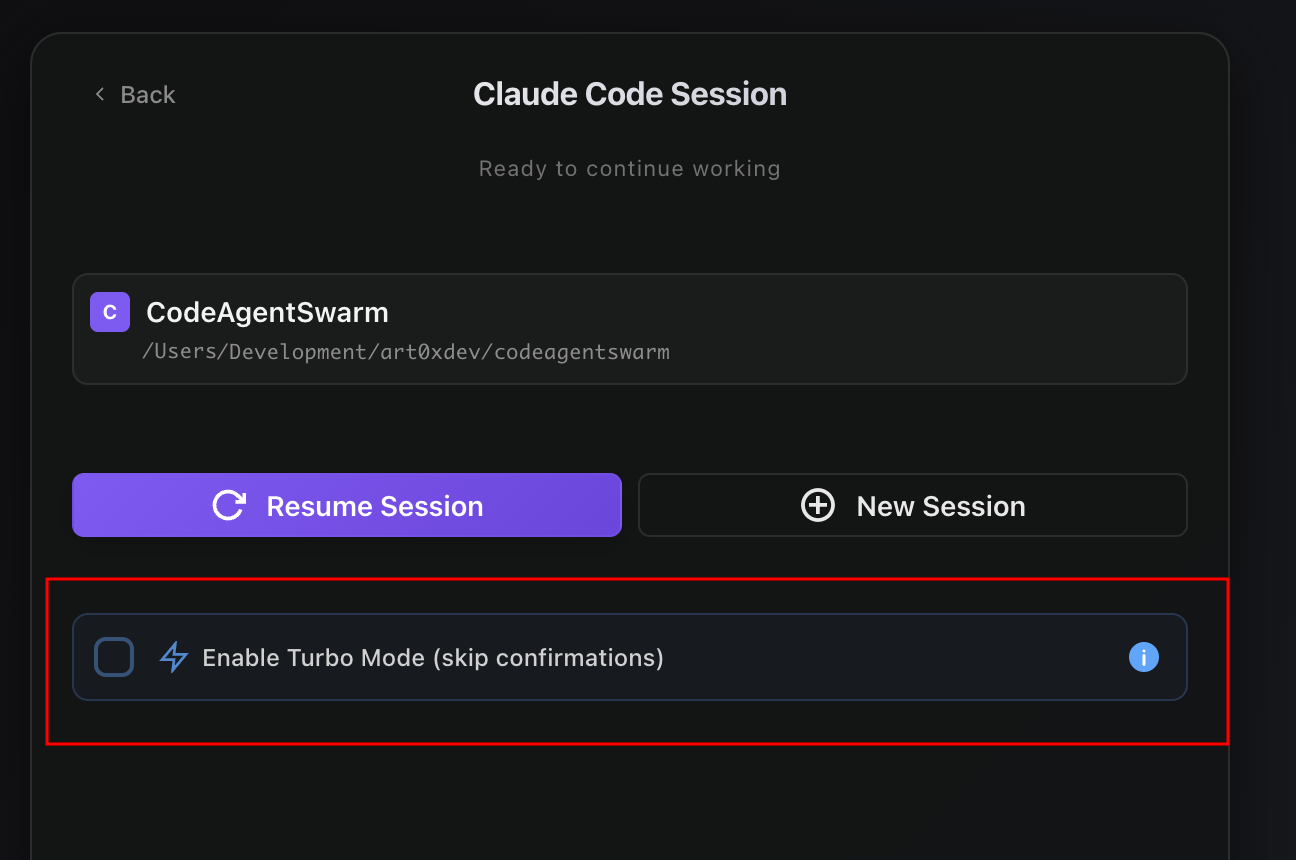
On the project start screen, enable "Enable Turbo Mode (skip confirmations)".
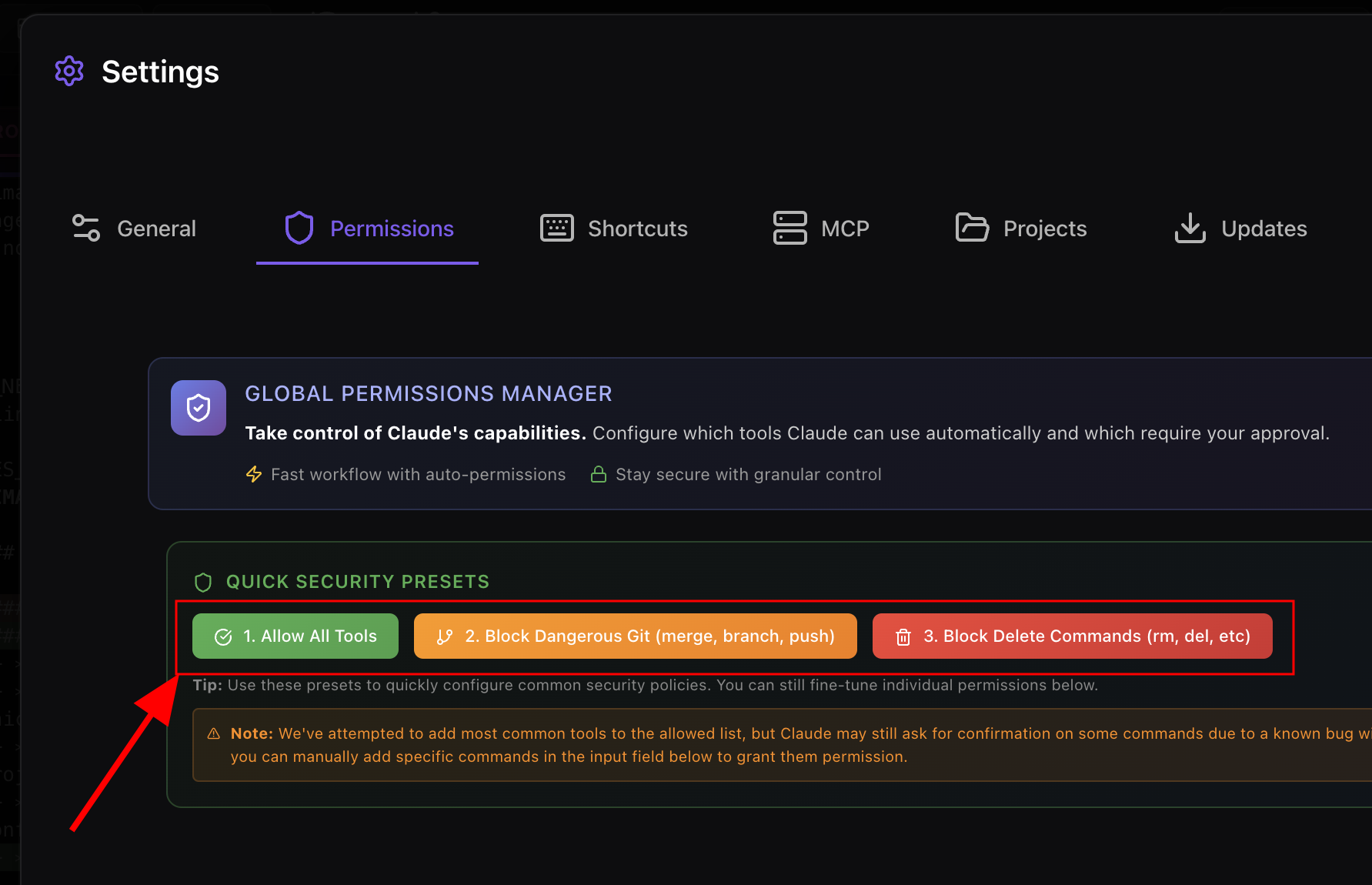
Quick security presets
Use Global Permissions Manager presets:
- Allow All Tools
- Block Dangerous Git (merge, branch, push)
- Block Delete Commands (rm, del, etc.)
One click applies the policy. You will usually need to restart the Claude session for changes to fully take effect.
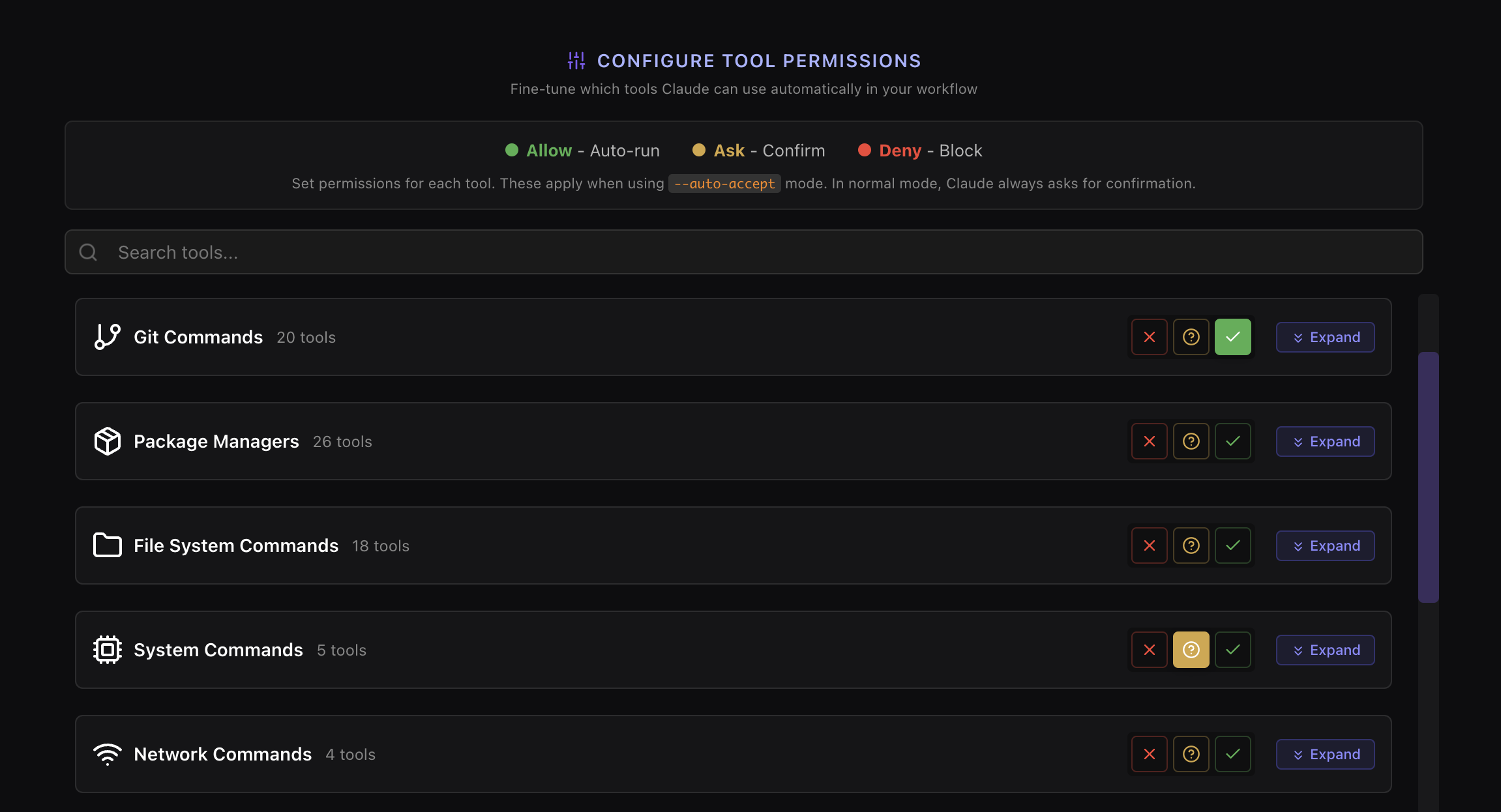
Tool permissions: Allow, Ask, Deny
You can fine tune permissions per category and per tool:
- Allow: auto run
- Ask: confirm
- Deny: blocked
Note about "Ask" in Turbo Mode
In practice, Ask may behave like Allow if you are using "skip confirmations".
Simple mental model:
- If you are fine with it auto running, use Allow.
- If you never want it to run without you noticing, use Deny.
- Use Ask only if you sometimes run without Turbo Mode.
Parallel terminals tip
Turbo Mode is even more useful with multiple terminals running in parallel. The downside is visibility: it is easy to lose track of which terminal finished or needs your input.
Notifications solve that. If you are going to run several terminals, enable them and let the app ping you when something finishes or gets blocked. You can set them up following this guide: CodeAgentSwarm notifications.
MCP permissions
With MCP servers, Claude can interact with data sources. CodeAgentSwarm lets you control permissions per MCP server and per MCP tool.
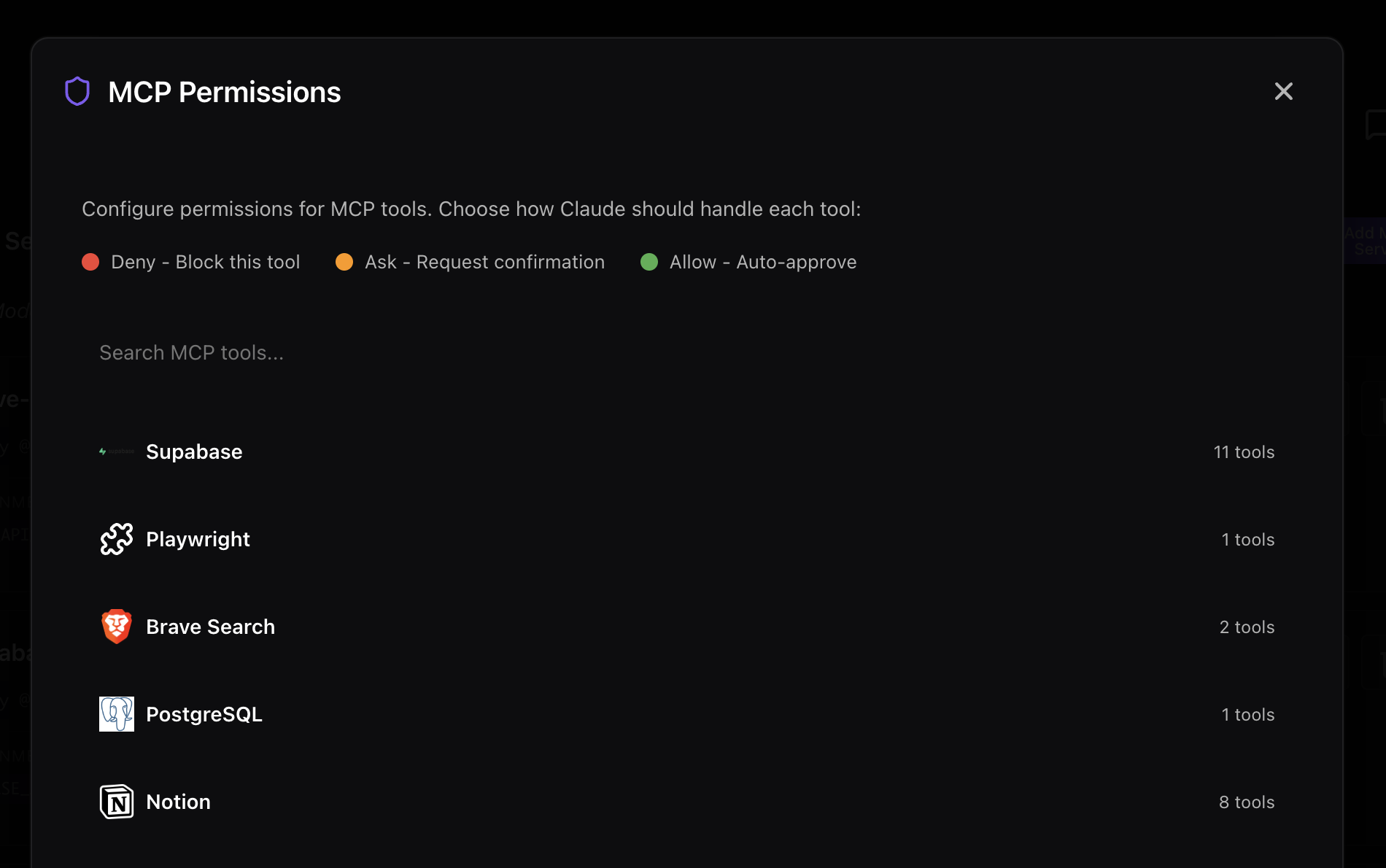
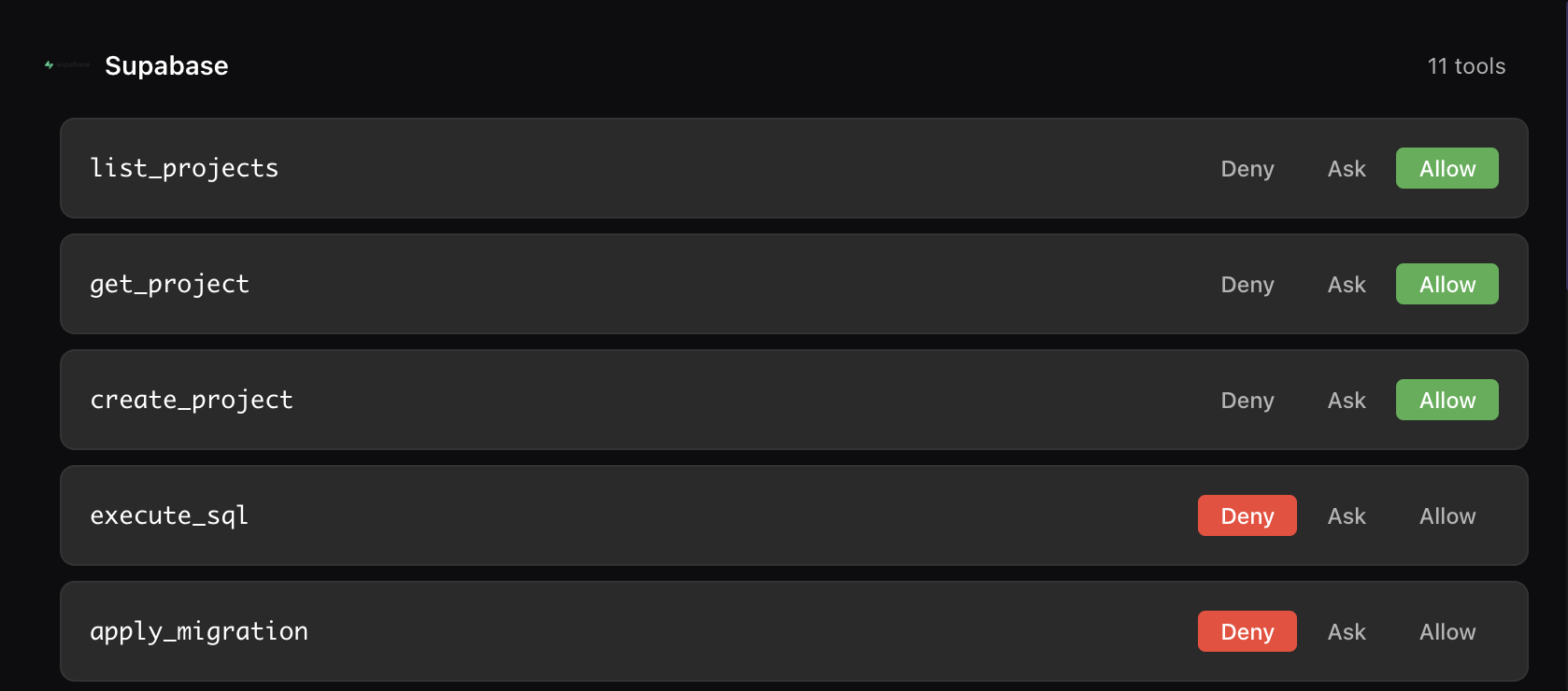
Rule of thumb:
- list and read: Allow
- destructive actions (write, delete): Deny
Recommended fast and safe setup
Git
- status/diff/log: Allow
- commit: Deny
- push/merge/branch: Deny
File operations
- read/edit: Allow
- write: Allow
- delete: Deny
Network
- mostly Deny
MCP
- list/read: Allow
- write/migrate: Deny
- delete: Deny
FAQ
Enable "Turbo Mode (skip confirmations)" in CodeAgentSwarm on the project start screen. This gives you YOLO-style speed with granular permission controls, so you can go fast without compromising safety.
In CodeAgentSwarm, activate "Enable Turbo Mode" on the project start screen. This implements the same behavior as --dangerously-skip-permissions but with a permission system that lets you control which actions auto-approve.
It is a CLI flag that makes Claude Code skip permission confirmations for tools and commands. It speeds up workflow but can be risky without additional controls. CodeAgentSwarm implements this as Turbo Mode with configurable permissions.
Use Turbo Mode in CodeAgentSwarm with permission presets. Start with "Block Dangerous Git" and "Block Delete Commands" while allowing read operations. This gives you speed without the risk of accidental destructive actions.
Use the "Block Dangerous Git" preset in Global Permissions Manager. This automatically blocks push, merge, and branch operations. You can still allow status, diff, and log to review changes safely.
Apply the "Block Dangerous Git" preset in CodeAgentSwarm. It sets all risky Git operations (push, merge, branch create/delete) to Deny while keeping safe operations like status and diff on Allow.
Allow: action runs automatically. Ask: prompts for confirmation (but acts like Allow in Turbo Mode). Deny: blocks the action completely. You can configure these per category and per individual tool.
MCP permissions use the same Allow/Ask/Deny model as tool permissions, but are configured per MCP server and per individual tool. This lets you, for example, allow Supabase reads while blocking writes or migrations.
Enable Turbo Mode with configured permissions and work with Claude Code at maximum speed without sacrificing safety.
Try CodeAgentSwarm