
Gemini Agent Swarm: Run Multiple Gemini CLI Agents Together
gemini command, you sign in with a Google account, and you get a generous free tier and a large context window. Nothing stops you from opening that command more than once.
So the question is not whether you can run a swarm of Gemini agents. You can. The question is how you keep track of them once you have three, four, or more running at the same time, each chewing through a different task.
In this guide I will go through the three practical ways to run multiple Gemini CLI agents together, compare them honestly, and explain why a workspace built for this (where you also pick "gemini cli" per terminal) usually beats juggling raw terminals once the swarm grows.The short answer: yes, you can run a Gemini swarm
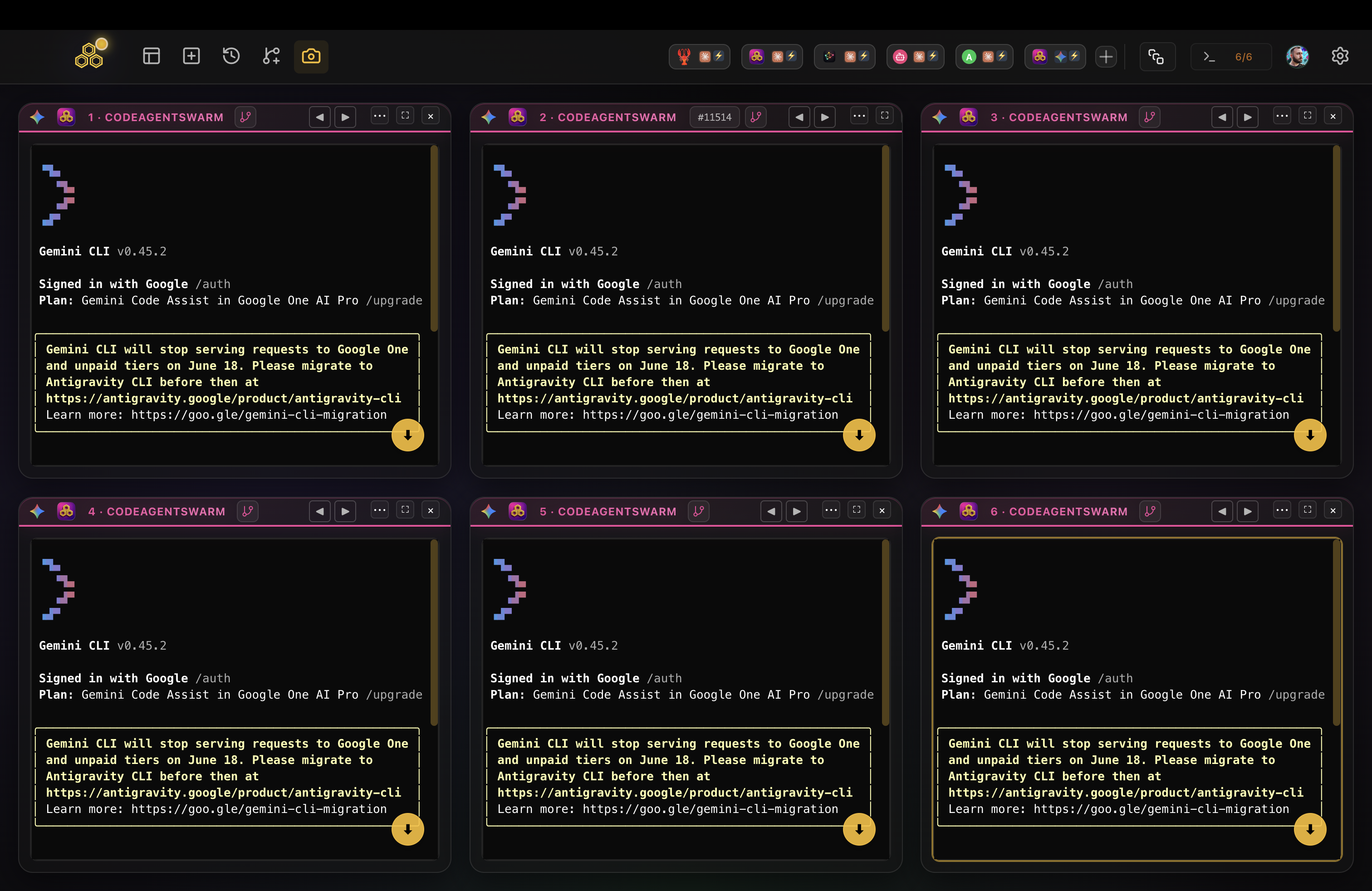
Yes. You can run a swarm of Gemini agents in parallel, and the setup is simpler than the term suggests. Each Gemini CLI session is its own process with its own conversation, its own context, and its own working state. When you open a terminal and run gemini, that agent knows nothing about any other agent you have running.
That independence is the whole trick. Open a second terminal, run gemini again, and you have two separate Gemini agents going at once. One can be migrating a database layer while the other writes integration tests. They do not share memory, so they will not step on each other unless they touch the same files.
Because Google offers a generous free tier with a Google sign-in, spinning up several agents does not immediately blow a budget the way some metered APIs would. Combine that with a large context window per agent and a swarm of Gemini CLI agents becomes a genuinely practical way to parallelize work.
A Gemini agent swarm is not the same as a hosted multi-agent product. Each agent runs locally on your machine using your own Google account and the Gemini CLI. There is no special "swarm plan" to buy.
The hard part is never starting the agents. It is keeping an eye on all of them once they are running. The three methods below tackle exactly that.
Method 1: Multiple terminal windows (free, basic)
The most direct way to build a Gemini swarm is the one you already know. Open a few terminal tabs or windows, move into your project in each, and start a Gemini CLI agent in every tab.
# Terminal tab 1
cd ~/my-project
gemini

# Terminal tab 2
cd ~/my-project
gemini

# Terminal tab 3
cd ~/my-project
gemini
Each tab is now an independent Gemini agent. Switch between them, give each one a different instruction, and you have a small swarm running. If you want an agent to keep going without stopping for confirmation on every action, Gemini CLI has a yolo style auto-approve mode for unattended runs. Use it carefully, since an auto-approving agent will happily run commands you might have wanted to review.
Pros
- Free, nothing to install beyond the Gemini CLI itself
- Works the moment you open a tab, zero setup
- Easy to reason about, one tab equals one agent
Cons
- You quickly forget which tab is running which task
- No notification when an agent finishes or stops to ask something
- No shared view of the swarm, you click into each tab to check
- No way to search across the conversation history of different agents
- If two agents edit the same file you resolve the conflict yourself
- With three or more tabs they all look identical
For two agents this is perfectly fine. Beyond that, the time you spend hunting through tabs starts to cancel out the time the parallel agents were supposed to save you.
Method 2: tmux or screen (free, advanced)
If you are comfortable in the terminal, tmux gives you split panes and persistent sessions. You can watch several Gemini agents on one screen without flipping between tabs.
# Start a new tmux session
tmux new-session -s gemini-swarm

# Split horizontally
tmux split-window -h

# Split the right pane vertically
tmux split-window -v

# Now you have 3 panes - run gemini in each one
tmux also lets you detach and reattach, so your Gemini agents keep running even if you close the terminal window. That is useful when you have an agent grinding through a long migration in auto-approve mode and you want to walk away.
Pros
- Free and available almost everywhere
- See several panes at once without tab switching
- Persistent sessions that survive disconnects
- Deeply configurable through dotfiles
Cons
- Real learning curve if tmux is new to you
- Still no desktop notification when a Gemini agent finishes
- No conversation history or search across the swarm
- Text-only panes get cramped past 3 or 4 agents
- No task board or organization layer for the work
- You rebuild the layout by hand every session
- Conflict resolution between agents is still on you
tmux is a great tool and plenty of developers live in it. But it was built as a general terminal multiplexer, not as a control room for parallel AI agents. The gaps become obvious once your Gemini swarm is three or more agents that you run every day.
Method 3: CodeAgentSwarm (visual, full-featured)
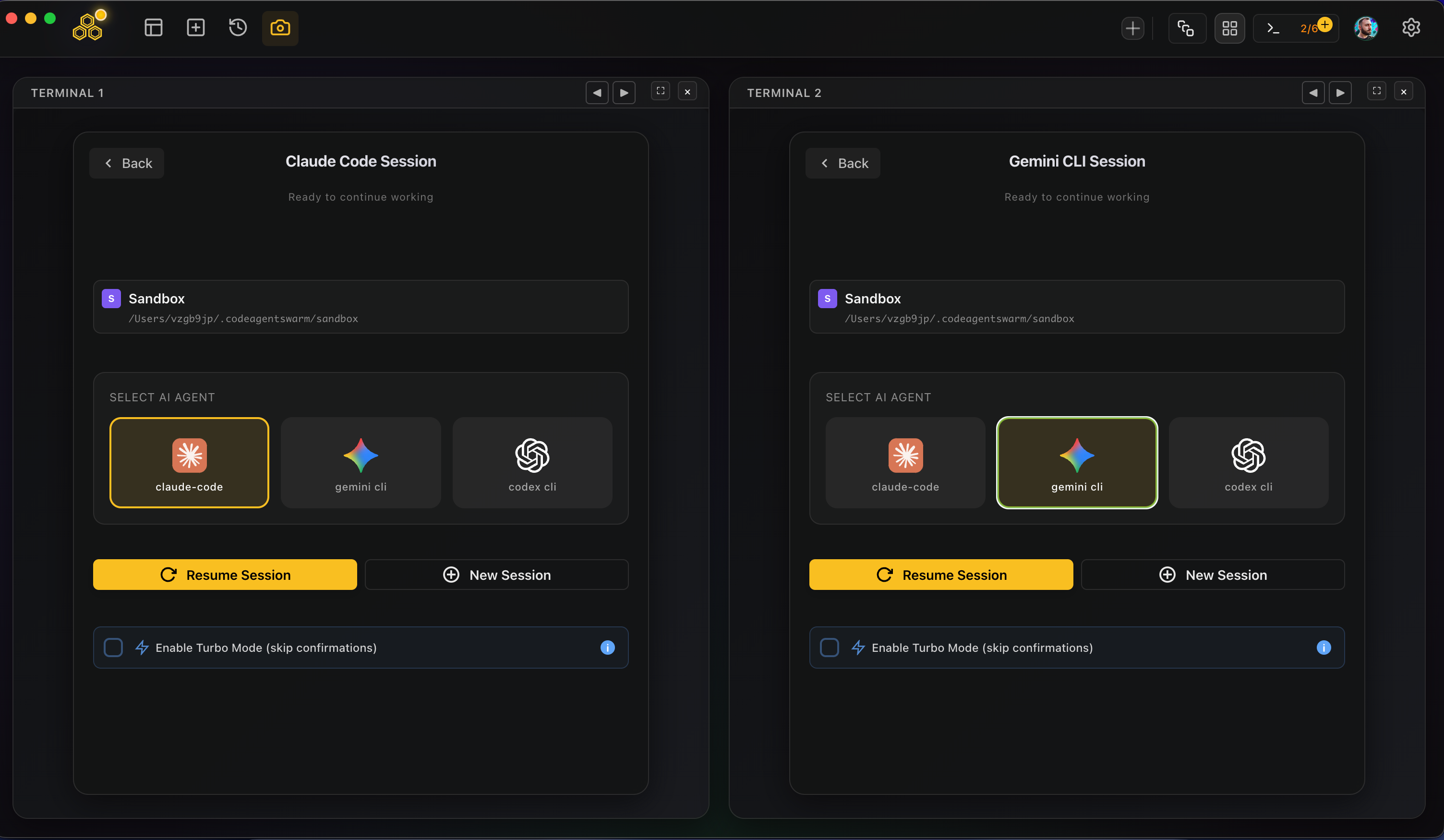
CodeAgentSwarm is a desktop app built for exactly this problem: running several AI CLI agents in parallel with real visibility and control. It runs on macOS and Windows, gives you multiple terminals in one workspace, and lets you choose the agent per terminal. For a Gemini swarm you just pick "gemini cli" in each terminal you want, and you can mix in Claude Code or Codex CLI alongside it.
It runs on top of your existing setup. CodeAgentSwarm is not a model provider, so your Gemini agents keep using your own Google sign-in and your Gemini CLI. The app just gives the swarm a place to live. Here is what that adds:
Multiple Gemini agents in parallel
Run multiple terminals at once and set each one to gemini cli through the SELECT AI AGENT picker. Each agent is independent, with its own conversation and project context. If a task fits a different model better, you can point that one terminal at Claude Code or Codex CLI instead, all in the same window.
Real-time visibility with dynamic titles
Each terminal updates its own title based on what the agent is doing right now. Instead of several identical "gemini" tabs you see titles like "Migrating DB Layer", "Writing API Tests", "Refactoring Router". One glance tells you what every agent in the swarm is up to.
Desktop notifications
When a Gemini agent finishes its task or needs your input, you get a native desktop notification. You stop babysitting tabs to find out whether something is done. Focus on one agent and let the rest of the swarm ping you when they actually need attention. The notification system guide goes deeper on how this works.
Searchable conversation history across agents
Every conversation across every terminal is saved and searchable. You can find what a Gemini agent did yesterday, resume a thread, or review the full history of changes. When the swarm is large, being able to trace what happened where is what keeps the whole thing from turning into noise.
A kanban task board agents update over MCP
A kanban-style board connects to your terminals, and the agents update it themselves over MCP. Create tasks, assign them, and watch the board move as the swarm works. When two Gemini agents are building related features, the board keeps the big picture in one place.
Turbo Mode with granular permissions
Running a swarm means more actions happening at once, which makes permissions matter more. Turbo Mode auto-approves safe operations while keeping risky ones gated, so a Gemini agent can move fast without you waving through everything blindly. You set the line between what is automatic and what still needs a yes. The Turbo Mode guide covers the full setup.
Per-terminal live file diffs
When two agents touch the same file, you can see it as it happens. CodeAgentSwarm tracks live file changes per terminal and at the project level, so overlapping edits across the swarm do not surprise you later. The real-time changes guide has more on this.
A Gemini agent swarm is one flavor of a broader idea. For the full picture across vendors, start with the AI CLI agent swarm hub, then compare it with the Codex agent swarm and running multiple Claude Code sessions.
Quick comparison
Here is how the three ways to run a Gemini agent swarm compare across what actually matters when the swarm grows:
Cost
- Terminal tabs: Free
- tmux/screen: Free
- CodeAgentSwarm: Free tier available, Pro for advanced features, runs on top of your Gemini account
Setup time
- Terminal tabs: Zero, just open tabs
- tmux/screen: 10 to 30 minutes to learn the basics, more to customize
- CodeAgentSwarm: About 2 minutes to download and open
Notifications
- Terminal tabs: None
- tmux/screen: None unless you script something custom
- CodeAgentSwarm: Native desktop notifications when an agent finishes or needs input
Conversation history
- Terminal tabs: Lost when you close the tab
- tmux/screen: Kept while the session is alive, no search
- CodeAgentSwarm: Saved permanently and searchable across every agent
Mixing agents
- Terminal tabs: Possible, but you track it in your head
- tmux/screen: Possible with named panes, still manual
- CodeAgentSwarm: Pick gemini cli, claude-code, or codex cli per terminal from one picker
Learning curve
- Terminal tabs: None
- tmux/screen: Moderate to steep (keybindings, config files, pane management)
- CodeAgentSwarm: Low, a visual interface with familiar patterns
If you only need two Gemini agents now and then, terminal tabs are fine. If you already live in tmux, adding Gemini CLI agents to your setup is natural. But once you run three or more agents regularly and want to actually see what each one is doing, CodeAgentSwarm removes the friction the other two approaches leave behind.
FAQ
A Gemini agent swarm is several Gemini CLI agents running in parallel, each in its own terminal with its own conversation and context, while you supervise them. There is no special product to buy. You start the gemini command more than once and coordinate the agents, either by hand or through a workspace like CodeAgentSwarm.
Yes. Each Gemini CLI session is an independent process, so you can run as many as your machine handles. They do not share memory and will only collide if they edit the same files. CodeAgentSwarm runs multiple terminals at once and lets you set each one to gemini cli.
Pick one of three ways. Open several terminal tabs and run gemini in each. Use tmux to split panes and keep persistent sessions. Or use CodeAgentSwarm, where you open multiple terminals, choose gemini cli per terminal in the SELECT AI AGENT picker, and get shared visibility, notifications, and searchable history across the whole swarm.
Yes. Because each terminal is independent, you can run a Gemini agent next to a Claude Code agent and a Codex agent. In CodeAgentSwarm you set the agent per terminal from the SELECT AI AGENT picker, so a mixed swarm lives in one workspace with one shared history.
For many workflows, yes. Google offers a generous free tier with a Google sign-in, which makes running several Gemini agents in parallel practical without a metered bill per call. Heavy or sustained use can hit limits, so for large or long-running swarms keep an eye on your quota and the limits attached to your account.
Run your Gemini agent swarm in CodeAgentSwarm. Pick gemini cli per terminal, watch all of them at once, and get notified when each one finishes.
Try CodeAgentSwarm