
Best MCP Servers for Claude Code: Top 10 Integrations You Need
By CodeAgentSwarm · Updated April 15, 2026
What are MCP servers and why do they matter?
MCP stands for Model Context Protocol. It is an open standard created by Anthropic that lets AI tools like Claude Code connect to external services and data sources through a unified interface.
By default, Claude Code can read and write files in your project and run shell commands. That is powerful on its own, but it means Claude is limited to what is already on your machine. MCP servers remove that limitation.
Each MCP server acts as a bridge between Claude Code and an external tool. Install the GitHub MCP server, and Claude can create pull requests. Install the Supabase MCP server, and Claude can run database migrations. Install the Playwright MCP server, and Claude can automate a browser to test your frontend.
- Without MCP: Claude reads files, writes code, runs terminal commands
- With MCP: Claude interacts with GitHub, databases, browsers, APIs, documentation platforms, search engines, and more
MCP is supported by Claude Code, Codex CLI, and a growing number of AI development tools. The servers are typically open source and run locally on your machine, connecting to services using your own credentials. You can browse the full catalog of available servers in the official MCP servers repository.
The 10 best MCP servers for Claude Code
These are the MCP servers that make the biggest difference for day-to-day development. Each one connects Claude Code to a service you probably already use.
1. GitHub MCP
The GitHub MCP server gives Claude Code full access to your GitHub workflows. It can create and review pull requests, open and manage issues, read repository contents, browse branches, and comment on code. If your team uses GitHub for code review and project management, this is the first MCP server you should install.
- Create PRs with titles, descriptions, and reviewers
- Read and comment on existing pull requests
- Open, label, and close issues
- Browse repository files and branches without cloning
Best for: Teams using GitHub for code review, issue tracking, and project management.
2. Supabase MCP
The Supabase MCP server connects Claude Code directly to your Supabase project. It can run SQL queries, apply database migrations, inspect schemas, manage Edge Functions, and check logs - all without leaving your editor.
- Run SQL queries and inspect results
- Apply schema migrations safely
- Deploy and manage Edge Functions
- Check database advisors for performance and security
Best for: Projects using Supabase as their backend and database layer.
3. Playwright MCP
The Playwright MCP server gives Claude Code the ability to control a real browser. It can navigate pages, click elements, fill forms, take screenshots, and run end-to-end tests. This is invaluable for frontend development where you need Claude to verify that UI changes actually work.
- Automate browser interactions for testing
- Take screenshots of pages and components
- Fill forms, click buttons, and navigate through flows
- Scrape web content for data extraction
Best for: Frontend testing, visual verification, and web scraping tasks.
4. PostgreSQL MCP
The PostgreSQL MCP server connects Claude Code directly to any PostgreSQL database. It can run queries, inspect table schemas, analyze data, and help debug data-related issues. Unlike Supabase MCP which is specific to Supabase projects, this works with any Postgres instance.
- Run SELECT queries to analyze data
- Inspect table schemas and relationships
- Debug data issues without switching to a database client
- Generate reports from database queries
Best for: Debugging data issues, generating reports, and working with any PostgreSQL database.
5. Notion MCP
The Notion MCP server lets Claude Code read and write Notion pages and databases. It can create documentation pages, update existing docs, search across your workspace, and keep your project documentation in sync with code changes.
- Create and update Notion pages automatically
- Search across your entire Notion workspace
- Query Notion databases for project data
- Keep documentation synchronized with code changes
Best for: Teams using Notion for documentation, knowledge bases, and project management.
6. Slack MCP
The Slack MCP server enables Claude Code to send messages, read channels, and post updates to your Slack workspace. You can use it to notify your team when deployments finish, post status updates, or pull context from Slack discussions into your development workflow.
- Send messages to channels and threads
- Read channel history for context
- Post automated deployment or build notifications
- Search Slack for relevant discussions
Best for: Team workflows, automated status updates, and keeping communication in sync with development.
7. Brave Search MCP
The Brave Search MCP server gives Claude Code the ability to search the web. This is surprisingly useful, because it means Claude can look up current documentation, check API references, research error messages, and find solutions that are more recent than its training data.
- Search for up-to-date documentation and API references
- Research error messages and stack traces
- Find the latest versions of libraries and tools
- Look up recent solutions to common problems
Best for: Debugging with current information and researching APIs beyond Claude's training data.
8. Filesystem MCP
The Filesystem MCP server extends Claude Code's file operations beyond the default capabilities. It provides enhanced directory listing, file watching, recursive operations, and fine-grained control over file permissions and metadata.
- Advanced directory traversal and listing
- Bulk file operations across directories
- File watching for changes
- Fine-grained access controls for safe file management
Best for: Bulk file operations, cross-directory work, and projects with complex file structures.
9. Puppeteer MCP
The Puppeteer MCP server provides headless browser control through Google's Puppeteer library. It is lighter than Playwright and great for quick browser tasks like taking screenshots, generating PDFs, and simple web automation without the overhead of a full testing framework.
- Take screenshots of web pages
- Generate PDFs from HTML content
- Automate simple browser interactions
- Evaluate JavaScript in a browser context
Best for: Quick browser tasks, screenshot generation, and lightweight automation without Playwright's full setup.
10. Google Drive MCP
The Google Drive MCP server connects Claude Code to your Google Workspace. It can read and write Google Docs, interact with Sheets, and manage files in Drive. This is useful for teams that keep specs, meeting notes, or data in Google Workspace.
- Read content from Google Docs and Sheets
- Create and update documents programmatically
- Search and manage files in Google Drive
- Pull data from Sheets for analysis or code generation
Best for: Teams using Google Workspace for documentation, specs, and data management.
How to install MCP servers
The native way to configure MCP servers in Claude Code is by editing a JSON configuration file. You add each server with its command, arguments, and any required environment variables.
Claude Code reads MCP servers from a project-level .mcp.json (committed with your repo) or your global ~/.claude.json; you can also add them from the terminal with claude mcp add. Here is an example .mcp.json that configures the GitHub and Brave Search MCP servers:
{
  "mcpServers": {
    "github": {
      "command": "npx",
      "args": ["-y", "@modelcontextprotocol/server-github"],
      "env": {
        "GITHUB_PERSONAL_ACCESS_TOKEN": "ghp_your_token_here"
      }
    },
    "brave-search": {
      "command": "npx",
      "args": ["-y", "@modelcontextprotocol/server-brave-search"],
      "env": {
        "BRAVE_API_KEY": "your_api_key_here"
      }
    }
  }
}
After editing the configuration, you need to restart Claude Code for the changes to take effect. Each MCP server may require different credentials or API keys, which you will need to obtain from the respective service.
This manual approach works but can get tedious when managing multiple MCP servers across different projects. Each server has its own setup requirements, and there is no built-in way to enable different servers for different projects.
Managing MCP servers with CodeAgentSwarm
CodeAgentSwarm includes an MCP Marketplace that replaces the manual JSON configuration workflow with a visual interface for managing all your MCP servers.
Instead of editing config files and restarting Claude Code, you browse a catalog of available MCP servers, enable the ones you need, and configure them with a few clicks. Everything takes effect immediately without restarting.
Visual MCP server management
The MCP Marketplace shows all available servers with descriptions of what each one does. Enable or disable any server with a toggle. Configure API keys and credentials through the UI instead of hunting for the right JSON syntax.
Per-project MCP configuration
Different projects need different MCP servers. Your frontend project might need Playwright for testing, while your backend project needs Supabase and PostgreSQL. CodeAgentSwarm lets you configure which MCP servers are active for each project independently. No more global configs that load unnecessary servers.
Per-tool permission controls
Each MCP server exposes multiple tools. The GitHub server, for example, has tools for creating PRs, reading repos, managing issues, and more. CodeAgentSwarm gives you granular control over each individual tool with three permission levels: Allow (runs automatically), Ask (requires confirmation), and Deny (blocked completely).
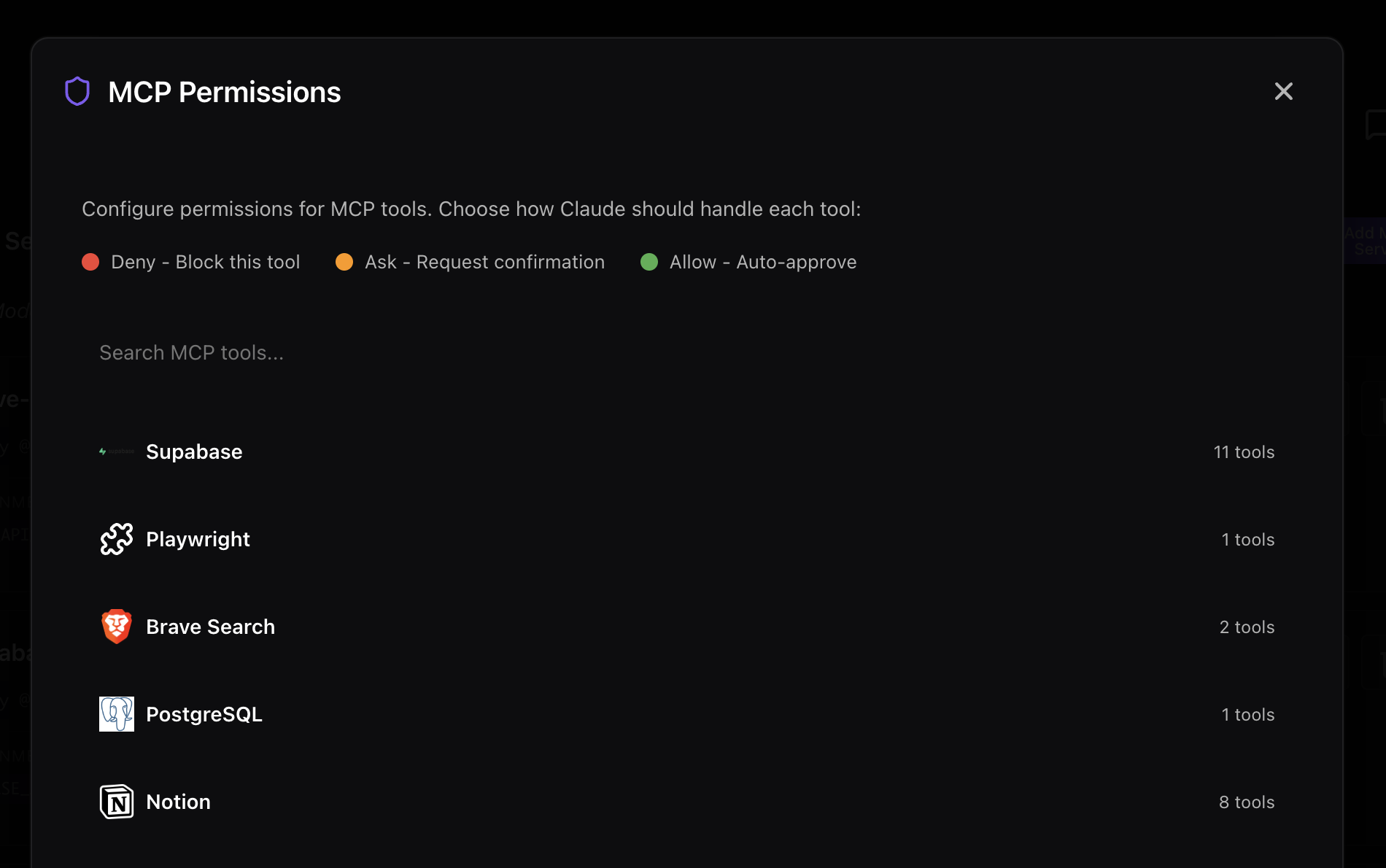
This means you can let Claude read GitHub issues automatically but require confirmation before creating pull requests. Or allow Supabase SELECT queries freely but ask before running migrations. You stay in control without losing the speed of automation.
Combine MCP permission controls with Turbo Mode for maximum speed. Set read operations to Allow and write operations to Ask, then enable Turbo Mode for uninterrupted development flow.
FAQ
What is MCP in Claude Code?
MCP stands for Model Context Protocol. It is an open standard by Anthropic that gives Claude Code access to external tools and services like GitHub, databases, browsers, and APIs through a unified interface.
Are MCP servers free?
Most official MCP servers are free and open source. The services they connect to may have their own costs - for example, the GitHub MCP server is free, but GitHub itself may require a paid plan for certain features.
How do I install MCP servers for Claude Code?
You can add servers from the terminal with claude mcp add, edit a project-level .mcp.json (or your global ~/.claude.json) manually, or use CodeAgentSwarm MCP Marketplace for a visual setup experience with per-project configuration.
Can I use multiple MCP servers at once?
Yes. You can have as many MCP servers active simultaneously as you need. Each server runs independently and provides its own set of tools to Claude Code.
Do MCP servers work with Codex CLI?
Yes. Codex CLI also supports MCP, along with a growing number of AI development tools that have adopted the Model Context Protocol standard.
Can MCP servers access my data?
MCP servers run locally on your machine and connect to services using your own credentials. They do not send data to third parties. You control which services are connected and what permissions each tool has.
What is the MCP Marketplace in CodeAgentSwarm?
The MCP Marketplace is a visual interface inside CodeAgentSwarm that lets you browse, enable, and configure MCP servers per project. It replaces the manual process of editing JSON configuration files and restarting Claude Code.