
Claude Code History: Where It Is Stored and How to Find, Back Up & Resume It
By CodeAgentSwarm · Updated September 5, 2026
Where does Claude Code store your conversations?
Claude Code stores all conversation history locally on your machine in ~/.claude/projects/. Each project gets its own subdirectory (based on the absolute path), and each conversation is saved as a JSONL file with a unique session ID. On Windows the same folder lives under your user profile (C:\Users\you\.claude\projects\) - if you work there, the Claude Code on Windows guide covers the platform-specific setup.
The native tools to access this history are straightforward:
/resume- List recent sessions inside an active Claude Code sessionclaude -c- Resume the most recent conversation for the current projectclaude -r SESSION_ID- Resume a specific conversation by its ID
You can find full details on these commands in the official Claude Code documentation. Commands and picker behavior were checked against the official documentation on September 5, 2026.
If you need to check history while supervising active tasks, the Claude Code dashboard guide shows how to organize sessions. To divide work, see how to run multiple Claude Code sessions.
Why does Claude Code history disappear after 30 days?
Claude Code deletes conversation transcripts older than 30 days by default. Before assuming deletion, check the project and CLAUDE_CONFIG_DIR used for the session. See the retention rules and exceptions.
You can change the retention period with the cleanupPeriodDays setting in ~/.claude/settings.json. Merge this value into your existing settings; keep the other keys. A longer retention window does not replace backups:
{
  "cleanupPeriodDays": 3650
}
Change this setting before you need it. It controls future cleanup runs, but it cannot bring back transcripts that were already deleted - for those, your only options are a backup of ~/.claude/projects/ or a tool that archived them while they still existed.
How to search and preview native Claude Code history
The current session picker supports search and previews: type to filter, press Space to preview, or Ctrl+A to include other projects. For previous prompts, use Ctrl+R in the input to search command history.
CodeAgentSwarm adds a shared desktop view across your agents, with content search, project filters and conversations you can reopen beside your running terminals.
How to back up and restore Claude Code history
Close the sessions you want to back up, then copy the projects folder to a separate backup location, preserving its subdirectories. If you set CLAUDE_CONFIG_DIR, use its projects folder. Keep the backup private: transcripts can contain source code and tool output. To restore, first back up the current folder, then copy only the missing session files into their original project subdirectory without overwriting newer files. Keep the same project path when possible and check the restored session with claude --resume. Raising retention cannot recover a deleted file.
Full conversation history with CodeAgentSwarm
Download CodeAgentSwarm to search conversation content, filter by project and agent, and resume a session beside your other terminals. Follow the workflow below using your existing conversations.
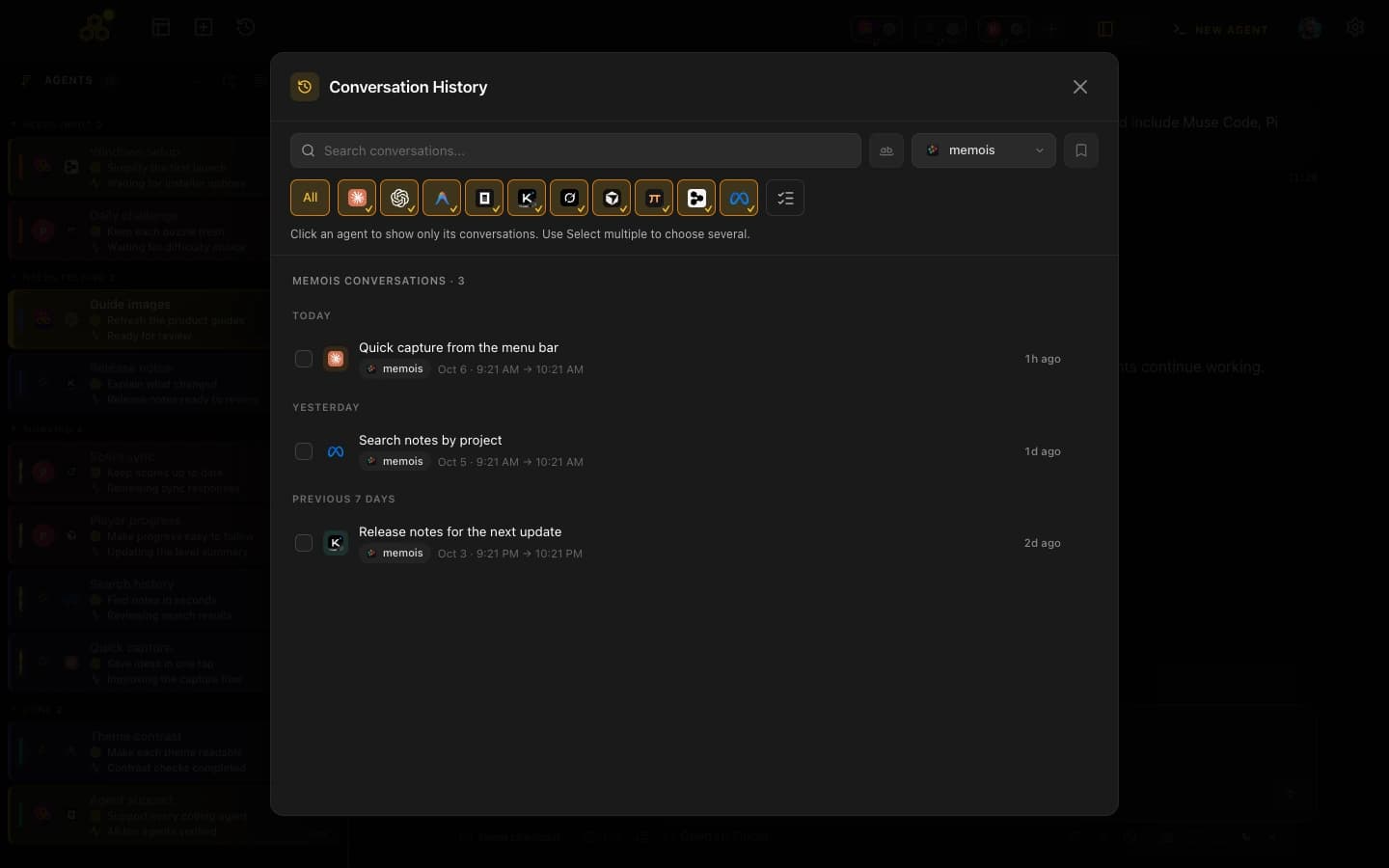
Search any conversation instantly
Type what you remember - a module name, a bug description, a technology - and CodeAgentSwarm searches across all your conversations from all projects. Results show the conversation title, project, date and the matching messages so you know immediately if it is the right one.
No more grepping through JSONL files. No more guessing which project a conversation belongs to.
Visual history organized by project
Instead of a flat list of session IDs, you see all your conversations organized by project and date. Each project has its own color, so scanning through history is fast even when you have dozens of conversations.
- Conversations grouped by project with color coding
- Most recent conversations first, with dates visible
- Conversation chains grouped together (continuations of the same thread)
- One-click access from any terminal
Resume with one click
Found the conversation you need? Click on it and CodeAgentSwarm opens a new terminal with all the previous context loaded. The saved conversation provides context; long sessions may have been compacted. No cd to the right directory, no claude -r with a session ID. Just click and keep working.
Cross-project search
This is the feature that makes the biggest difference for developers working on multiple projects. Search for "database migration" and see results from your backend project, your microservice, and that side project where you set up Knex. All in one view, no directory switching.
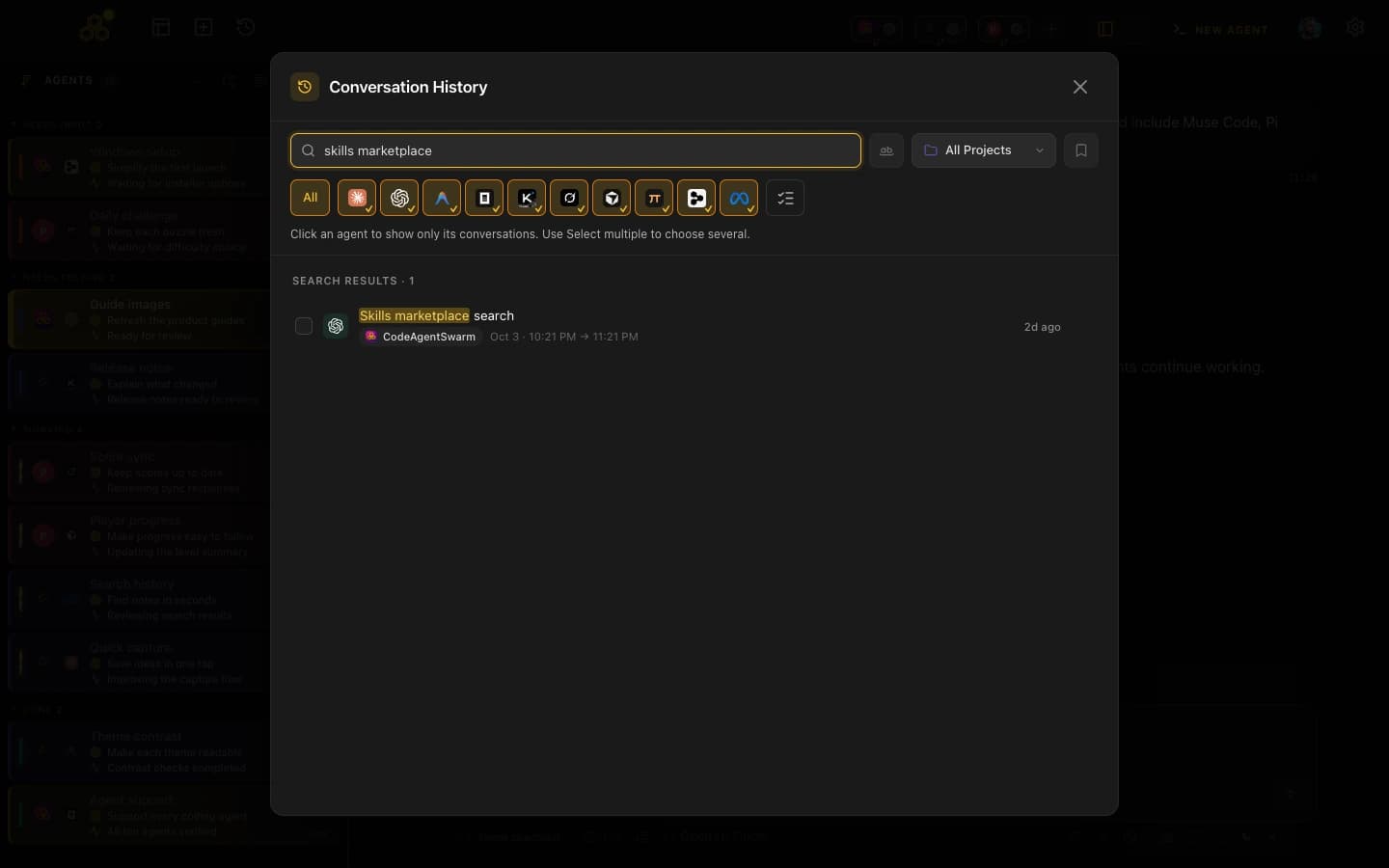
Resume mode when opening a project
When you open a project in CodeAgentSwarm, you can choose resume mode. Instead of starting a blank conversation, you see all your recent conversations from that project and pick which one to continue. Search within them to find the exact conversation thread you need.
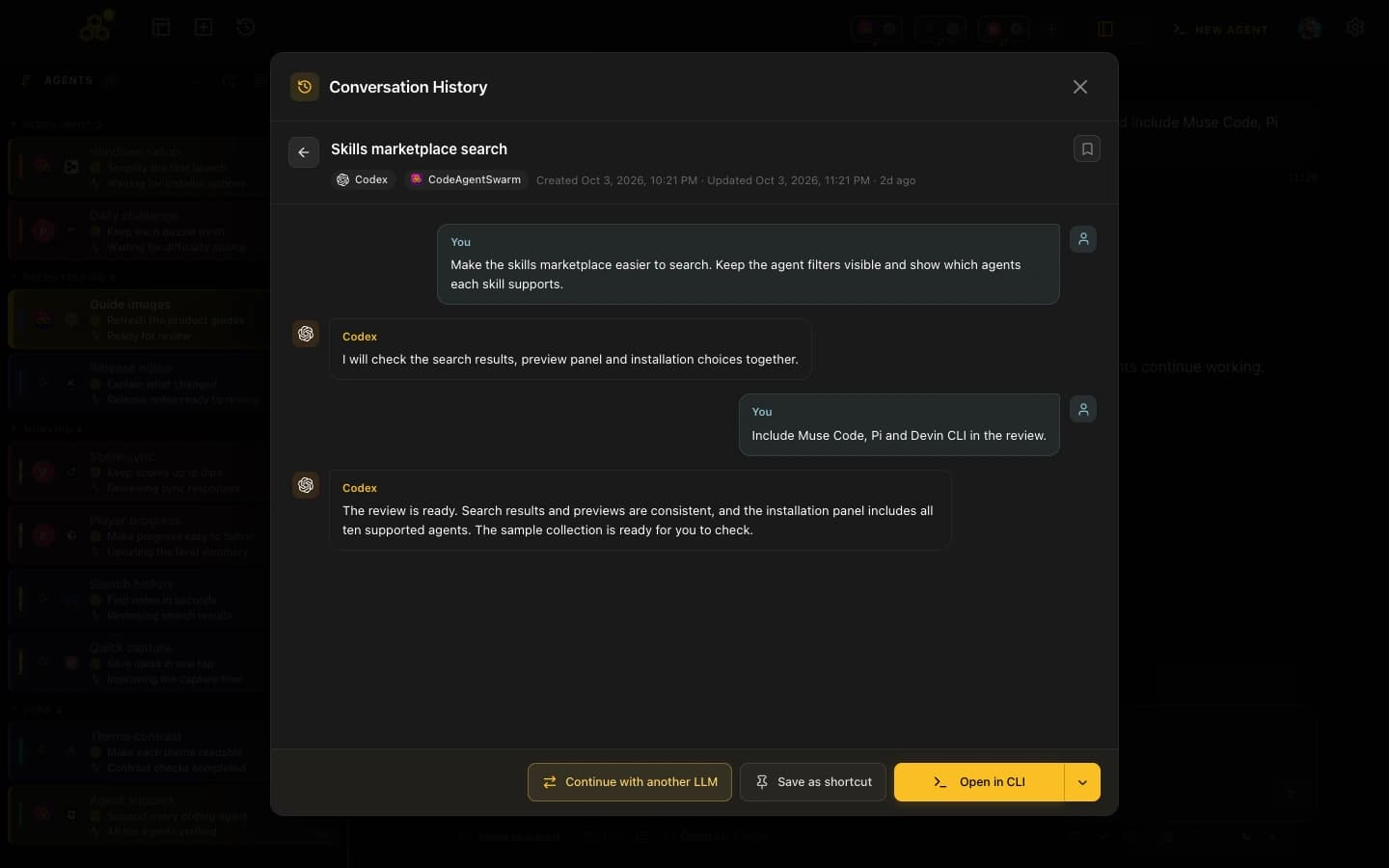
For a detailed walkthrough, see conversation history in CodeAgentSwarm. If you work across several CLIs, the companion guides cover Codex conversation history and OpenCode conversation history. Cursor users should follow the separate Cursor CLI history guide because ACP resume depends on the installed version.
Why conversation history changes how you work with Claude Code
This is not about convenience. It is about fundamentally changing how productive you can be with Claude Code:
- Stop re-explaining modules. You spent 15 minutes explaining your auth system to Claude last Tuesday. With history, you resume that conversation instead of explaining it again from scratch.
- Keep decisions consistent. Architecture decisions accumulate across conversations. Without history, you risk contradicting a decision you made three days ago because you forgot.
- Reuse context. Resuming saves re-explanation, but long histories still consume context and tokens.
- Work across multiple projects confidently. When you can search and resume any conversation from any project, switching between projects stops being a context-switching nightmare.
- Never lose a solution. That clever fix you came up with at 11pm? It is in your history. Search for it, find it, reuse it.
Tips for getting more value from your history
Regardless of which tools you use, these habits make your conversation history much more useful:
- Start conversations with specific context. "Fix the JWT token expiration bug in the auth middleware" is much easier to find later than "Fix the login bug".
- One topic per conversation. Mixing unrelated tasks makes it harder to find and resume specific work later.
- Resume instead of re-explain. If you spent time explaining a module to Claude, resume that conversation next time. The context is already there.
- Use CLAUDE.md for permanent context. Put architecture decisions and conventions in CLAUDE.md as "permanent memory". Use conversation history as "working memory" for specific tasks.
If you work with multiple Claude Code terminals in parallel, conversation history becomes even more valuable. Check our guide on running multiple Claude Code terminals in parallel.
FAQ
Where does Claude Code store conversation history?
Claude Code stores all conversations locally in ~/.claude/projects/ on your machine. Each project gets its own subdirectory, and conversations are saved as JSONL files with unique session IDs.
Does Claude Code save conversation history automatically?
Yes. Every conversation is automatically saved. You do not need to enable anything - history is on by default.
How do I find old Claude Code conversations?
Open claude --resume from your shell or /resume inside a session. You can also browse the local JSONL files. CodeAgentSwarm brings conversation search into the same workspace as your terminals.
How do I resume a previous Claude Code conversation?
Use "claude -c" to continue your most recent conversation, or "claude -r SESSION_ID" for a specific session. In CodeAgentSwarm, just click on any conversation in the history view to resume it.
Can I search through all my Claude Code conversations?
Yes. The native picker supports filtering and previews. CodeAgentSwarm offers content search in its history view alongside your other agents.
Does Claude Code history work across different projects?
Yes. The native picker can include other projects. CodeAgentSwarm provides project and agent filters in one desktop view.
How do I back up my Claude Code conversation history?
Copy the ~/.claude/projects/ directory to your backup location. All conversations are local files, so standard backup methods work.
Can I transfer Claude Code history to a new computer?
Back up the destination first, then transfer the projects folder privately, preserving project paths where possible. Sign in separately on the new computer. Avoid copying credentials or overwriting newer transcripts.
Does Claude Code history use a lot of disk space?
Size depends on session length and tool output. Check the size of your projects folder before choosing backup storage; there is no useful universal size limit.
What is the difference between /resume and claude -c?
Use /resume to choose a session. The claude -c command continues the latest conversation in the current directory.
Why did my Claude Code history disappear?
Claude Code deletes transcripts older than 30 days by default. Add "cleanupPeriodDays" with a higher value to ~/.claude/settings.json to keep sessions longer. Already-deleted transcripts can only be recovered from a backup of ~/.claude/projects/.
How do I stop Claude Code from deleting old conversations?
Set "cleanupPeriodDays" in ~/.claude/settings.json to a large number, for example 3650. This raises the retention window for future cleanup runs so your transcripts stay on disk.