
Run Pi coding agent on Windows: installation and PowerShell
By CodeAgentSwarm · Updated September 24, 2026
Quick answer

Pi runs on native Windows. Install the current npm package, then choose Git Bash or configure its PowerShell tool. In CodeAgentSwarm Chat, the integration selects the native PowerShell tool for Windows.
Pi in CodeAgentSwarm, in pictures
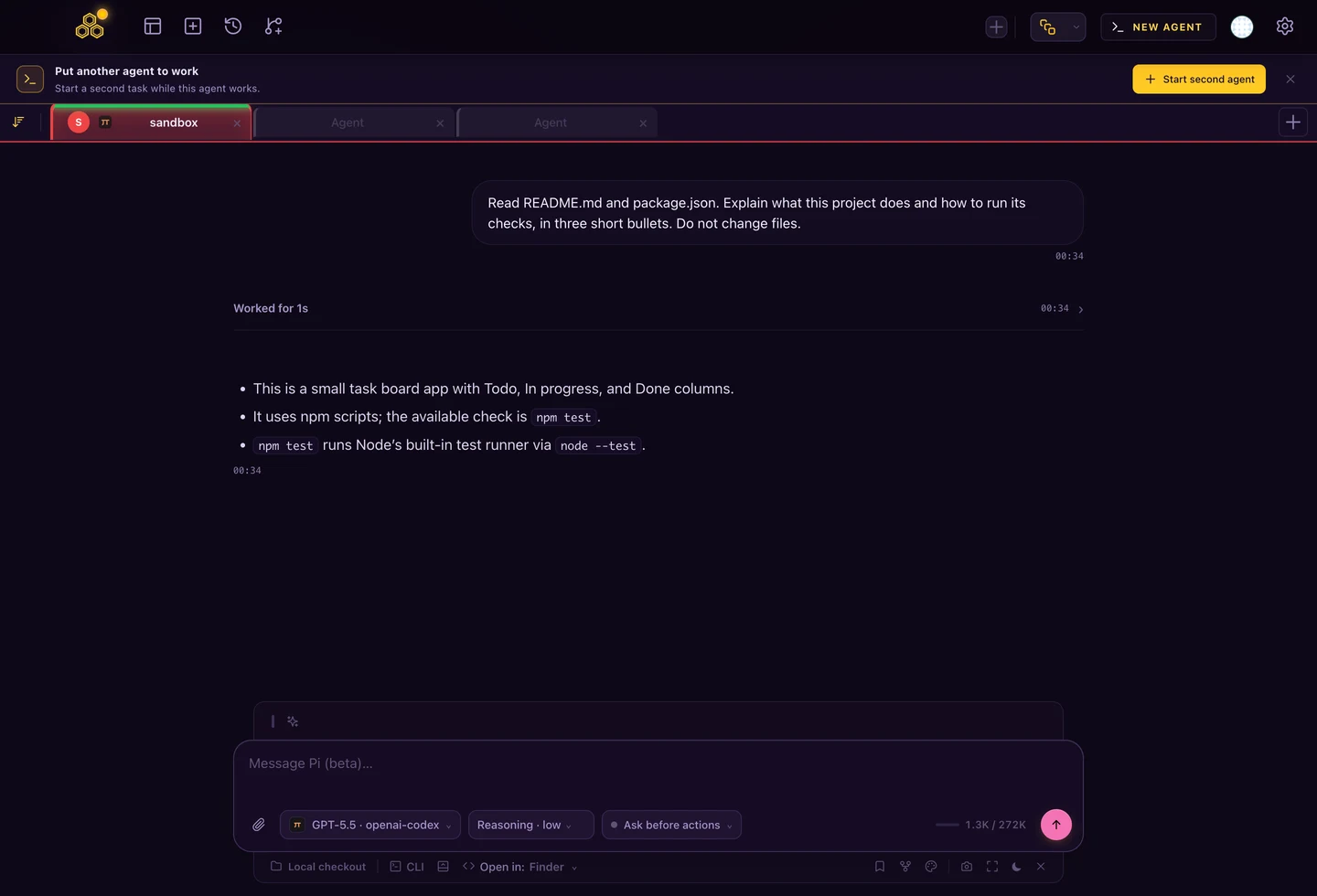
The picker shows the model and its provider. You can inspect that connection without leaving the project, while Chat keeps the task messages and tools together.
Install the current Pi package
For the version verified by CodeAgentSwarm, Pi 0.85.1, use Node.js 22.19.0 or newer. Open PowerShell and check Node and npm before installing. You do not need to start this task in an elevated administrator terminal.
node --version
npm --version
npm install -g --ignore-scripts @earendil-works/pi-coding-agent
pi --version
If the command is unavailable after installation, reopen the terminal before changing system settings. The general Pi setup guide covers your first project and session.
PowerShell window versus the model's shell tool
Starting Pi in PowerShell does not automatically replace its model-facing bash tool. Pi's documented Windows default uses Git Bash. If you want Bash, install Git for Windows. If you want native PowerShell commands instead, Pi supports a powershell tool.
Merge this setting into ~/.pi/agent/settings.json, preserving any other settings. The ~ directory is your Windows user profile.
{
  "defaultTools": ["read", "powershell", "edit", "write"]
}
The tool uses pwsh.exe when available and otherwise Windows PowerShell. Pi's interactive ! and !! shortcuts still use Bash. Official Windows setup.
Sign in and verify a small task
Set-Location C:\path\to\project
pi- Inside Pi, enter
/loginand connect your provider. - Use
/modelto pick a model your account can access. - Ask it to list the project files with the selected shell tool.
- Before requesting edits, ask which test command the project defines and check the answer.
Provider choice determines model access and billing. See Pi subscriptions and models for ChatGPT, Claude and API connections.
Verify the Windows shell before editing
Get-Command pi -All
node --version
pi --version
Inside Pi, ask it to print the working directory and list the project files using the selected command tool. Inspect the tool name and output. Then ask it to read the project test script before running anything that changes files.
If you switch to WSL, treat that as another environment: its home directory, installed Pi command and credentials can differ from native Windows. Choose the environment used by the project and finish its setup there.
Fix command and path problems
- Pi is not recognized: run
Get-Command pi -Allandnpm config get prefix. Confirm the npm command directory belongs to this installation and is on PATH. - Missing Bash: choose Git Bash or configure the PowerShell tool. A PowerShell terminal alone does not change Pi's default tool.
- Wrong installation: more than one Node installation can expose different Pi commands. Check the resolved path before signing in or updating.
- Project expects Linux: use an appropriate Linux environment such as WSL for that project. Keep its Pi installation, configuration and files together.
Do not fix an agent setup by globally relaxing your machine's execution policy. Use the documented tool setup and inspect the specific error first.
What the CodeAgentSwarm Windows integration does
Pi is available in CodeAgentSwarm 2.4.0 for Windows. In the tested CAS Chat integration, the managed Pi extension selects Pi's native PowerShell tool on Windows. Chat tool execution therefore does not require Git Bash.
CAS CLI view keeps Pi's own terminal behavior. The beta verification used an actual Pi process on Windows 11 ARM64 with a local model endpoint to check tool execution, allow/deny decisions, edit diffs and resume. That proves the exercised integration paths, not every upstream provider's availability.
For workflow differences rather than installation, continue with Pi vs OpenCode.
FAQ
Do I need WSL to run Pi on Windows?
Not for native Windows use. Choose the documented Git Bash setup or Pi's PowerShell tool. Use WSL when the project itself needs a Linux environment.
Does launching Pi in PowerShell make its commands use PowerShell?
No. Configure the powershell tool for standalone Pi. In CAS Chat, the managed extension selects that tool on Windows.
Is Windows support tested in CodeAgentSwarm?
The Pi beta integration was checked with real Pi on Windows 11 ARM64, including shell commands, permission decisions and resume. Pi is included in the public download from version 2.4.0.