
How to Control Claude Code From Your Phone
By CodeAgentSwarm · Updated October 31, 2026
The short answer
In both options the phone is a remote. Claude Code keeps running on your computer, so the computer has to stay on and awake. Pick by where you already work:
- Remote Control: you run Claude Code in a terminal and have a Pro, Max, Ultra, Team or Enterprise plan. You drive the session from the Code tab of the Claude app.
- CodeAgentSwarm phone app: you run several agents in CodeAgentSwarm (Claude Code, Codex, OpenCode and others) and want all of them on the phone, in one list.
Option 1: Claude Code Remote Control
Anthropic's Remote Control connects the Claude app for iOS and Android, or claude.ai/code in a browser, to a Claude Code session on your machine. Code execution and file access stay local.
Requirements
- A Pro, Max, Ultra, Team or Enterprise plan. API keys are not supported.
- On Team and Enterprise, an Owner must first turn on Remote Control in the Claude Code admin settings.
- Claude Code signed in through claude.ai (run
/loginif you have not).
Start a session
Run one of these on your computer. The first starts a server that can host several sessions; the second starts a normal interactive session with Remote Control on; the slash command turns it on in a session you already have open.
claude remote-control

# or an interactive session with Remote Control on
claude --remote-control

# or, inside a running session
/remote-control
Then scan the QR code the terminal shows, or open the Claude app, tap Code and pick the session from the list.
Limits worth knowing
- If you close the terminal or stop the
claudeprocess, the session goes offline. - Outside server mode, each Claude Code process supports one remote session at a time.
- From the phone you can pick Manual, Accept edits, Plan or Auto permission modes, but not Bypass permissions.
- Terminal-only commands such as
/pluginand/resumedo not work from the app.
Option 2: the CodeAgentSwarm phone app
CodeAgentSwarm is a desktop app for macOS, Windows and Linux that runs your coding agents side by side. Its phone app pairs with that desktop app, so every session you have open there in Chat view shows up on the phone. Claude Code still runs on your computer with the login it already has.
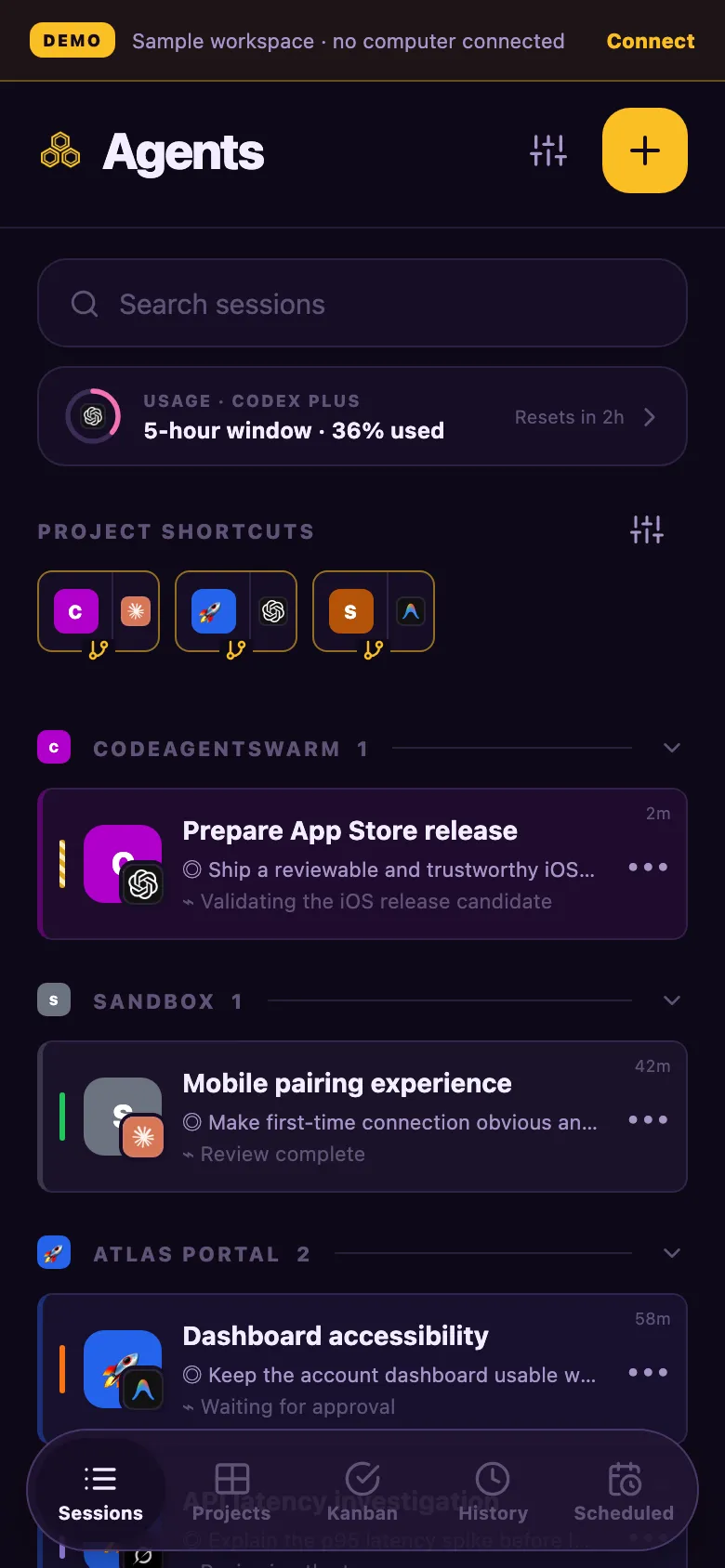
Get the app
- iPhone and Apple Watch: CodeAgentSwarm on the App Store.
- Android: in beta. Request access in the #mobile-relay-beta channel on Discord.
- Any other device: the web app at web.codeagentswarm.com.
Pair your phone (once)
- Open CodeAgentSwarm on your computer and sign in.
- Open the account menu and choose Connect a device. A QR code and a one-time code appear.
- Scan the QR code with the phone. In a browser, open the web app and type the one-time code instead.
- Check that the same verification code shows on both devices, then accept the phone on the computer.
In the same window, turn on Keep this computer available. It stops the computer from going to sleep while CodeAgentSwarm is open, so the phone can still reach it. The screen can still lock.
What you can do from the phone
Once paired, the phone shows your Chat sessions grouped by project, with the status of each one. From there you can:
- Open a session, read what Claude Code did and send the next message.
- Answer a question or an approval the agent is waiting on.
- Start a new session with Claude Code, Codex or another agent in one of the projects on your computer.
- Attach photos from the camera or gallery, draw on them before sending, or attach files.
- Dictate a message: the voice note is turned into text you can edit before sending.
- Get a notification on iPhone or Android when a session needs you, and tap it to open that conversation.
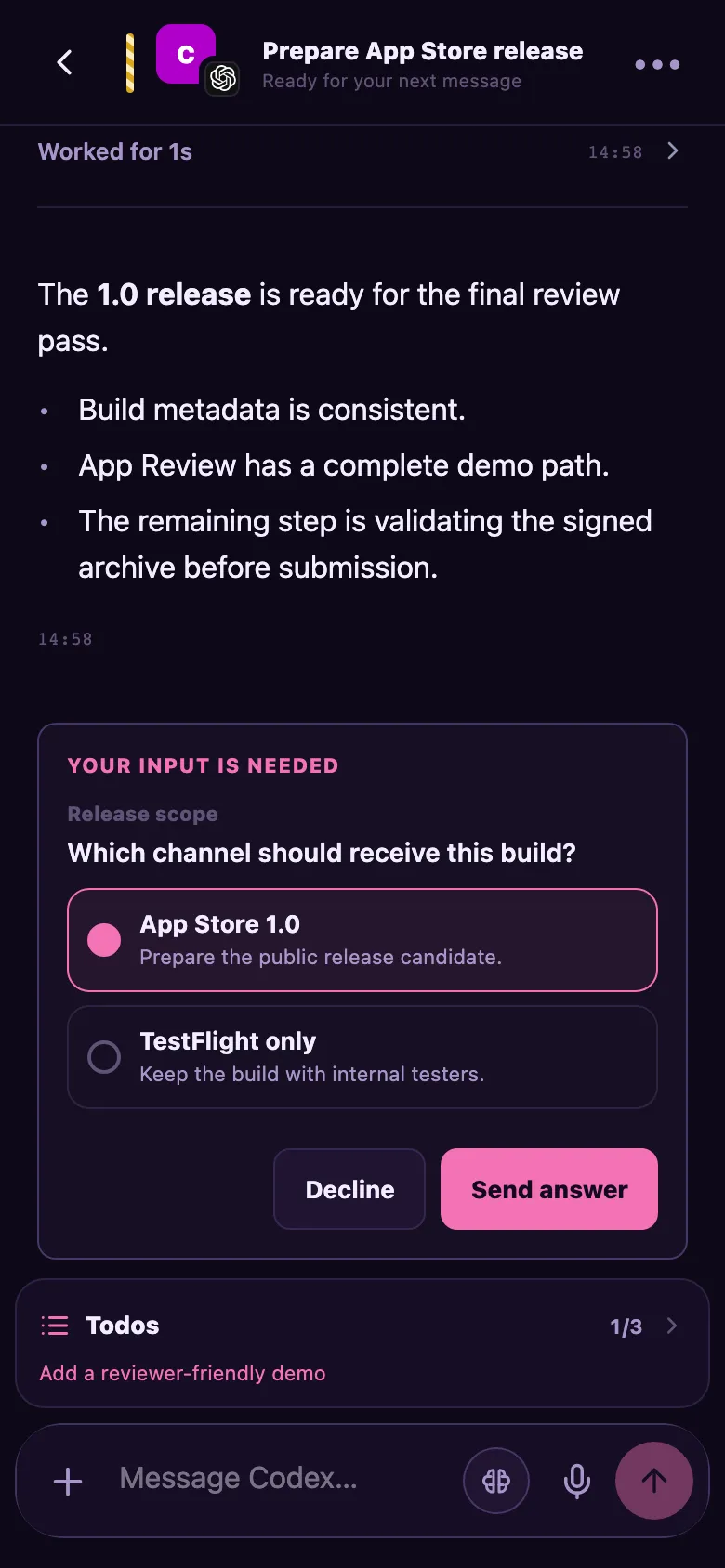
Chat sessions only. The phone shows the sessions you run in Chat view in CodeAgentSwarm. A session switched to the Terminal (CLI) view is not reachable from the phone until you switch it back to Chat on the computer. Sessions you start from the phone open as Chats.
The phone is useful for the moments when an agent stops to ask something. On the computer, CodeAgentSwarm notifications do the same job while you are at the desk.
Which one should you use?
| Remote Control | CodeAgentSwarm phone app | |
|---|---|---|
| Phone app | Claude app (Code tab) | CodeAgentSwarm for iPhone, Android beta, web |
| Agents | Claude Code | Claude Code, Codex, OpenCode and the other agents in CodeAgentSwarm |
| Where the agent runs | Your computer | Your computer |
| Account | claude.ai plan (no API keys) | CodeAgentSwarm account; each agent uses its own login |
| Several sessions | Server mode, or one per process | Every open Chat session, across projects |
If you only use Claude Code in a terminal, Remote Control is already in your hands. If you run several sessions or several agents at once, the CodeAgentSwarm app keeps them in one list. For more on the phone options around Claude Code, including cloud sessions, see Claude Code mobile app: what exists.
Is it safe?
With CodeAgentSwarm, the phone and the computer talk through a relay with end-to-end encryption. The relay moves the messages but cannot read your conversations, commands or approvals. You do not need to open a port on your router or be on the same Wi-Fi.
Every new phone needs your approval on the computer, and you can disconnect a phone from the same window at any time.
FAQ
Can I control Claude Code from my phone?
Yes. Use Remote Control in the Claude app (run claude remote-control on your computer and open the Code tab), or pair the CodeAgentSwarm phone app with CodeAgentSwarm on your computer. In both cases Claude Code keeps running on your computer.
Does my computer have to stay on?
Yes. The phone only sends messages to the session. If the computer sleeps or the session stops, the phone cannot reach it. CodeAgentSwarm has a Keep this computer available switch that prevents sleep while the app is open.
Does Remote Control work with an API key?
No. Anthropic documents Remote Control for Pro, Max, Ultra, Team and Enterprise plans, and API keys are not supported.
Is there an Android version of the CodeAgentSwarm app?
Yes, in beta. Request access in the #mobile-relay-beta channel on the CodeAgentSwarm Discord. You can also use the web app at web.codeagentswarm.com from any browser.
Can I control Codex from the phone too?
With CodeAgentSwarm, yes: Codex Chat sessions show up next to Claude Code ones. See the Codex mobile app guide for the options OpenAI offers.