
How to Install Kimi Code on Linux (Ubuntu, Debian, Fedora)
By CodeAgentSwarm · Updated September 29, 2026
Quick answer: install Kimi Code on Linux in one line
Quick answer: run the official install script in any terminal. No sudo, no Node.js. When it finishes, open a new terminal, type kimi in your project and run /login.
# Official install script (recommended)
curl -fsSL https://code.kimi.com/kimi-code/install.sh | bash

# Open a new terminal, then verify the install
kimi --version

# Start it inside a project
cd ~/my-project
kimi
The script downloads the latest release for your architecture, verifies its checksum, installs it under ~/.kimi-code/bin and adds that folder to your PATH in ~/.bashrc, ~/.zshrc or your fish config. The install and login steps in this guide come from the official Kimi Code getting started guide.
Requirements
- A 64-bit Linux on x64 or ARM64 with glibc. That covers Ubuntu, Debian, Fedora and most mainstream distros.
curlorwgetto download, andsha256sum(orshasum) so the script can verify the download.- Bash, Zsh or fish.
- A Kimi account for subscription plans, or an API key from the Kimi platform if you pay per token.
You only need Node.js 22.19.0 or later if you install through npm instead of the script. The script installs a standalone binary.
Install with npm (and the Alpine case)
If you already manage your CLI tools with Node, Kimi Code is on npm as @moonshot-ai/kimi-code. Careful with the name: the PyPI package called kimi-code installs the legacy Python kimi-cli, not this one.
# Needs Node.js 22.19.0 or later
node --version

npm install -g @moonshot-ai/kimi-code
# or
pnpm add -g @moonshot-ai/kimi-code
On Alpine and other musl distributions npm is the only route: the install script only ships glibc builds and stops early on musl. Updates work the same either way: run kimi upgrade, or npm install -g @moonshot-ai/kimi-code@latest if you used npm.
First run and logging in (also over SSH)
- Open a terminal in a project folder and type
kimi. - Inside the session, run
/loginand choose how to sign in. - Kimi account: a device code flow. Kimi Code shows a link and a code; open the link on any device, sign in and enter the code. Because the browser does not have to be on the same machine, this also works on a server over SSH.
- API key: paste a key from
platform.kimi.comorplatform.kimi.aiif you pay per token.
Kimi Code keeps its data in ~/.kimi-code/: settings in config.toml, OAuth tokens in credentials/, sessions in sessions/ and a diagnostic log in logs/kimi-code.log. Set KIMI_CODE_HOME to move all of it somewhere else, and run /logout to clear your credentials. The data locations reference lists every file.
Common Linux errors and how to fix them
- "kimi: command not found" after installing: your shell has not read the new PATH yet. Open a new terminal, or check that your shell config has the line
export PATH="$HOME/.kimi-code/bin:$PATH". - "Alpine / musl Linux is not currently supported": the script only ships glibc builds. Install Node.js 22.19 or later and use
npm install -g @moonshot-ai/kimi-code. - "curl or wget is required" or "shasum or sha256sum required to verify download": common on minimal containers. Install curl and coreutils with your package manager and run the script again.
- "unsupported architecture": the script only covers x64 and ARM64. On anything else, try the npm package.
kimi --versionprints 1.4x: you are running the legacy Python kimi-cli. Kimi Code prints a 0.x version. The install script renames an oldkimishim tokimi-legacyso the new one wins.
If a session misbehaves later, ~/.kimi-code/logs/kimi-code.log is the first place to look. For the flags and commands you will use day to day, see how to use Kimi Code.
Running several Kimi Code sessions on Linux
With Kimi Code working, the next limit shows up quickly: one terminal is one task at a time. You give Kimi a job and wait. Opening more tabs in GNOME Terminal or tmux helps, until you lose track of which session finished, which one is waiting for approval and what each one changed.
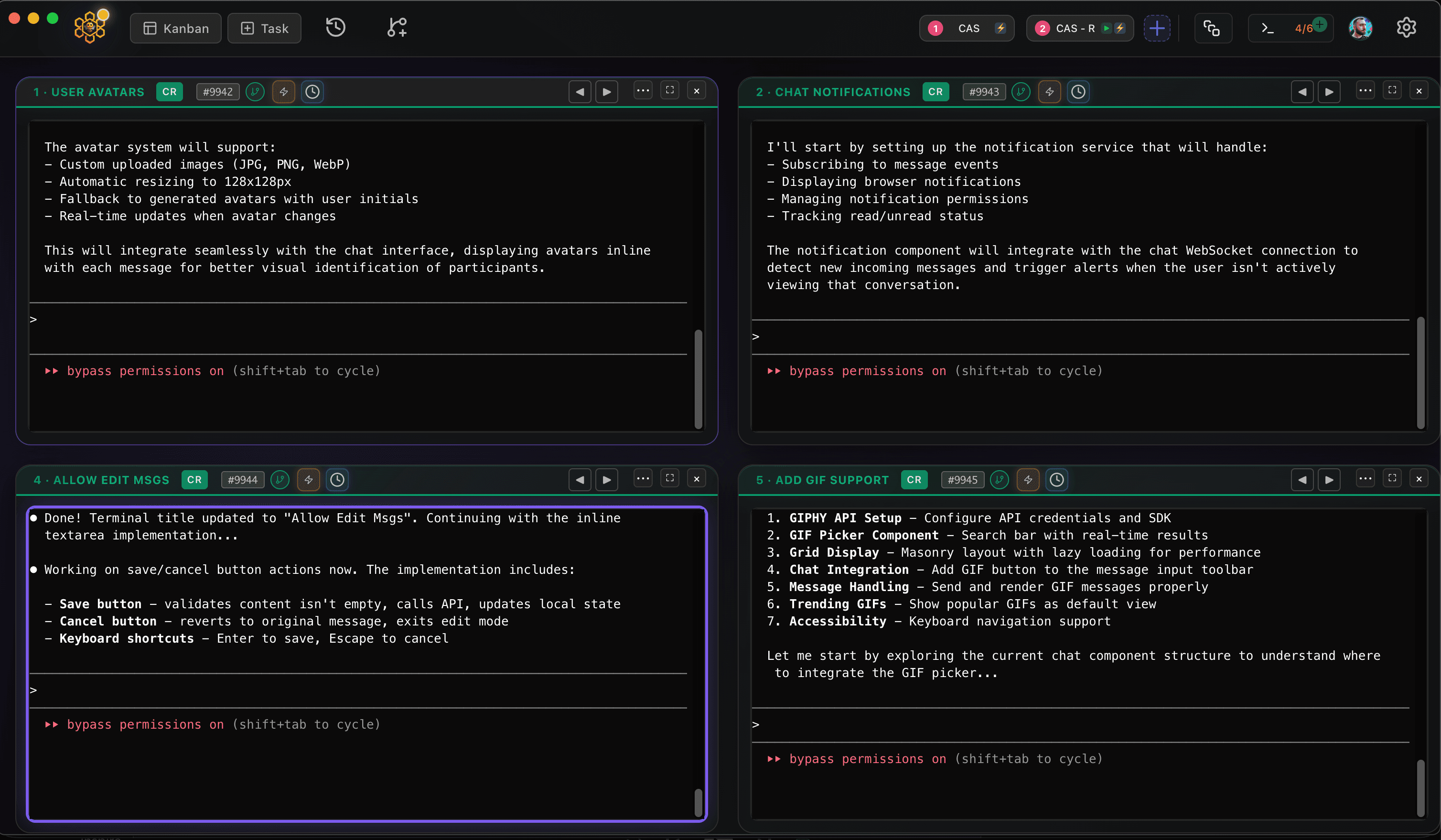
CodeAgentSwarm is a desktop app for exactly that, and it now runs on Linux as a .deb (Ubuntu, Debian and derivatives) or an AppImage (Fedora and most other distros), for x64 and ARM64. It puts several Kimi Code terminals side by side and adds desktop notifications when an agent finishes or needs input, searchable history across every session and a live diff of what each terminal changed. You can also mix agents, with Kimi Code in one terminal and Claude Code or Codex in the next.
Good next step: run multiple Kimi Code sessions. Setting up Claude Code on the same machine? See Claude Code on Linux.
Conclusion
On Linux, Kimi Code is one curl command away, or one npm install if you are on Alpine or prefer Node. Log in with /login, which works over SSH too, and check ~/.kimi-code/logs if anything looks off. When a single terminal stops being enough, CodeAgentSwarm lets you run several at once.
FAQ
Does Kimi Code work on Linux?
Yes. The official install script supports Linux on x64 and ARM64 with glibc, which covers Ubuntu, Debian, Fedora and most mainstream distros. On Alpine and other musl distros, install it with npm instead.
How do I install Kimi Code on Ubuntu?
Run "curl -fsSL https://code.kimi.com/kimi-code/install.sh | bash" in a terminal, open a new terminal and type "kimi". If you prefer npm, run "npm install -g @moonshot-ai/kimi-code" with Node.js 22.19 or later. Update later with "kimi upgrade".
Do I need Node.js to run Kimi Code on Linux?
No. The install script puts a standalone binary in ~/.kimi-code/bin. You only need Node.js 22.19.0 or later if you choose the npm package, which is also the route for Alpine.
Can I log in to Kimi Code on a Linux server over SSH?
Yes. Run "kimi", then "/login" and pick the Kimi account option. It uses a device code flow: open the link on any device, sign in and enter the code. You can also paste an API key from the Kimi platform instead.
Does CodeAgentSwarm work on Linux?
Yes. CodeAgentSwarm runs on Linux as a .deb for Ubuntu, Debian and derivatives or as an AppImage for Fedora and most other distros, on x64 and ARM64. It uses your existing Kimi Code install and lets you run several sessions in parallel, next to Claude Code, Codex and other agents.