
Codex CLI vs Cursor: Terminal Agent vs AI IDE Compared
By CodeAgentSwarm · Updated August 16, 2026
Two different shapes of tool
Before comparing features, it helps to be honest about what each tool actually is, because Codex CLI and Cursor are not the same kind of product. They solve overlapping problems from opposite directions.
Codex CLI is OpenAI's terminal coding agent. You run it with the codex command, point it at a repository, and describe what you want in natural language. It reads your files, plans an approach, edits across the codebase, runs commands, and iterates. It lives in your shell, so it is scriptable and works alongside whatever editor you already use.
Cursor is an AI-first IDE, a fork of VS Code with AI built into the editing experience. You write code inside it. As you type, it offers inline Tab completions, a chat sidebar answers questions about your code, and an agent mode can take on larger multi-file tasks. It supports multiple AI models, including OpenAI and Claude models.
The core distinction: Codex CLI is a terminal agent (it works alongside your editor and runs in your shell), while Cursor is an editor you code inside. This is the same split covered in our Claude Code vs Cursor vs Codex CLI comparison, just narrowed to these two.
Codex CLI
What it is
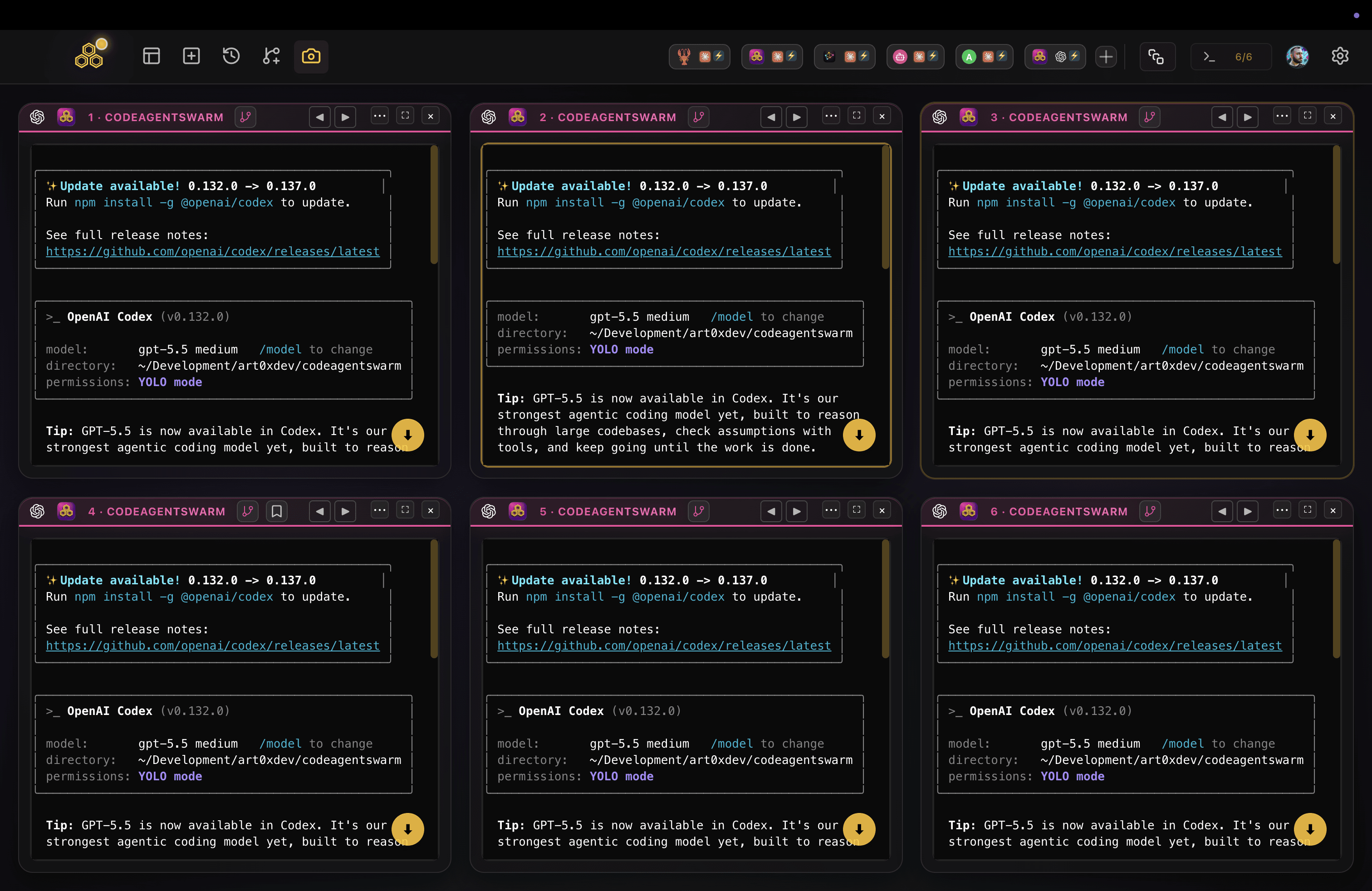
Codex CLI is OpenAI's open-source terminal coding agent. You install it, sign in once with codex login, and from then on each session has its own conversation, context, and working directory. The emphasis is on a lightweight agent that takes action rather than just suggesting code.
It also leans hard on safety. Codex CLI runs in a sandbox by default and offers approval modes that range from suggest-only up to full auto, so you decide how much it can do on its own before it has to stop and ask.
Key strengths
- Lives in your terminal - Works alongside any editor (VS Code, Neovim, JetBrains, Cursor itself) with no editor lock-in
- Scriptable and automatable - Because it is a CLI, you can wire it into shell scripts, pipelines, and your own tooling
- Full-auto modes plus a sandbox - Run it suggest-only when you want control, or in full auto for long unattended tasks, with sandboxing for safer experiments
- Agentic by design - It plans, edits multiple files, runs commands, and iterates on failures rather than handing you snippets to paste
- MCP support - Connect it to databases, browsers, and other tools through the Model Context Protocol
- Open source - The code is public, so you get transparency and community contributions
Where it falls short
- No inline editor experience. There is no Tab completion as you type, because it is not an editor
- Comfort in the terminal is assumed, which can be a hurdle if you prefer a GUI
- A single session is one agent in one terminal. Running several at once is easy to start but quickly hard to track
Best for
Developers comfortable in the terminal who want an autonomous agent for multi-file changes, anyone who values scripting and automation, people already in the OpenAI ecosystem, and those who want sandboxed, full-auto execution they can supervise. If you want to scale this up, see running a Codex agent swarm.
Cursor
What it is
Cursor is a full IDE built on top of VS Code. It looks and feels like VS Code, so your extensions, themes, and keybindings carry over, but AI is woven into every part of editing. You write code inside it, and the AI assists you as you go.
This comparison uses Cursor to mean the Cursor IDE: the editor with inline suggestions, Chat and Agent mode. Cursor now also ships a separate cursor-agent CLI. For the terminal-to-terminal comparison, see Cursor CLI vs Claude Code; for setup, use the Cursor CLI guide.
Key strengths
- Familiar IDE experience - If you use VS Code, Cursor feels like home, and your existing setup mostly just works
- Inline Tab completions - Cursor predicts your next edit as you type and lets you accept with Tab, which is excellent for line-by-line coding
- Multi-model support - Switch between OpenAI, Claude, Gemini, and other models depending on the task
- Agent mode - For bigger jobs, Cursor can make multi-file changes and run commands, closer to what a CLI agent does
- Visual code review - You see diffs, accept or reject changes inline, and stay in the same window the whole time
- Team features - Admin controls, usage analytics, and shared configurations for teams
Where it falls short
- It is a whole editor, so adopting it means switching IDEs rather than adding a tool to your existing one
- Less natural to script or automate from the shell than a CLI agent
- If you prefer Neovim or JetBrains, you are giving up your editor to get the full experience
Best for
Developers who want AI assistance directly inside their editor, people who love inline completions while typing, anyone happy to make Cursor their primary IDE, and teams that need admin controls and a graphical workflow.
Side-by-side comparison
Here is how Codex CLI and Cursor compare across the dimensions that matter most day to day. The honest summary: they are strong at different things, so the right pick depends on how you work.
Tool type
- Codex CLI - Terminal coding agent (runs in your shell, alongside any editor)
- Cursor - AI-first IDE (a VS Code fork you write code inside)
Where it runs
- Codex CLI - Any terminal, on top of your current editor and workflow
- Cursor - Its own desktop application, which becomes your editor
Inline completions
- Codex CLI - No. It is an agent, not an editor, so there is no Tab completion
- Cursor - Yes. Tab completion as you type is one of its strongest features
Agentic, autonomous tasks
- Codex CLI - Strong. Built as an agent, with full-auto modes for long unattended runs
- Cursor - Good. Agent mode handles multi-file tasks, but the core experience is editor-first
Automation and scripting
- Codex CLI - Strong. As a CLI it fits naturally into scripts and pipelines
- Cursor - Limited. It is a GUI app, designed for interactive use rather than scripting
AI model support
- Codex CLI - OpenAI models
- Cursor - Multiple models (OpenAI, Claude, Gemini, and more)
MCP support
- Codex CLI - Full MCP integration
- Cursor - MCP support, though more limited than a dedicated CLI agent
Editor lock-in
- Codex CLI - None. Keep Neovim, JetBrains, VS Code, or anything else
- Cursor - You adopt Cursor as your editor to get the full experience
Pricing
Both have free and paid tiers, and pricing shifts often. Codex CLI is generally available through an OpenAI subscription or an API key, and Cursor offers a free tier plus paid plans. Rather than quote figures that go stale, check each tool's official site for current pricing before you decide.
When to use each one
There is no single winner here. The better question is which shape fits the work in front of you.
Use Codex CLI if...
- You prefer working in the terminal and want the AI alongside your editor, not as your editor
- You want autonomous, multi-step tasks with full-auto modes you can supervise
- You like scripting and automating your tools from the shell
- You want to keep your current editor (Neovim, JetBrains, VS Code, or even Cursor itself)
- You are already in the OpenAI ecosystem
Use Cursor if...
- You want AI assistance directly inside your editor as you type
- You love inline Tab completions for fast, line-by-line coding
- You are happy to make Cursor your primary IDE
- You want to switch between models (OpenAI, Claude, Gemini) inside one app
- You work in a team that needs admin controls and a graphical workflow
Use both together
These tools are not mutually exclusive. A common setup is Cursor for inline edits and quick suggestions while you write, plus Codex CLI in a terminal for bigger tasks that need autonomous, multi-file execution. Using one does not stop you from running the other.
In practice, the editor and the terminal agent cover different moments of the same workflow. You stay in Cursor for hands-on editing and hand off the heavier, repetitive, or long-running work to Codex CLI in the background.
Skip the choice at the swarm level with CodeAgentSwarm
There is a third angle worth knowing about. If your real question is "how do I get the most out of terminal coding agents", you do not have to pick a single CLI either. Once Codex CLI is doing serious work, the next problem is running more than one of it without losing track.
CodeAgentSwarm is a desktop app for running and supervising a swarm of AI CLI agents in one workspace. You get multiple terminals at once, and you choose the agent per terminal. Set them all to Codex CLI for a pure Codex swarm, or mix in Claude Code and Antigravity CLI where they fit better.
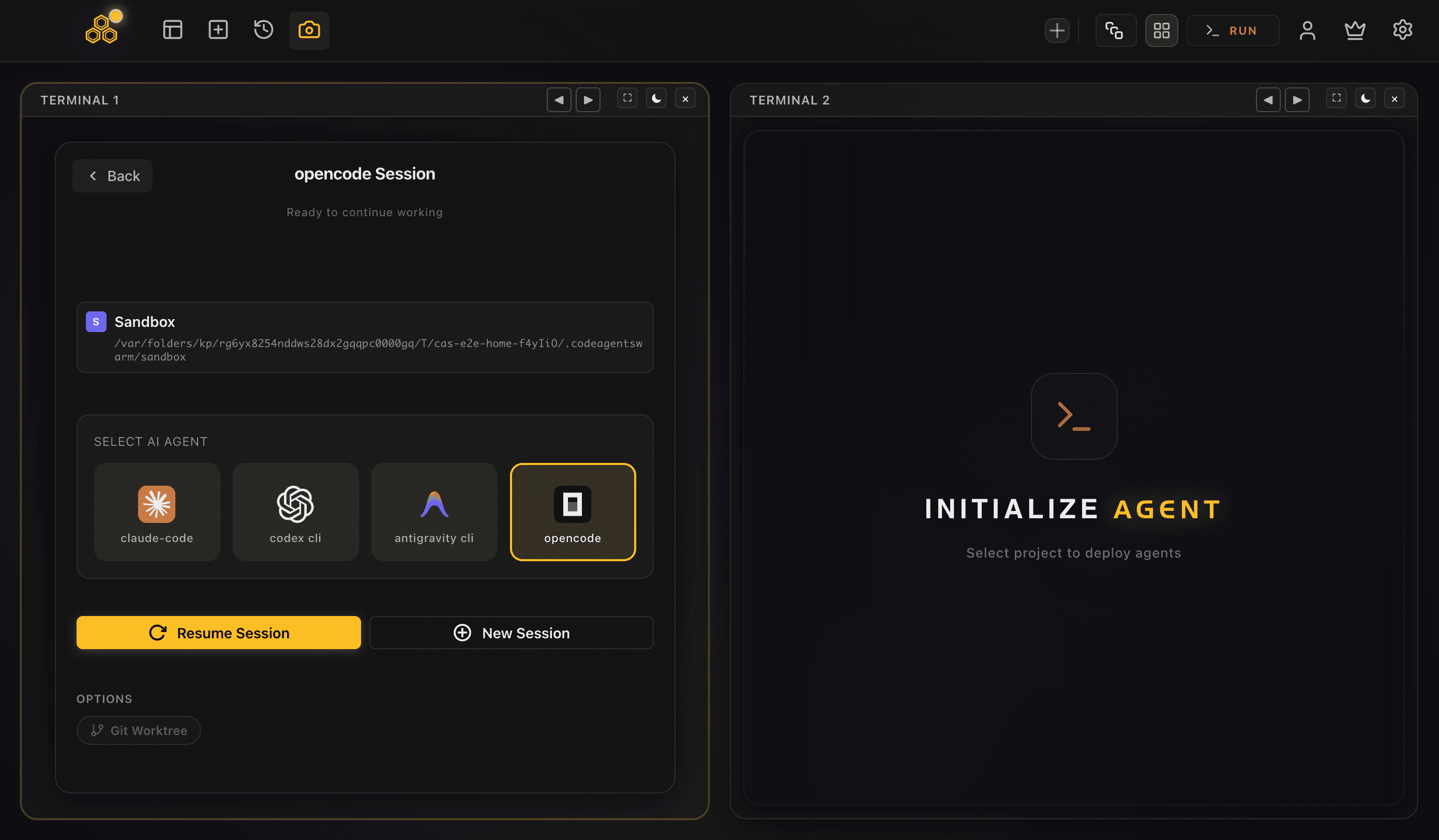
- Multiple agents in parallel - Run several Codex CLI sessions side by side, each an independent process with its own task and context
- Desktop notifications - Get pinged when an agent finishes or stops for an approval, so you stop babysitting terminals
- Dynamic terminal titles - Each terminal shows what its agent is doing right now, so you read "Migrating User Schema" instead of several tabs all labelled "codex"
- Searchable conversation history - Every conversation across every terminal is saved and searchable, even across different agents
- Per-terminal live file diffs - Watch what each agent is changing in real time, so overlapping edits never surprise you
- Turbo Mode plus granular permissions - Let agents run full auto on safe operations while gating the dangerous ones
CodeAgentSwarm is not a model provider. It runs on top of the subscriptions you already pay for and just orchestrates the agents. So Codex CLI vs Cursor stops being an either-or: keep Cursor as your editor if you like it, and let CodeAgentSwarm run a fleet of Codex CLI agents in the background.
Want the full picture across every CLI agent? Start with the AI CLI agent swarm overview, then dive into running a Codex agent swarm.
FAQ
Neither is strictly better, because they are different shapes of tool. Codex CLI is a terminal coding agent that works alongside your editor and runs autonomous, multi-step tasks. Cursor is an AI-first IDE you write code inside, with inline completions as you type. The right pick depends on whether you prefer the terminal or a graphical editor, and many developers use both.
Codex CLI is OpenAI's terminal agent: you run it in your shell, point it at a repo, and it reads files, edits across the codebase, and runs commands, including in full-auto modes. Cursor is an editor, a VS Code fork with AI built in, where you write code and get inline Tab completions, a chat panel, and an agent mode. One lives in the terminal alongside your editor, the other is the editor.
Yes, and it is a common setup. You can use Cursor as your editor for hands-on coding and inline suggestions, while running Codex CLI in a terminal for bigger autonomous tasks. They do not conflict, and Cursor even has an integrated terminal you could run Codex CLI inside.
Yes. Because Codex CLI lives in your terminal, it works alongside any editor, including VS Code, Neovim, JetBrains, and Cursor itself. There is no editor lock-in, which is one of the main differences from adopting Cursor as your IDE.
Yes. Each Codex CLI session is its own process, so you can run several in separate terminals at the same time, each on a different task. CodeAgentSwarm makes this practical by giving you multiple organized terminals with desktop notifications, searchable history, and live file diffs for each agent.
Cursor is generally more beginner-friendly because it looks and works like VS Code, with inline suggestions and a chat panel, and requires less terminal knowledge. Codex CLI assumes you are comfortable in the shell. That said, beginners who already live in the terminal often find Codex CLI natural.
Both have free and paid tiers, and pricing changes over time. Codex CLI is generally available through an OpenAI subscription or an API key, and Cursor has a free tier plus paid plans. Check each tool's official site for current pricing rather than relying on figures that may be out of date.