
How to Install Cursor CLI (Cursor Agent) on Linux
By CodeAgentSwarm · Updated September 29, 2026
Quick answer: install Cursor CLI on Linux in one line
Quick answer: run the official installer in any terminal. No sudo needed. When it finishes, open a new terminal, type agent in your project and log in with your Cursor account.
# Official installer (macOS, Linux and WSL)
curl https://cursor.com/install -fsS | bash

# Verify the install
agent --version

# Start it inside a project
cd ~/my-project
agent
The installer downloads the build for your architecture into ~/.local/share/cursor-agent and creates two links in ~/.local/bin: agent and cursor-agent. The commands in this guide come from the official Cursor CLI installation docs and the authentication reference.
Requirements
- A 64-bit Linux on x64 or ARM64. The installer stops with "Unsupported architecture" on anything else.
curl,tarandbash, which most distributions ship by default.- A Cursor account for the browser login, or a user API key from the Cursor dashboard for servers and CI.
~/.local/binon your PATH. The installer tells you if it is missing.
You do not need the Cursor editor installed. The CLI is a separate download and works on its own, including on a headless server.
agent or cursor-agent: which command to use
Both names point to the same binary. Cursor's docs now use agent as the primary name and keep cursor-agent as the legacy one. Either works for daily use.
The catch: agent is a generic name, and another CLI on your machine can claim it. Grok is a known example. If you have several agents installed, use cursor-agent in scripts and check what each name resolves to:
command -v cursor-agent
command -v agent
cursor-agent --version
CodeAgentSwarm always launches cursor-agent for this reason, so it never opens the wrong tool by mistake.
First run and logging in (also over SSH)
- Run
agent login. Your default browser opens and you sign in with your Cursor account. - On a server or over SSH, where no browser can open, run
NO_OPEN_BROWSER=1 agent loginand open the printed URL on any other device. - For CI or scripts, create a user API key in the Cursor dashboard and export it as
CURSOR_API_KEY, or pass it with--api-key. - Run
agent statusto confirm you are logged in and see which account is active.agent logoutremoves the stored login.
# Headless login
NO_OPEN_BROWSER=1 agent login

# Or with an API key
export CURSOR_API_KEY=your_api_key_here

agent status
After that, agent opens an interactive session, agent "your prompt" starts one with a task, and agent -p "your prompt" prints the answer without the interactive screen. agent ls and agent resume bring back earlier conversations.
Common Linux errors and how to fix them
- "agent: command not found" after installing:
~/.local/binis not on your PATH yet. Open a new terminal, or addexport PATH="$HOME/.local/bin:$PATH"to your~/.bashrcor~/.zshrc. - "agent" opens a different tool: another CLI owns that name. Run
command -v agentto see which one, and start Cursor withcursor-agentinstead. - "Unsupported architecture" from the installer: Cursor only ships x64 and ARM64 builds. 32-bit and other architectures are not supported.
- "Download failed" from the installer: your machine could not reach Cursor's download server. Check your network or proxy and run the installer again.
- The login never opens a browser: use
NO_OPEN_BROWSER=1 agent loginand visit the URL yourself. - Authentication fails: run
agent status, thenagent loginagain, or check thatCURSOR_API_KEYholds a valid key.
The CLI updates itself by default. To force it, run agent update, or run the one-line installer again, which puts the latest version in place.
Running several Cursor Agent sessions on Linux
With Cursor Agent working, the next limit shows up quickly: one terminal is one task at a time. You hand the agent a job and wait. Opening more tabs in GNOME Terminal or tmux helps, until you lose track of which session finished, which one is waiting for permission and what each one changed.
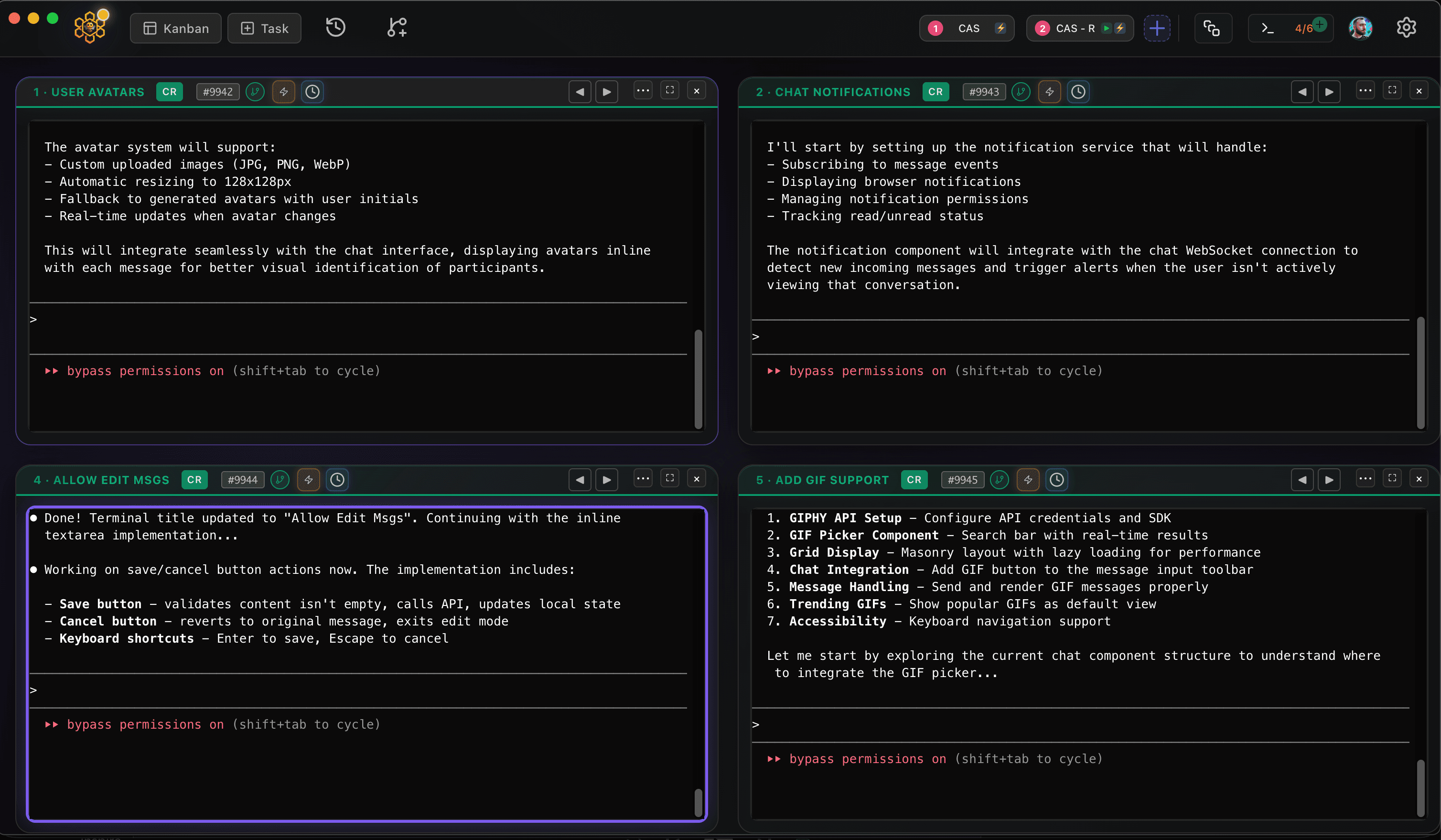
CodeAgentSwarm is a desktop app for exactly that, and it now runs on Linux as a .deb (Ubuntu, Debian and derivatives) or an AppImage (Fedora and most other distros), for x64 and ARM64. It puts several agent sessions side by side and adds desktop notifications when one finishes or needs input, searchable history across every session and a live diff of what each one changed. You can mix Cursor Agent with Claude Code, Codex and other agents in the same window.
Good next steps: the Cursor Agent swarm guide and the Cursor Agent CLI ACP guide, which explains how Chat works with Cursor.
Conclusion
On Linux, Cursor CLI is one curl command away. Use cursor-agent if another tool already owns agent, log in with NO_OPEN_BROWSER=1 on servers, and when a single terminal stops being enough, CodeAgentSwarm lets you run several at once.
FAQ
Does Cursor CLI work on Linux?
Yes. Cursor CLI (Cursor Agent) runs natively on Linux on x64 and ARM64. Cursor installs it with the same one-line script it uses for macOS and WSL.
How do I install Cursor CLI on Ubuntu?
Run "curl https://cursor.com/install -fsS | bash" in a terminal, open a new terminal and type "agent". If the command is not found, add ~/.local/bin to your PATH in ~/.bashrc.
Should I run agent or cursor-agent on Linux?
Both start the same program. agent is the primary name in Cursor's docs and cursor-agent is the legacy name. If another CLI such as Grok already owns agent, use cursor-agent.
Can I use Cursor CLI on a Linux server over SSH?
Yes. Run "NO_OPEN_BROWSER=1 agent login" and open the printed URL on any other device, or set the CURSOR_API_KEY environment variable with a user API key from the Cursor dashboard.
Does CodeAgentSwarm work on Linux?
Yes. CodeAgentSwarm runs on Linux as a .deb for Ubuntu, Debian and derivatives or as an AppImage for Fedora and most other distros, on x64 and ARM64. It uses your existing Cursor Agent install and lets you run several sessions in parallel.